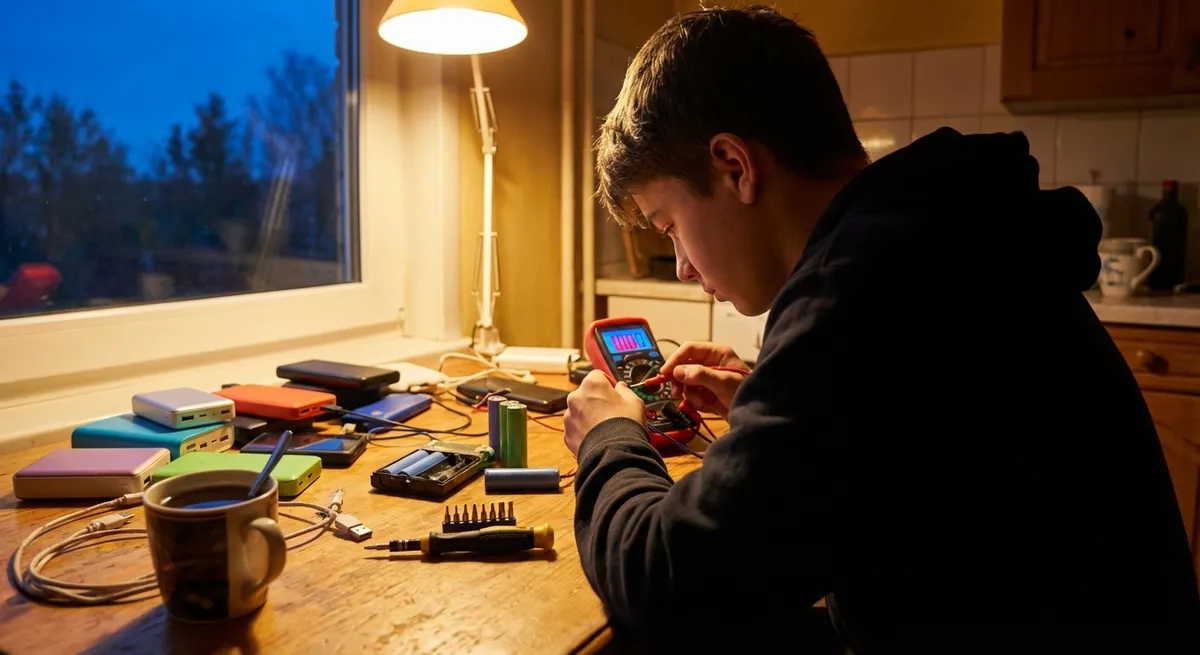
Electronics rarely fail at a “good” time—usually it’s right before a deadline, movie night, or a big call. The good news: a lot of common issues sound worse than they are. With a bit of care and the right approach, you can safely bring many devices back to life, or at least buy yourself time before a replacement or pro repair. This guide walks through five practical, step‑by‑step fixes that DIYers can use on everyday tech, without specialized tools or lab‑level skills.
Before You Start: Safety and Smart Limits
Before touching a screw or opening a case, set yourself up to repair safely and realistically.
- Unplug and power down everything. For battery-powered devices, fully shut them off before working. For anything that plugs into the wall, unplug it first. If it has a removable battery, take that out too.
- Avoid high-voltage systems. This guide is for low-voltage consumer electronics (laptops, phones, game consoles, routers, speakers, etc.). Do not open power supplies, microwave ovens, or anything tied directly to mains power if you’re not trained—those can store dangerous charge even when unplugged.
- Protect your data first. If a device still turns on (even intermittently), back up important files before experimenting. Use cloud backup, an external drive, or a USB stick.
- Use static-safe habits. Static discharge can quietly kill delicate components. If you’re opening a device, touch something grounded metal (like a plugged-in but switched-off metal appliance case) first, avoid working on carpet, and keep plastic packaging away from exposed boards. An inexpensive anti-static wrist strap is a great upgrade.
- Know when to stop. Burnt smells, visible charring, or swelling batteries (bulging phone backs, raised trackpad areas in laptops) are red flags. Don’t puncture or pry swollen batteries—store the device in a non-flammable place and seek professional help or recycling services.
With that in place, you’re ready to approach fixes methodically instead of guessing.
Tip 1: Revive “Dead” Devices with a Power Path Check
Many laptops, routers, monitors, and game consoles that appear “dead” are just stuck somewhere along the power path. Walk through this sequence before assuming the worst.
- Test the outlet and strip. Plug a known-working lamp or charger into the same outlet and any power strip involved. If only some sockets work, move your device to a confirmed-good outlet.
- Inspect the power brick and cable. Feel along the cable for kinks, soft spots, or sections that get hot. Flex the cable gently while plugged in and watch for power LEDs flickering—this often reveals broken conductors inside the insulation.
- Look for power indicators. Many devices have a tiny LED on the power brick and another on the device. Confirm:
- Brick LED is solid (not blinking or off).
- Device LED comes on or flashes when you press power.
If the brick LED is off while the outlet is good, the power adapter may be faulty.
- Bypass removable components. For laptops with removable batteries:
- Remove the battery.
- Plug in the charger and try powering on.
If it boots without the battery, the battery may be failing or shorting.
- Hard reset the device.
- Laptops: Disconnect power, remove battery (if possible), hold power button for 15–30 seconds, then reconnect and try again.
- Game consoles and streaming boxes: Unplug for at least 60 seconds to fully discharge internal capacitors, then plug in and power up.
- Try a compatible spare adapter. If you have a spare charger with the same voltage and equal or higher amperage and the same connector, test with that. Never improvise with mismatched voltages—too high can destroy components, too low can cause unstable behavior.
This straightforward power path check solves a surprising number of “dead” device problems and clearly separates an accessory failure (cheap and easy) from a deeper hardware issue.
Tip 2: Fix Loose or Intermittent Charging on Laptops and Phones
If you have to “hold the cable just right” for your device to charge, you’re dealing with either a failing cable, dirty port, or a damaged charging jack. Address them in that order—from simplest to most complex.
- Rule out a bad cable/charger.
- Try another known-good charger or cable on your device.
- Try your charger/cable on another compatible device.
If your device only charges with a different cable, you’ve found the culprit.
- Inspect and clean the charging port.
- Shine a flashlight into the port (USB-C, Lightning, micro-USB, or barrel jack).
- Look for lint, dust, or corrosion (green/white residue).
- Power the device off completely.
- Use a wooden or plastic toothpick or a soft brush (like a small paintbrush) to gently lift out lint and debris. Avoid metal tools that can short contacts.
- For stubborn grime on non-exposed contacts, a small amount of 90%+ isopropyl alcohol on a lint-free swab can help. Let it dry completely.
- Check for mechanical looseness.
- Insert the plug and gently move it up/down and side-to-side.
- If the plug moves excessively or connection drops with tiny movements, the port itself may be cracked or desoldered from the board.
- Support weak ports (temporary workaround).
- If the port is slightly loose but still works, you can:
- Use a short, snug-fitting cable and secure it with a small strip of painter’s tape to avoid stress on the port.
- Place the device where the cable isn’t pulled or bent.
This doesn’t fix the port but may extend its life until a pro repair.
- When to consider DIY port replacement.
- On some phones and many laptops/tablets, the charging port is on a small daughterboard connected by a cable, not soldered directly to the main board.
- If you can find a detailed teardown guide for your exact model, replacement may be within reach if you’re comfortable:
- Removing covers and screws.
- Disconnecting ribbon cables.
If the port is soldered directly to the main board, it generally requires micro-soldering and is best left to specialists.
Tackling charging issues early can save both your data and your battery, as inconsistent power can stress internal components over time.
Tip 3: Rescue Overheating Laptops with a Cooling System Clean-Up
An overheating laptop that gets noisy, slows down, or suddenly shuts off is often clogged with dust rather than “too old.” A carefully targeted clean can restore performance and extend its life.
- Confirm overheating behavior.
- Symptoms include:
- Fan running loudly even at idle.
- Bottom of the laptop getting very hot.
- Random shutdowns during games or video editing.
- Optional: use a monitoring tool (like HWMonitor or your OS’s built-in temperature monitor) to see CPU/GPU temps.
- Try an external airflow fix first.
- Use the laptop on a hard, flat surface—not beds, couches, or carpets.
- Elevate the back edge with a small stand, book, or cooling pad to improve airflow to underside vents.
- Clean vents and fans from the outside.
- Power down and unplug the laptop.
- If the battery is removable, take it out.
- Use short bursts of compressed air at an angle into the intake and exhaust vents (usually on the sides or bottom).
- Keep the fan from overspinning: insert a toothpick or plastic tool through the vent to gently hold the fan blades while blowing air. Overspinning can damage the bearings.
- Inspect air intake paths.
- Check that vents aren’t blocked by stickers, dust filters, or desk clutter.
- If the laptop has removable bottom panels, follow manufacturer instructions to remove them and blow dust directly off the fan and heatsink fins.
- Consider deeper maintenance (advanced).
- For older laptops, dried-out thermal paste between the CPU/GPU and heatsink can cause overheating.
- Replacing thermal paste requires:
- Full disassembly down to the heatsink.
- Cleaning old paste with isopropyl alcohol.
- Applying new, thin, even paste.
- Only attempt this if you have a reliable model-specific guide and are comfortable tracking screws and reassembling.
- Re-test under load.
- After cleaning, run a typical heavy task (a game, HD streaming, or compiling) and monitor whether the fan noise decreases and shutdowns stop.
This maintenance is often more effective than “software cleaning” utilities and can delay the expense of a new laptop by years.
Tip 4: Solve “No Sound” Problems on TVs, Monitors, and Speakers
Dead sound on TVs, monitors with speakers, or external speaker sets is frequently a configuration or connection issue, not a blown amplifier. A consistent diagnostic routine helps narrow it down quickly.
- Start with obvious (but easy-to-miss) checks.
- Confirm volume isn’t muted and is turned up on:
- The device (TV, computer, console).
- The speakers or sound bar (if they have volume controls).
- Check any physical mute buttons or headphone jacks—some devices mute speakers when a plug is partially inserted.
- Check the audio source and path.
- Test with another source:
- Different HDMI input on the TV.
- Different app or video on your computer.
- If sound works from one source but not another, the issue is likely in the source device or its settings, not the speakers.
- Inspect and re-seat cables.
- For analog audio (3.5 mm or RCA cables), fully unplug and replug both ends.
- For digital audio (HDMI, optical, or DisplayPort):
- Use a known-good cable if possible.
- Ensure cables click securely into place.
- Avoid running audio cables tightly alongside power cords to reduce noise and intermittent dropouts.
- Verify audio settings on the device.
- On TV/monitor:
- Open audio settings, confirm:
- Correct audio output (internal speakers vs. external/optical/HDMI ARC).
- Audio format your speakers support (PCM is the most compatible).
- On computers:
- Open sound settings and confirm:
- The right output device is selected.
- Output isn’t set to a disconnected HDMI or Bluetooth device.
- Test speakers independently.
- Connect speakers to a smartphone or another device via a simple analog connection (if they have one).
- If they work in that scenario, the issue lies upstream with the TV/computer or cables.
- Identify hardware failure clues.
- Persistent crackling, distortion at low volume, or a buzzing sound when nothing is playing can point to failing speaker drivers or amplifier hardware.
- If only one channel works (left or right), and you’ve already swapped cables and sources, an internal connection or the driver itself may be failing.
By systematically testing each piece of the audio chain, you often avoid unnecessary replacements and can pinpoint whether you need new speakers, a different cable, or just a setting change.
Tip 5: Bring “Water-Exposed” Electronics Back from the Brink
Spills and brief submersion don’t always mean instant death for electronics—but your response in the first few minutes often decides the outcome. The goal is to stop current flow and encourage controlled drying.
- Kill power immediately.
- Unplug devices from the wall.
- Turn off battery-powered devices; never press buttons repeatedly.
- If the battery is removable (older phones, some laptops, cameras), remove it as quickly and gently as possible.
- Remove everything you can safely detach.
- Take off cases and covers.
- Remove SIM trays, memory cards, and accessories.
- For laptops, remove the bottom panel if it’s easily accessible and you’re comfortable doing so.
- Gently drain and blot.
- Hold the device so water can escape naturally—ports facing down.
- Gently blot (don’t wipe hard) with absorbent cloth or paper towels to remove surface moisture.
- Avoid using heat sources like hair dryers or ovens; these can warp plastics or force moisture deeper into the device.
- Encourage airflow and patient drying.
- Place the device in a dry place with good airflow (near but not directly on a fan).
- Silica gel packets (the “do not eat” sachets from packaging) in a sealed container can help absorb moisture.
- Common kitchen rice is less effective and can leave dust, but in a pinch, it’s better than sealing a damp device with no desiccant.
- Wait longer than you want to.
- A safe minimum is 24–48 hours for brief splashes, longer for full submersion.
- Resist the urge to “test quickly” during the drying process—turning it on too soon is what often causes permanent damage by shorting wet components.
- Inspect before re-powering.
- If you opened the case, look for:
- Visible moisture.
- Corrosion (white or green residue on contacts).
- If you see corrosion, dab gently with 90%+ isopropyl alcohol and let dry.
- Power up cautiously.
- Reassemble components.
- Power on without connecting to chargers or accessories first.
- If it powers on and seems stable, then test charging and external ports.
Even if the device comes back, water exposure can shorten its long-term life. Make a quick backup of important data as soon as it’s functional again, in case problems appear later.
Conclusion
Most everyday electronics failures trace back to a handful of root causes: power delivery trouble, heat buildup, mechanical wear on ports, cable issues, and the occasional spill. Learning a few careful, step-by-step checks can turn panic into a manageable to-do list—test outlets, inspect cables, clean ports and vents, and only then consider deeper surgery or professional help. The more methodically you approach a fault, the better your chances of saving the device, your data, and your budget. And every successful fix builds confidence for the next time something goes dark, overheats, or refuses to charge.
Sources
- [U.S. Consumer Product Safety Commission – Electrical Safety Tips](https://www.cpsc.gov/safety-education/safety-guides/electrical) - Guidance on safe handling of electrical devices and avoiding shock and fire hazards
- [Apple Support – If your iPhone, iPad, or iPod touch gets wet](https://support.apple.com/en-us/HT204104) - Official recommendations on dealing with liquid exposure in mobile electronics
- [HP Support – Reducing Heat Inside the PC to Prevent Overheating](https://support.hp.com/us-en/document/c01657439) - Explains causes of overheating and practical cleaning/cooling steps for laptops and desktops
- [Dell Support – Laptop Does Not Power On](https://www.dell.com/support/kbdoc/en-us/000132453/laptop-does-not-turn-on-or-boot-into-windows) - Shows a structured approach for diagnosing power and startup issues
- [Microsoft – Fix sound or audio problems in Windows](https://support.microsoft.com/en-us/windows/fix-sound-or-audio-problems-in-windows-10-73025246-b61c-40fb-671a-2535a2c0dcde) - Walks through common software and configuration causes of “no sound” issues
Key Takeaway
The most important thing to remember from this article is that this information can change how you think about Electronics.



