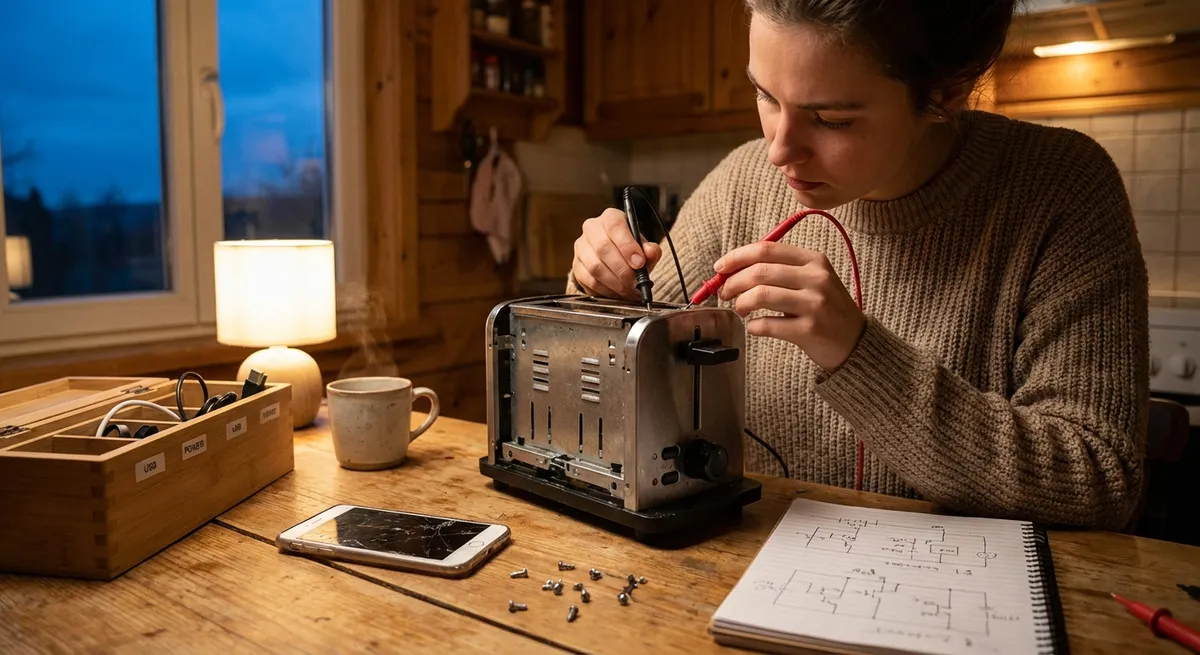
Electronics rarely fail out of nowhere—most “dead” devices are just one simple issue away from working again. Before you toss a gadget or pay for a repair, a smart, methodical check can save you money and frustration. This guide walks through five practical, step‑by‑step troubleshooting moves that apply to many devices: laptops, game consoles, TVs, speakers, and more. Use them as your go‑to playbook whenever something stops responding, won’t turn on, or starts acting strangely.
Start With Power: Safely Tracing the Energy Path
Most electronics problems are power problems in disguise. Before assuming anything is “fried,” walk through the entire path from the wall outlet to the device.
- Verify the outlet.
Plug in a known working device (like a lamp or phone charger). If that doesn’t power up, reset the breaker, check for a wall switch that controls the outlet, or move to a different outlet.
- Inspect the power cable and adapter.
Look for cuts, kinks, fraying, burn marks, or a loose plug. Gently wiggle each end while watching for flickering LEDs or intermittent power. If the adapter is detachable (like on many laptops), reseat all connections firmly.
- Check for external power switches and reset buttons.
Some speakers, monitors, and power strips have rear or side switches. Make sure they’re on. If there’s a reset button on a surge protector or power strip, press it firmly until it clicks.
- Test with a different cable or adapter if possible.
Use a compatible spare from another device (check voltage and connector type). If your device comes back to life, you’ve found the culprit.
- Look for battery vs. AC behavior.
For laptops or battery‑powered gear, note whether it runs on battery but not on AC, or vice versa. That can point to a dead charger, a failing battery, or a loose DC jack.
Slow, deliberate power checks often fix the “it just stopped working” mystery without opening the device at all.
Clean Connections: Restoring Signal Without Replacing Parts
Dust, oxidation, and loosened plugs can knock out video, audio, or data. Before assuming a major failure, refresh every connection the device relies on.
- Unplug everything before cleaning.
Turn the device off and disconnect it from power. For laptops and handhelds, remove the battery if it’s accessible.
- Reseat cables at both ends.
For HDMI, USB, audio jacks, and network cables: unplug, inspect, and plug back in firmly until you feel or hear a click. Slightly misaligned plugs are a common source of “no signal” symptoms.
- Clean ports and plugs.
- Use a dry, soft brush or compressed air to blow out dust (short bursts, can upright).
- For metal contacts, lightly wipe with a lint‑free cloth.
- Avoid liquid cleaners inside ports; if you must use isopropyl alcohol (90%+), apply sparingly to a cloth, not directly into the port.
- Check for bent pins.
Older VGA connectors, some charging ports, and certain data connectors can have tiny pins. Shine a flashlight in and look for bent or missing pins. Minor bends can sometimes be gently corrected with a toothpick or fine tweezers; if pins are broken, replacement is usually required.
- Simplify the signal path.
Bypass adapters and hubs where possible. Connect the device directly to the TV, router, or PC. If that works, reintroduce components one at a time to identify the weak link.
Connection issues often look like major failures (no picture, no sound, random disconnects) but usually resolve with careful cleaning and reseating.
Use a Safe Reset Strategy Before You Assume It’s Broken
Glitches, frozen screens, and apps that won’t load are often software issues, not hardware damage. A structured reset approach can clear many problems without losing data—or your patience.
- Soft reset (basic restart).
- For most devices: power off normally, wait 30 seconds, then power back on.
- Unplug desktop devices from the wall, wait a minute, then plug back in.
- Forced reboot for frozen devices.
Check the manufacturer’s method (often holding the power button for 10–15 seconds). This cuts power without opening the case. Use this when a normal shutdown isn’t possible.
- Clear temporary memory.
- For smart TVs, streaming sticks, and routers, look for “Restart,” “Reboot,” or “Reset Network” options in settings.
- For phones and tablets, close all apps and restart to clear cached processes.
- Check and update firmware or software.
Connect to Wi‑Fi and look in Settings for “Software Update,” “System Update,” or “Firmware Update.” Many stability and performance issues disappear after updates are installed.
- Factory reset as a last resort.
Only after backing up important data: photos, documents, configuration settings. Use the device’s built‑in reset option, then set it up fresh. If a factory reset doesn’t fix repeated crashes or freezes, you may be dealing with a true hardware fault.
By escalating your reset steps gradually, you minimize the risk of losing data while still giving the device a fair chance to recover.
Control Heat: Basic Cooling Fixes That Extend Device Life
Overheating can cause sudden shutdowns, throttled performance, loud fans, and even permanent damage. Preventive cooling maintenance is one of the most valuable DIY skills for any electronics user.
- Shut down and unplug first.
Let hot devices cool for at least 10–15 minutes before handling.
- Inspect ventilation paths.
Look for vents on the sides, back, or bottom of laptops, consoles, and set‑top boxes. If they’re covered in dust or lint, airflow is compromised. Never block vents with pillows, blankets, or stacked devices.
- Clean vents and fans externally.
Use compressed air in short bursts, keeping the can upright. Blow air across vents, not directly into them continuously—excessive pressure can spin fans too fast and damage bearings. Wipe grilles gently with a dry cloth.
- Improve airflow around the device.
- Move devices out of enclosed cabinets if possible.
- Give at least a few inches of clearance around all sides.
- For laptops, use a hard, flat surface instead of soft bedding or couches.
- Monitor behavior after cleaning.
If the device runs cooler, fans are quieter, and shutdowns stop, you likely solved the issue. If overheating continues, internal cleaning or fresh thermal paste may be needed—work best left to experienced DIYers or professionals.
Keeping electronics cool doesn’t just solve current problems; it dramatically improves their lifespan and reliability.
Step‑By‑Step: Safe First Checks Inside a Device (For Confident DIYers)
Some issues require a quick look inside—loose boards, disconnected cables, or obvious damage. If you’re comfortable and the device is out of warranty, you can do a basic internal inspection with care.
- Confirm safety and warranty status.
- Unplug from power and remove batteries.
- Press and hold the power button for 10 seconds to discharge residual energy.
- Check your warranty terms: opening some devices voids coverage.
- Gather basic tools.
A small Phillips screwdriver, a plastic spudger or guitar pick, and a container for screws are usually enough for simple inspections. Avoid metal prying tools that can slip and damage boards.
- Open slowly, following a guide.
Look up a model‑specific teardown or disassembly guide from a reputable source. Remove screws methodically, noting their locations. Gently separate panels without forcing them—if it resists, you may have missed a screw or clip.
- Look for obvious issues you can fix without soldering.
- Loose ribbon cables: press connectors back into their sockets evenly.
- Unseated memory or plug‑in boards: push until their retaining clips click.
- Foreign objects: remove any debris carefully.
- Stop if you see components you don’t understand.
Burn marks, bulging or leaking capacitors, and damaged traces call for professional work or advanced DIY skills. Don’t poke with metal tools or fingers; document with photos and seek expert advice.
A gentle internal inspection can solve “mystery” failures caused by nothing more than a loose connector, while staying within a safe DIY skill level.
Conclusion
Most electronics problems have simple roots: interrupted power, dirty connections, software glitches, poor cooling, or a connection that’s shaken loose. By tackling those basics in a structured, step‑by‑step way, you can revive many devices without special tools or advanced skills—and avoid unnecessary replacements. The next time a gadget acts up, work through these checks methodically before giving up on it. You’ll save money, extend the life of your gear, and build real confidence as a DIY troubleshooter.
Sources
- [U.S. Consumer Product Safety Commission – Electrical Safety](https://www.cpsc.gov/safety-education/safety-guides/electrical) - Guidance on safe handling of electrical products and avoiding hazards when working with electronics
- [U.S. Department of Energy – Home Electronics and Energy Use](https://www.energy.gov/energysaver/home-electronics-and-energy-savings) - Background on how electronics operate in the home environment, including power considerations
- [Apple Support – If Your Mac Doesn’t Turn On](https://support.apple.com/en-us/HT204267) - Practical example of structured power and reset troubleshooting steps from a major manufacturer
- [Microsoft Support – Troubleshoot Overheating and Poor Performance](https://support.microsoft.com/en-us/windows/troubleshoot-overheating-and-poor-performance-0c4b1c60-8887-42bb-9abc-9e5a3f9c3a37) - Details on heat‑related performance problems and basic cooling actions
- [iFixit – Electronics Repair Guides](https://www.ifixit.com/Device) - Model‑specific disassembly and inspection guides that illustrate safe internal checks for many devices
Key Takeaway
The most important thing to remember from this article is that this information can change how you think about Electronics.



