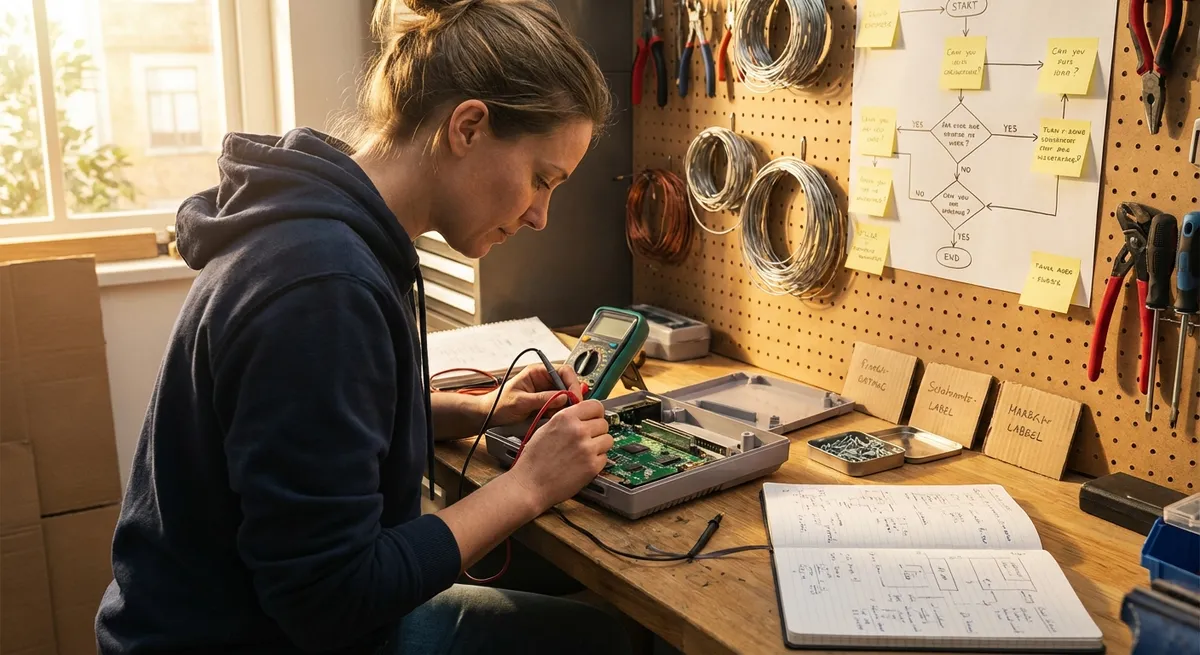
If you’ve ever stared at a dead laptop, glitchy TV, or silent Bluetooth speaker wondering, “Is this really trash now?”—this guide is for you. Instead of random guessing or buying a replacement, you’ll walk through clear, step‑by‑step checks that often revive everyday gadgets. These are practical repair workflows that DIYers can follow with basic tools, not advanced electronics engineers.
Whether you’re trying to stretch your budget, cut e‑waste, or just hate giving up on broken gear, these five repair sequences will help you approach electronics problems calmly and systematically.
Safety and Setup: How to Prepare Before You Open Anything
Before you grab a screwdriver, get your safety and workspace right. This makes repairs smoother, safer, and less likely to break things further.
Unplug and power down fully
Always disconnect from wall power, turn the device off, and remove batteries if possible. For laptops and phones, shut down completely—not just sleep mode. Capacitors inside power supplies can hold a charge; avoid opening power bricks or high‑voltage sections unless you’re trained.
Set up a clean, static‑safe workspace
Work on a non‑conductive surface (wood, cardboard, or an ESD mat). Avoid carpets. If you have an anti‑static wrist strap, clip it to a grounded surface. At minimum, touch a grounded metal object (like a plugged‑in PC case that’s turned off) before handling circuit boards to discharge static.
Gather basic tools you’ll actually use
A solid starter kit includes: - Precision screwdriver set (Phillips, flat, Torx, pentalobe for phones) - Plastic prying tools/spudgers and guitar picks - Tweezers and small needle‑nose pliers - Multimeter (for continuity, voltage, basic diagnostics) - Isopropyl alcohol (≥90%) and lint‑free swabs - Small containers or a magnetic mat for screws
Document as you go
Take photos at every stage before unplugging cables or removing parts. This makes reassembly much easier and prevents “mystery screws” at the end.
Know when to stop
If you see swollen capacitors in a power supply, scorch marks around high‑voltage components, or sealed lithium batteries that are bulging, do not poke further. Some problems are better handled by professionals or by replacing the unit, especially where fire or shock risks are involved.
Step‑By‑Step Tip 1: Revive Devices That “Won’t Turn On” (Power Path Check)
Many “dead” electronics aren’t actually dead—the power just isn’t getting where it needs to go. This workflow applies to laptops, game consoles, monitors, routers, and even some TVs.
Rule out the obvious power issues first
- Try a different outlet that you know works (test with a lamp). - Inspect the power strip or surge protector; bypass it completely to test. - Check for loose plugs at both wall and device ends.
Inspect the power cable and adapter
- Look for frayed insulation, kinks, burn marks, or bent pins. - For laptops, confirm the power brick indicator light comes on. - If you have a multimeter, measure the adapter’s output voltage and compare it to the label. No output or way off spec usually means the adapter is the culprit.
Check for “signs of life” on the device
- Any lights flickering briefly? Fan spin for a second? Sound of a drive starting? - This hints the device sees power but may be failing at a later stage, like the main board or display.
Perform a basic power reset
- For laptops: unplug, remove the battery (if removable), then hold the power button for 10–20 seconds to discharge residual power. Reconnect only the charger and try powering on. - For game consoles or routers: unplug completely, wait at least 30 seconds, then plug back in. Some devices benefit from a longer 5–10 minute unplug to fully drain.
Inspect internal power connections (if you’re opening the case)
- Ground yourself first. - Check that the internal power connector (DC jack, ribbon cable from power board, etc.) is firmly seated. - On desktops or some TVs, gently press on cable connectors to confirm they haven’t loosened from vibration or movement.
If an external adapter tests bad but the device looks clean and undamaged, replacing the adapter is a relatively safe, low‑risk repair. If the adapter is fine and there’s still no signs of life, the failure may be on an internal power board or main board—still repairable, but usually more advanced than a first DIY project.
Step‑By‑Step Tip 2: Fix Sticky Keys and Unresponsive Buttons
Unresponsive controls are often mechanical, not electronic. Cleaning or reseating buttons can bring life back to keyboards, TV remotes, game controllers, and some portable speakers.
Narrow down the scope of the problem
- On keyboards: Is it a single key, a row, or the whole board? Single‑key issues are usually dirt or a worn switch. Entire sections hint at a ribbon cable problem. - On remotes or controllers: Are only a few buttons dead? That often means dirty contacts under the rubber pad.
Start with non‑invasive cleaning
- For keyboards, turn it upside down and gently shake or tap to dislodge crumbs. - Use compressed air between keys. - For remotes/controllers, wipe the surface with a lightly dampened cloth (water plus a tiny amount of mild soap), avoiding soaking the battery compartment.
Disassemble for internal cleaning when needed
- Remove batteries or disconnect power. - Use the right screwdriver to avoid stripping screws. Some remotes hide screws under labels or battery stickers. - Carefully separate plastic shells with a plastic spudger to avoid cracking clips.
Clean contact surfaces properly
- For membrane remotes/controllers: - You’ll see a rubber keypad with conductive pads on the underside and a printed circuit board with matching contacts. - Dip a cotton swab in isopropyl alcohol and gently clean both the rubber pads and PCB contacts. Let dry fully. - For mechanical keyboard switches: - A keycap puller helps remove keycaps. - Use compressed air and a soft brush to remove debris. - For sticky switches, a tiny amount of contact cleaner (specifically for electronics) can help, but avoid flooding.
Reassemble and test in stages
- For remotes, test before fully snapping the case together by holding it closed by hand and pressing a few buttons. - For keyboards, test in a simple text editor to confirm each key registers correctly.
If certain keys or buttons still refuse to work after cleaning, the underlying switch or contact pad may be worn out. For high‑value devices (like mechanical keyboards or premium controllers), individual switch or button replacement may be worth it; for budget remotes, a low‑cost replacement might make more sense.
Step‑By‑Step Tip 3: Rescue Overheating Laptops and Consoles with Airflow Fixes
Unexpected shutdowns, loud fans, and hot surfaces are classic signs of overheating. Dust build‑up is one of the most common, fixable causes inside laptops, desktops, gaming consoles, and even some smart TVs.
Confirm you’re dealing with a heat issue
- Symptoms include: fans running at full speed constantly, hot air (or no air) from vents, random shutdowns under load (gaming, video editing, streaming). - On computers, use a free monitoring tool (like HWMonitor or your OS’s built‑in tools) to check CPU/GPU temperatures before teardown.
Clean external vents first
- Power down and unplug the device. - Use a soft brush to loosen dust around vents. - Blow short bursts of compressed air across (not directly into) vents, aiming to push dust out, not deeper in.
Open the case for internal cleaning (if accessible)
- Follow a model‑specific guide from a reputable repair site or the manufacturer whenever possible. - Once open, locate the fan(s), heat sink, and air channels. Dust often forms dense mats on the heat sink fins and fan blades.
Remove dust carefully and methodically
- Hold the fan blades still with a plastic tool while using compressed air, to avoid spinning them at high speed and damaging bearings. - Use soft, anti‑static brushes to lift dust off heat sink fins. - Vacuum only around the area with a brush attachment, never directly on the board, and avoid touching components with the nozzle.
Improve long‑term airflow and heat transfer
- For laptops, ensure the vents are never blocked by soft surfaces (beds, couches). Use a hard surface or cooling pad. - If you’re comfortable and the device is older, consider replacing thermal paste between CPU/GPU and heat sink following a model‑specific guide. This is more advanced but can significantly improve cooling in aging systems. - Reassemble carefully, making sure no cables are pinched and all screws are back in their original positions.
Restored airflow can transform a “dying” laptop or console into a reliable device again. If temperatures remain dangerously high after thorough cleaning, the fan itself, thermal paste, or internal sensors may need replacement.
Step‑By‑Step Tip 4: Restore Sound to Silent Speakers, Headphones, and TVs
Silence (or one‑sided audio) can stem from software settings, cables, or physical damage. Systematically checking each part of the audio chain avoids guesswork.
Check software and source first
- Confirm volume is up both on the device and within your app/OS. - Make sure mute toggles aren’t active. - Test with multiple apps or sources (streaming, local files, a different channel/input) to rule out content‑specific issues.
Inspect and swap cables and ports
- Wiggle audio jacks gently—if audio cuts in and out, the jack or cable might be loose or worn. - Try a different cable (aux, HDMI, optical, or USB) if available. - On TVs and soundbars, test alternate input ports (HDMI 2 instead of HDMI 1, for example).
Test with headphones or alternate speakers
- If the TV’s speakers are silent but headphones work in the headphone jack, the problem may be in the internal speakers or their connections. - On computers, if external speakers are dead but headphones work, the speaker cable or amplifier section is the likely issue.
Inspect physical speakers for damage
- For removable speaker grilles, gently remove and look for torn cones, foreign objects, or water damage. - On headphones, check for kinks in the cable, bent plugs, or loose earcups. - Gently press around the cable strain reliefs near plugs and earcups while playing audio to detect intermittent breaks.
Open and repair simple speaker issues when safe
- For wired headphones and basic speakers (not sealed, waterproof designs): - You can often open the earcup or speaker housing with small screws or by carefully prying seams. - Inside, look for broken solder joints where the cable meets the driver. - Reflowing a cracked solder joint or replacing a damaged cable is a common DIY audio repair with basic soldering skills. - For TVs and soundbars, internal speaker replacement is sometimes straightforward if you can source matching parts, but opening these devices may void warranties and requires more care.
If you narrow the issue to internal amplifier circuits or complex digital audio boards, those repairs often require specialized equipment and schematics. At that point, weigh the cost of parts and professional labor against replacement.
Step‑By‑Step Tip 5: Bring Flickering Screens and Loose Ports Back to Life
Flickering displays, “no signal” messages, or flaky USB/charging ports often come from loose connections that you can fix with careful inspection and reseating.
Differentiate between display, cable, and device issues
- For monitors and TVs, test with another device (different laptop, media box, or console). - For laptops, connect to an external display. If the external screen is fine but the laptop screen flickers, the internal display cable or panel is suspect. - For phones/tablets, test different charging cables and chargers to see if the issue follows the port or the accessories.
Inspect ports for debris and damage
- Shine a flashlight into USB, HDMI, and charging ports. Look for lint, bent pins, or corrosion. - Remove lint gently using a wooden or plastic toothpick—never metal tools that can short pins. - For corrosion (often green or white deposits), a cotton swab slightly dampened with isopropyl alcohol can help, but avoid soaking.
Stabilize and test for loose connections
- Wiggle the cable gently while connected. If the connection drops in and out, the port’s internal solder joints or mechanical structure may be loose. - Try holding the plug at slight angles (up/down/left/right); consistent dropouts in one direction strongly suggest a worn port.
Open the device to reseat cables (where feasible)
- For laptops and monitors: - Disconnect power and battery if possible. - Remove the back cover using proper tools. - Locate ribbon cables for the display and input boards. Unlock their connectors (usually by flipping up a small latch), gently remove the ribbon, inspect for damage, then reseat fully and relock. - For external monitors and TVs, input boards with HDMI/DisplayPort may be connected via ribbon cables or plug‑in connectors that can work loose over time.
Evaluate whether port replacement is within your skill range
- Charging and USB ports are often soldered directly to the board. Replacing them requires good desoldering and soldering technique and sometimes hot air tools. - On some devices (especially certain laptops and game consoles), ports sit on small, removable daughterboards connected by a cable. These are much easier to replace and good beginner‑intermediate projects. - If a port is physically torn off, or you see lifted pads/traces on the circuit board, that’s usually a job for a professional repair shop.
Properly reseated ribbons and cleaned ports can solve many flaky display and charging issues without needing new parts. If problems persist after cleaning and reseating, you may be dealing with a failing cable, port, or display panel that needs replacement.
Conclusion
Repairing electronics doesn’t have to mean guessing what’s wrong or diving straight into complex board‑level soldering. By following clear step‑by‑step routines—checking power paths, cleaning and resetting buttons, restoring airflow, tracking audio from source to speaker, and carefully inspecting ports and cables—you can solve many everyday failures with basic tools and a bit of patience.
Use these workflows as templates: slow down, troubleshoot systematically, document as you go, and stop when a repair crosses your safety or comfort line. Each device you save from the trash not only saves you money, it builds your confidence for the next, slightly tougher fix on your repair bench.
Sources
- [U.S. Consumer Product Safety Commission – Product Safety for Consumers](https://www.cpsc.gov/Safety-Education/Safety-Guides/generalinformation) - Guidance on safely working with consumer products, including electronics
- [iFixit – Repair Guides](https://www.ifixit.com/Guide) - Step‑by‑step teardown and repair instructions for thousands of electronics models
- [Occupational Safety and Health Administration (OSHA) – Electrical Safety](https://www.osha.gov/electrical-safety) - Official recommendations for avoiding electrical hazards while working on devices
- [Apple Support – Cleaning your Apple products](https://support.apple.com/en-us/102656) - Practical, manufacturer‑approved cleaning practices that also apply broadly to other brands
- [Microsoft Support – Troubleshoot problems with a laptop display](https://support.microsoft.com/en-us/windows/troubleshoot-screen-flickering-in-windows-10-3a9a303a-5f5b-4b96-0b35-4c972f1c2a2c) - Example of systematic steps for diagnosing flickering and display issues
Key Takeaway
The most important thing to remember from this article is that this information can change how you think about Electronics.



