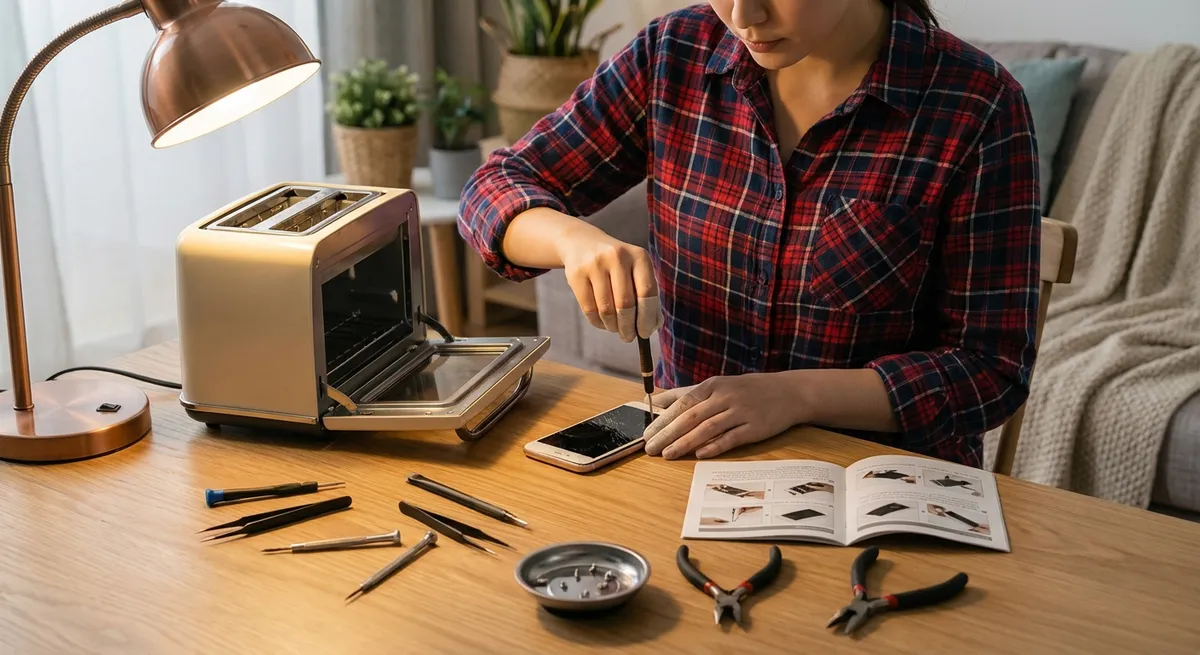
Electronics fail at the worst possible moment—right before a big presentation, mid-movie, or when you finally sit down to game. You don’t always need a new device or an expensive repair visit, though. With a few basic tools and a methodical approach, you can safely revive a surprising number of “dead” gadgets at home.
This guide walks through five practical, step‑by‑step repair workflows DIYers can use again and again on different electronics. They’re not brand‑specific “hacks”—they’re solid troubleshooting patterns you can adapt to laptops, game consoles, speakers, routers, and more.
Tip 1: When a Device Won’t Power On – The Systematic “Power Path” Check
If a gadget shows no lights, no sound, and no response at all, don’t assume it’s dead. Many “dead” devices are saved by tracking power from the wall all the way to the circuit board.
Step 1: Verify the outlet and power strip
- Plug in a known‑working device (like a phone charger) to the same outlet.
- If you’re using a power strip or surge protector, check its switch and reset button, and test another outlet.
- For switched outlets (common with wall switches), flip nearby switches and retest.
Step 2: Inspect the power cable and connector
- Look for frayed insulation, kinks, crushed sections, or exposed wire.
- Wiggle the cable near each end while gently attempting to power on—intermittent behavior points to a damaged cable.
- Replace with a compatible spare if you have one (match voltage, polarity, and plug size on DC adapters).
Step 3: Check the external power adapter (brick)
- Feel the adapter: slightly warm is normal during use; ice‑cold even after being plugged in for a while can mean it’s not working.
- Look for indicator LEDs on the brick; no light can signal failure.
- If possible, measure the output with a multimeter set to DC volts and compare it to the printed rating (e.g., “Output: 12V DC”). Anything wildly off is a red flag.
Step 4: Examine the device’s power jack
- Use a flashlight to look into the jack: check for bent pins, debris, or corrosion.
- Gently test if the jack feels loose when you insert the plug. A wobbly jack may have broken solder joints inside.
- Avoid forcing the connector; that can damage the jack further.
Step 5: Perform a safe internal visual inspection (if you’re comfortable and it’s out of warranty)
- Unplug from power, remove batteries, and hold the power button for 10–15 seconds to discharge residual energy.
- Open the device using the correct screwdriver bits; keep track of screw locations.
- Look for obvious problems: blown or bulging capacitors (tops domed instead of flat), burn marks, or loose connectors.
- Reseat internal power connectors (plug them out and back in) firmly but gently.
- Reassemble and test. If there’s still no life and no obvious damage, professional diagnosis is usually the next step.
Tip 2: Fixing Overheating and Random Shutdowns with Deep Cleaning
Overheating is one of the most common and most fixable causes of crashes, shutdowns, and sluggish performance in laptops, desktops, game consoles, and streaming boxes.
Step 1: Confirm it’s likely heat‑related
- Notice if the device gets very hot to the touch or the fan runs at full blast.
- Watch for shutdowns during high‑load tasks like gaming or video editing.
- If the device works again after cooling down, overheating is a strong suspect.
Step 2: Power down and prep safely
- Shut the device down fully (not just sleep).
- Unplug from power and remove the battery if it’s removable.
- Press and hold the power button for 10–15 seconds to discharge remaining power.
Step 3: Clear external vents and filters
- Use a can of compressed air to blow dust out of vents. Short bursts are safer than long blasts.
- Hold the fan blades still with a toothpick or plastic stick while blowing air to avoid overspinning and damaging the bearings.
- Work in a well‑ventilated area; dust clouds can be intense.
Step 4: Open the case for internal dust removal (when possible)
- Remove access panels (on laptops, often labeled for RAM or storage; some have full bottom covers).
- Gently blow dust off heat sinks, fans, and circuit boards. Keep the can upright to avoid spraying liquid propellant.
- Use a soft, anti‑static brush to loosen stubborn dust clumps before blowing them away.
Step 5: Refresh thermal paste if temperatures are still high
This is more advanced but very effective for older machines.
- Remove the heat sink that sits on the CPU or GPU (note screw order and pattern).
- Clean old thermal paste from both surfaces with isopropyl alcohol (90% or higher) and a lint‑free cloth or coffee filter.
- Apply a small pea‑sized dot of new thermal paste to the center of the chip.
- Reinstall the heat sink evenly, tightening screws in a diagonal pattern.
- After reassembly, monitor temperatures with software tools (e.g., HWMonitor or Core Temp on Windows) to confirm improvement.
Tip 3: Reviving Unresponsive Buttons and Keypads
Remote controls, game controllers, and some handheld devices often fail because of dirty or worn buttons—not because the electronics are dead.
Step 1: Confirm the problem is the buttons, not the device
- Test the gadget with an alternative input if possible (e.g., TV with the front panel buttons or smartphone app instead of the remote).
- Check whether some buttons work while others don’t; that usually points to keypad issues, not a total failure.
Step 2: Open the device carefully
- Remove batteries or disconnect power.
- Look for screws hidden under labels, rubber feet, or battery stickers.
- If there are no screws, the case may use snap clips; gently pry along the seam with a plastic opening tool or guitar pick.
Step 3: Clean the contacts
- Inside, you’ll typically see a rubber keypad with conductive pads and a circuit board with matching contact points.
- Moisten a cotton swab with isopropyl alcohol and gently clean each contact on the circuit board.
- Wipe the black conductive pads on the underside of the rubber buttons as well.
- Let everything dry completely (alcohol evaporates quickly).
Step 4: Rebuild worn conductive pads (optional, if cleaning fails)
- If buttons still don’t work and the conductive pads look worn or shiny, you can try a keypad repair kit (conductive paint or stickers).
- Follow the kit’s instructions: usually you’ll apply a tiny dab or stick a small conductive disk on the worn pad.
- Allow the repair material to cure fully before reassembly.
Step 5: Reassemble and test
- Align the rubber keypad carefully with the housing so all buttons sit correctly.
- Snap or screw the case back together without overtightening.
- Reinstall batteries and test each button.
- If only one or two still misbehave, redo the cleaning or check for hairline cracks in the circuit traces near those buttons.
Tip 4: Recovering Devices with Data Port Issues (USB, HDMI, Charging Ports)
Loose, flaky, or non‑working ports are a frequent cause of “this thing is broken” complaints. Sometimes the fix is as simple as cleaning; other times it’s about stabilizing physical damage until a full repair is possible.
Step 1: Rule out the cable and the other device
- Test with another known‑good cable. Cheap or old cables fail more often than ports do.
- Test the same cable and accessory on a different device (another laptop, TV, or phone) to verify they work.
- Change ports on the same device if possible (e.g., try a different USB or HDMI port).
Step 2: Inspect and clean the port
- Use a bright light to look inside the port for bent pins, debris, or corrosion.
- For USB‑C, check for lint packed into the bottom; for HDMI, look for twisted pins.
- Power the device off and disconnect from mains before cleaning.
- Use a wooden or plastic toothpick to gently dislodge lint or debris—avoid metal tools.
- Follow up with a few short blasts of compressed air to clear out remaining dust.
Step 3: Stabilize a loose port externally
If the port works only when the cable is held a certain way:
- Avoid repeated wiggling; it can worsen the damage.
- For temporary use, position the cable so it’s not under tension and use non‑residue tape or a cable clip to hold it in place.
- Consider using a short extension cable: plug it in once gently, then leave the worn port alone and plug/unplug from the extension instead.
Step 4: Check for simple internal looseness (advanced)
On some devices with accessible motherboards:
- Open the case and locate the faulty port.
- Gently press the port toward the board while watching the solder joints around its pins. If it moves, you’ve likely got cracked solder.
- If you have soldering experience, you can reflow the joints: add a small amount of flux and carefully reheat each pin until the solder wets the pad again.
- If you don’t solder, stop here and consider a repair shop; excessive heat can lift pads and destroy the board.
Step 5: Use adapters or alternate pathways when repair isn’t practical
- For laptops with a dead USB port but working USB‑C or Thunderbolt, use a hub or adapter.
- For TVs with one bad HDMI, use another port and switch inputs in software.
- Many devices support wireless alternatives (Bluetooth controllers, wireless casting, network file transfer) that can buy time before a full hardware repair.
Tip 5: Diagnosing “No Sound” Problems in Speakers, Headphones, and Soundbars
Audio failures can come from anywhere in the chain: content, settings, software, cables, or the hardware itself. A structured approach avoids unnecessary part swaps.
Step 1: Simplify the audio chain
- Disconnect everything non‑essential: adapters, splitters, extra receivers.
- Test with a single, simple source—like a phone or laptop directly connected to speakers or headphones.
- Use a known‑good audio file or streaming source to avoid testing with a silent or corrupted track.
Step 2: Check permissions and software settings
- On computers, verify the output device selection (e.g., speakers vs. HDMI vs. headphones) in the OS sound settings.
- Make sure volume is up in three places: the app, the system, and the physical volume knob or buttons.
- On TVs and soundbars, check sound mode, mute status, and any “external speaker” vs “internal speaker” options.
Step 3: Inspect and test cables
- Look for kinks, compression damage, or plugs that don’t fully seat.
- Wiggle each end gently while playing audio; crackling or intermittent sound points to a failing cable or jack.
- Try another cable type if available (optical vs. HDMI ARC vs. analog) to isolate port vs. cable issues.
Step 4: Test each component alone
- Headphones: Try them on another device (phone, tablet, or laptop). If they’re silent there too, the issue is with the headphones.
- Speakers: If possible, feed them with a different source (like a phone’s headphone jack into an AUX input).
- Soundbars: Use Bluetooth input if they support it; if Bluetooth audio works but HDMI doesn’t, the HDMI path is the problem.
Step 5: Inspect hardware and internal connections (when accessible)
- For powered speakers or soundbars, unplug from mains before opening.
- Check for loose internal connectors between the input board, amplifier board, and speaker drivers. Reseat them firmly.
- Inspect speaker wires for breaks or frayed ends where they meet the terminals.
- If one speaker channel works and the other doesn’t, swap the left/right wires at the amp:
- If the dead side switches, the amplifier or source channel is at fault.
- If the same physical speaker stays dead, that driver may be blown and may need replacement.
Conclusion
Most “broken” electronics fail in predictable, fixable ways: dust choking a fan, lint in a port, a bad cable, a dirty button contact, or a loose connector. By working step‑by‑step—starting with the simplest checks and moving inward only when needed—you can often bring gear back to life without special tools or advanced skills.
The key is to stay methodical and safe: unplug first, document how things fit together, and know where your comfort level ends. With these five repair workflows in your toolbox, you’ll be better equipped to rescue everyday electronics, save money, and keep useful devices out of the landfill.
Sources
- U.S. Consumer Product Safety Commission – Safety Tips for Using Electrical Products - Guidance on safe handling, unplugging, and working around electrical devices
- iFixit – Electronics Repair Guides - Step‑by‑step teardowns and repair instructions for a wide range of electronics
- University of California, Berkeley – EHS: Electrical Safety - Best practices for staying safe when working on electrical and electronic equipment
- Intel – How to Improve PC Cooling - Background on heat, airflow, and practical cooling improvements for computers
- Apple – Clean and Care for iPhone - Official guidance on safely cleaning ports and surfaces, applicable to many small electronics
Key Takeaway
The most important thing to remember from this article is that this information can change how you think about Electronics.



