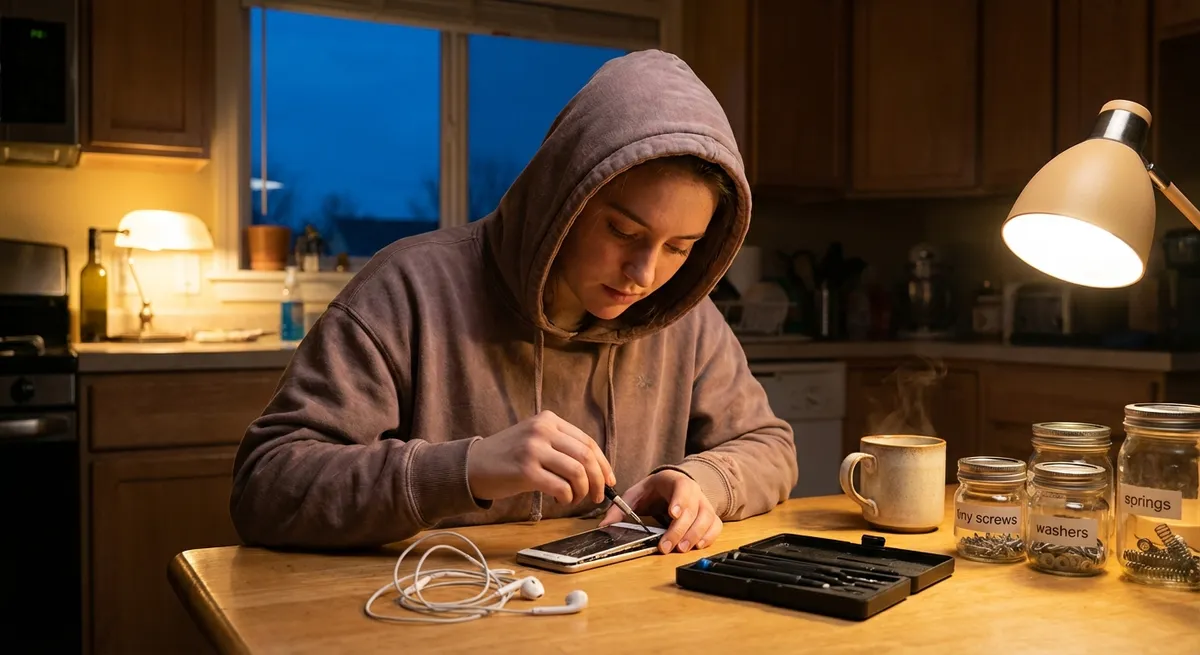
Modern gadgets fail at the worst possible moments—right before a work call, during a movie, or when you finally sit down to relax. The good news: many “it’s dead” moments are fixable with basic tools, a little patience, and a clear plan. You don’t have to be an engineer to handle common electronics problems safely and effectively.
Below are five practical, step-by-step repair tips for everyday electronics that DIY enthusiasts can tackle at home. Each one is focused on simple tools, clear decisions, and knowing when to stop and call a pro.
1. Revive a Phone That Won’t Charge (Port Cleaning & Basic Checks)
A huge number of “broken” phones are really just victims of a dirty charging port or a worn cable. Before you assume the worst, work through these steps methodically.
- Confirm the problem isn’t the outlet or adapter.
Try a different wall outlet, then a different power adapter. Plug something else (like a lamp or another device) into the same outlet to ensure it’s live.
- Test with at least two known‑good cables.
Charging cables fail far more often than phones. Use a cable that definitely works with another device. If your phone only charges at certain angles, that’s a classic sign of either a dying cable or debris in the port.
- Power‑cycle the phone.
If there’s still some battery, shut the phone completely off, wait 30 seconds, then plug it in. Some phones charge more reliably when powered down, and software glitches sometimes cause false “not charging” messages.
- Inspect the charging port with a flashlight.
Look for lint, dust, or corrosion. Lint from pockets can compress over time into a solid plug that blocks the connector. If you see any green or white buildup, that may be corrosion from moisture exposure—this is more serious.
- Clean the port gently and safely.
- Power the phone off.
- Use a wooden or plastic toothpick (never metal) to very gently scrape along the bottom and sides of the port.
- Don’t force it; the tiny pins inside are delicate.
- Optionally, use a can of compressed air in short bursts to blow out loose debris (keep the can upright to avoid moisture spray).
- Test again with a snug cable.
A good cable should fit firmly and “click” into place. If it still won’t charge, check the cable end for bent or missing pins and try a different adapter once more.
- Know when to stop.
If the port feels loose, the connector wiggles excessively, or you see visible damage to the pins, don’t keep poking—port replacement requires micro‑soldering and should be done by a professional.
2. Fix a Laptop That Overheats and Shuts Down (Fan & Vent Care)
Overheating shortens component life and can cause random shutdowns or throttling (sudden slowdowns). Dust, blocked vents, and old thermal paste are common culprits. The steps below focus on the safe, low‑risk fixes most DIYers can handle.
- Start with basic airflow checks.
Make sure your laptop is on a hard, flat surface when in use. Soft surfaces like beds and couches block vents. Check the sides and bottom for intake and exhaust grills and keep them unblocked.
- Monitor temperature and fan behavior.
Install a temperature monitoring tool (e.g., HWMonitor for Windows, Macs Fan Control for macOS).
- If temps spike above ~90–95°C under light use, you almost certainly have a cooling problem.
- If you never hear the fans ramping up, they may be stuck, clogged, or controlled incorrectly.
- Power down and unplug before opening.
Shut down the laptop completely, unplug the charger, and if the battery is removable, take it out. Press the power button for 10 seconds to discharge residual power.
- Remove the bottom panel (if accessible).
- Use a correctly sized screwdriver; don’t strip screws.
- Keep screws organized by location.
- Gently pry open the bottom case using a plastic spudger or old credit card, not metal tools.
- Clean fans and heatsinks carefully.
- Hold each fan blade in place with a cotton swab or toothpick while you blow compressed air to prevent overspinning.
- Blow air through the heatsink fins (the radiator‑like section) from both inside and outside the case.
- Wipe accessible dust with a soft brush or microfiber cloth; avoid touching components unnecessarily.
- Reassemble and test under load.
Put the cover back on, reconnect power, and boot up. Run a moderate stress test: multiple browser tabs, a video call, or a short gaming session. Watch temps and confirm they stay within a more reasonable range (often 70–85°C under load).
- When to consider thermal paste or a pro.
If temps are still high after cleaning, the thermal paste between CPU/GPU and heatsink may be aged and dry. Replacing it is doable but higher risk:
- You must carefully remove the heatsink, clean old paste with isopropyl alcohol, and apply a small, even amount of new paste.
- If you’re not comfortable working this close to bare chips, seek a repair shop to avoid damaging your motherboard.
3. Bring a Dead Remote Back to Life (Beyond Just New Batteries)
TV remotes, streaming remotes, and soundbar controllers often get tossed when they stop responding, but many failures are simple—and reversible.
- Verify the obvious, then double‑check polarity.
Remove the batteries and inspect the compartment for a polarity diagram. Make sure the + and – ends match the markings. Try fresh, brand‑name batteries—even partially drained ones can cause flaky behavior.
- Check if the remote is actually sending a signal.
- Open your smartphone camera app.
- Point the remote’s front (IR emitter) at the camera and press any button.
- Most phone cameras can “see” infrared as a flickering white or purple light.
- If you see light, the remote is sending a signal; the issue might be with the TV or pairing. If you see nothing, the remote is likely at fault.
- Clean the battery contacts and inside the shell.
- Look for corrosion (white powdery or greenish deposits).
- Gently scrub contacts with a cotton swab dipped in 90%+ isopropyl alcohol.
- Wipe down the exterior and the battery compartment to remove grime that can seep inside.
- Open the remote for deeper cleaning (if screws or clips allow).
- Remove any visible screws (often in the battery compartment).
- If it’s clipped, use a plastic pry tool along the seam; work slowly to avoid snapping tabs.
- Take note of button pad orientation and any loose parts.
- Clean the rubber keypad and PCB contacts.
- The rubber button sheet usually has conductive pads on the underside. Over time, oils and dirt reduce conductivity.
- Clean the pads and the matching contact points on the circuit board with isopropyl alcohol and a lint‑free cloth or cotton swab.
- Let everything dry thoroughly (alcohol evaporates quickly).
- Reassemble and test again with the camera trick.
Put the remote back together, insert fresh batteries, and confirm you see infrared light via your phone camera when pressing buttons. Then test on the TV or device.
- Know when replacement is smarter.
If cleaning doesn’t help and the remote still shows no IR output, you may have a cracked PCB or failed components. At that point, a replacement remote or a universal remote is usually more cost‑effective than board‑level repair.
4. Restore a Bluetooth Speaker With No Sound (Connectivity & Jack Issues)
Bluetooth speakers can appear “dead” even when electronics are fine—often due to pairing confusion, hidden volume settings, or a dirty audio jack.
- Confirm it powers on consistently.
Charge the speaker fully with the supplied cable and a known‑good adapter. Watch for charge indicator lights.
- If lights don’t come on at all, try a different cable and adapter.
- If still no life, internal battery or power circuitry may be damaged and require professional replacement.
- Reset Bluetooth and unpair old connections.
- On your phone or laptop, remove (“forget”) the speaker from the Bluetooth devices list.
- Turn Bluetooth off and back on.
- Put the speaker into pairing mode (usually holding the Bluetooth or power button until an LED flashes or a tone plays).
- Re‑pair and test with a simple audio source (music app, YouTube, etc.).
- Check volume in all the places it hides.
- Turn up the volume on the speaker’s own buttons.
- Turn up the source device’s volume.
- Check app‑specific volume sliders and mute toggles (YouTube, Spotify, system mixer, etc.).
Some devices keep separate volume levels for Bluetooth accessories.
- Test the auxiliary (AUX) input, if available.
- Use a 3.5 mm audio cable from your phone, laptop, or MP3 player.
- Ensure the cable is fully seated; partial insertion can cause silence or only one channel.
- If AUX sound works but Bluetooth doesn’t, the problem is with wireless communication, not the amplifier or speaker drivers.
- Clean the AUX port and inspect for stuck switches.
Many speakers use a tiny switch inside the AUX jack that detects when a cable is plugged in; if it sticks, the speaker might “think” a cable is still inserted and mute Bluetooth audio.
- Try a different source device entirely.
Connect the speaker to a different phone, tablet, or laptop. This helps you confirm whether the issue is speaker‑side or source‑side.
- When to suspect internal amp or driver failure.
If the speaker connects fine, shows playback, and all volume levels are up, but you only hear distortion, buzzing, or extremely faint audio, a driver or amplifier board may have failed. Physical driver replacement can be done by confident DIYers, but opening sealed, waterproof speakers often involves heat and specialized tools—this is where many people opt for pro repair or replacement.
5. Rescue a Keyboard With Sticky or Non‑Responsive Keys
Keyboards pick up everything—crumbs, dust, hair, and the occasional coffee spill. Many issues can be fixed with careful cleaning rather than replacement.
- Start with a quick external clean.
- Unplug the keyboard or power down the laptop.
- Turn the keyboard upside down and gently shake/tap to dislodge loose debris.
- Use compressed air between the keys to blow out dust.
- Rule out software and connection issues.
- Try the keyboard on another device if it’s USB or Bluetooth.
- For laptops, boot into your system’s BIOS/UEFI or a live USB system and see if the key works there—if not, it’s a hardware issue.
- Update or reinstall keyboard drivers on your operating system if multiple keys act strange.
- Clean around individual sticky keys.
- Lightly dampen a cotton swab with isopropyl alcohol (not water).
- Run it around the sticky key’s edges to dissolve sugar or residue from spills.
- Press the key repeatedly while cleaning to help work the alcohol in.
- Let it dry for several minutes and test again.
- Remove keycaps on mechanical or desktop keyboards.
- Use a keycap puller or gently pry up with a plastic tool (don’t twist).
- With the cap removed, clean the switch area with compressed air and a soft brush.
- Wipe the underside of the keycap with isopropyl alcohol to remove grime.
- Press the cap firmly back into place until it clicks.
- For laptop keys, be extra cautious.
- Laptop key mechanisms are fragile scissor or butterfly switches; forcing them often breaks plastic clips.
- If you choose to remove a key, research your exact model first—look for a video teardown or manufacturer guide.
- Often, it’s safer to do repeated edge cleaning with alcohol rather than fully removing laptop keys.
- Address widespread liquid damage realistically.
- If an entire section of the keyboard stopped working after a spill, disconnect power immediately and, if possible, remove the battery.
- Turn it upside down to drain, then let it dry for at least 24–48 hours in a well‑ventilated space.
- For sugary or acidic liquids (soda, juice, wine), residue can remain conductive and cause corrosion; full disassembly and board cleaning with isopropyl alcohol may be needed.
- If multiple rows/columns of keys remain dead, replacing the keyboard (or top case on many laptops) is usually the most reliable solution.
- Consider an external keyboard as a low‑risk workaround.
If your laptop keyboard is failing but everything else works, using a USB or Bluetooth keyboard can buy you time and may be cheaper than an immediate full repair, especially on thin ultrabooks where keyboard replacement is labor‑intensive.
Conclusion
Most everyday electronics problems don’t start with a dramatic component failure—they start with dust, dirt, loose connections, and wear on moving parts. Approaching each issue step‑by‑step, starting with low‑risk checks and gentle cleaning, often brings “dead” gadgets back without new parts or expensive services.
The key is to know your limits: basic disassembly, port cleaning, and fan maintenance are well within reach for most DIY enthusiasts. Board‑level soldering, battery pack rebuilding, and liquid‑soaked logic boards are where a professional (or replacement) makes more sense. With a small toolkit, careful observation, and a methodical approach, you can extend the life of your electronics, save money, and build real repair confidence over time.
Sources
- [FCC Consumer Guide: Mobile Device Batteries and Chargers](https://www.fcc.gov/consumers/guides/mobile-device-batteries-and-chargers) – Safety guidance and best practices around charging, cables, and power adapters
- [iFixit Repair Guides](https://www.ifixit.com/Device) – Step‑by‑step, model‑specific teardown and repair instructions for phones, laptops, speakers, and more
- [Apple Support: If Your Mac Laptop Gets Too Hot](https://support.apple.com/en-us/102527) – Official information on overheating, ventilation, and fan behavior (principles that apply broadly to laptops)
- [Harvard University: Electronics Safety Guidelines](https://www.ehs.harvard.edu/node/7726) – General electronic and electrical lab safety practices that translate well to home DIY work
- [Mayo Clinic: First Aid for Electrical Injuries](https://www.mayoclinic.org/first-aid/first-aid-electrical-shock/basics/art-20056695) – Important safety reference in case of shocks or electrical accidents during repair work
Key Takeaway
The most important thing to remember from this article is that this information can change how you think about Electronics.



