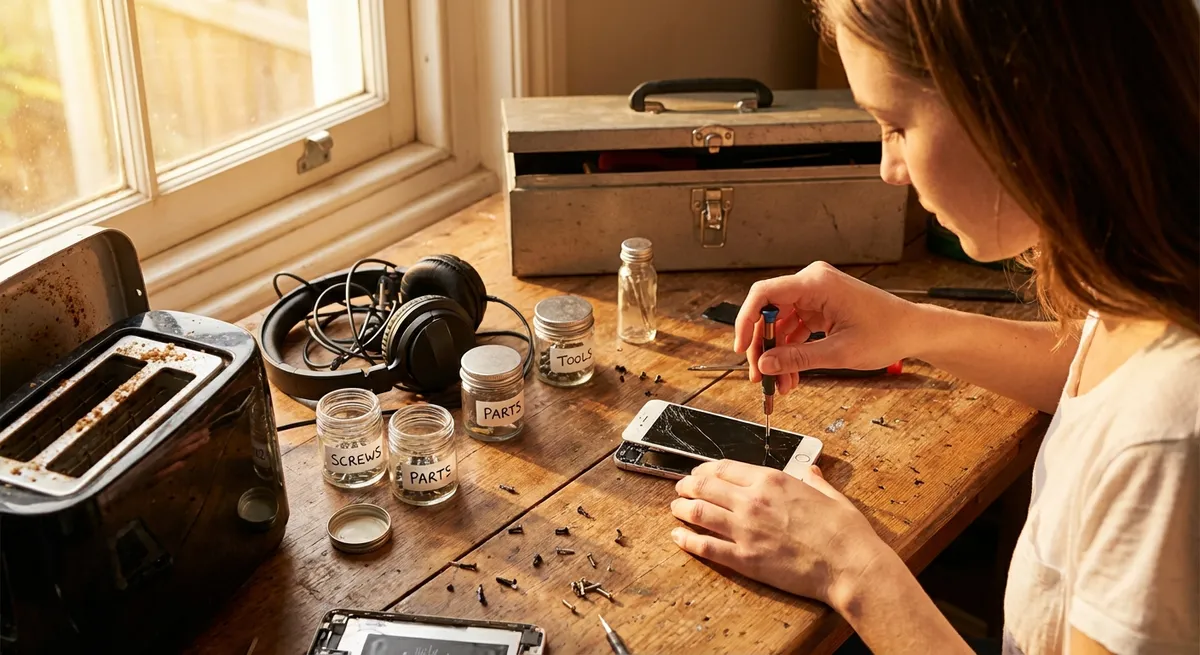
When a gadget acts up, most people jump straight to “I need a new one.” But for a lot of common problems, you don’t need a new device—you just need a methodical approach, the right tools, and a little confidence. This guide walks through five practical, repeatable repair tips you can use on everything from laptops and game consoles to speakers and smart home gear. Each one is broken down into clear steps so you can work safely and avoid turning a small issue into an expensive mistake.
Before You Start: Safety, Tools, and a Smarter Mindset
Before grabbing a screwdriver, pause and prep. Good repairs start with safety and planning, not guesswork.
Unplug the device and, if it has a battery you can access, power it down completely. For laptops and phones, hold the power button for 10–15 seconds after shutdown to discharge residual power. Avoid working on electronics while they’re plugged in, especially anything connected to mains power.
Assemble basic tools: a small Phillips and flathead screwdriver set, precision drivers (or a laptop/phone repair kit), tweezers, isopropyl alcohol (90%+ if possible), cotton swabs, a soft brush, microfiber cloths, compressed air, and a non‑metal spudger. An inexpensive multimeter and an anti‑static wrist strap are also worth having if you plan to fix things regularly.
Finally, replace guesswork with research. Look up your exact model number and read or watch at least one teardown or repair guide. Seeing the inside of your device before you open it helps you avoid breaking hidden clips or pulling on fragile ribbon cables. A slower, more deliberate repair is almost always a better repair.
Tip 1: Bring Dead Gadgets Back with a Systematic Power Check
A “dead” device—no lights, no response—often isn’t dead at all. Power issues are one of the most fixable electronic problems if you check them in the right order.
Step 1: Confirm the outlet and cable, not just the device.
Test the outlet with something else you know works (like a lamp). Try a different power strip or wall socket. Swap the power cable and power brick (if you have a compatible spare). A surprising number of “broken” routers, monitors, and speakers are actually victims of bad power strips or cheap cables.
Step 2: Inspect the power connector closely.
Look where the power cable plugs into the device. Wiggle the connector gently—does the power LED flicker or cut out? That suggests a loose jack or worn port. Check for bent pins, burnt marks, or looseness. If the jack moves or feels “crunchy,” stop wiggling and plan on opening the device (or taking it to a pro) before it fails completely.
Step 3: Use a multimeter on the power adapter.
Set the multimeter to the DC voltage range just above the adapter’s rated output. Touch the probes to the adapter plug terminals (usually inner pin = positive, outer barrel = negative; check the label icon). A reading significantly below the rated voltage, or zero, means the adapter is bad and should be replaced with a compatible one (same voltage, equal or higher current rating, and correct connector polarity).
Step 4: Look for hidden reset functions.
Many electronics (routers, streaming boxes, some monitors) have a small recessed reset button you can press for 10–30 seconds with a paperclip. Some laptops and power banks have a “battery reset” pinhole on the underside. Check the manual or official support site for model‑specific reset instructions before you assume an internal failure.
Step 5: Open only when you know what’s inside.
If you’ve confirmed good power input but still get nothing, look up an internal fuse or power board diagram for your model. Some devices have easily replaceable fuses or modular power boards. If you see swollen or leaking capacitors, a cracked board, or burn marks, that’s a strong sign the repair may be beyond basic DIY unless you’re comfortable with board‑level work.
Tip 2: Fix Overheating and Random Shutdowns with Smart Cleaning
Unexpected shutdowns, loud fans, or a scorching laptop bottom usually mean one thing: heat. Dust and poor airflow can cripple otherwise healthy electronics, and cleaning is one of the safest, highest‑impact repairs you can do.
Step 1: Confirm it’s actually heat.
For laptops and desktops, install a temperature monitoring app (like HWMonitor or your system’s built‑in tools) and watch CPU/GPU temps under normal use. If temps spike quickly and fans ramp up loudly, overheating is likely. On game consoles or streaming boxes, feel the case: if it’s very hot and vents are blocked or packed with dust, you’ve found the problem.
Step 2: Power down and prep the workspace.
Shut down the device, unplug everything, and hold the power button for 10–15 seconds. Work on a clean, hard surface. If you’re opening a laptop, take photos as you go so you can reconnect cables and screws correctly later.
Step 3: Clean vents and fans the right way.
Use compressed air in short bursts from different angles, holding fans in place with a toothpick or finger so they don’t spin wildly (spinning them can generate voltage and damage circuits). Brush dust off heat sinks, vents, and grilles with a soft brush. Never use a vacuum directly on circuit boards; static discharge can cause invisible damage.
Step 4: Refresh thermal paste if you’re comfortable opening it.
On older laptops and desktops, dried‑out thermal paste between the CPU/GPU and heatsink can cause overheating. If you’re reasonably experienced, remove the heatsink, clean the old paste from both surfaces with isopropyl alcohol and lint‑free wipes, then apply a small pea‑sized amount of new thermal paste and reassemble. For many machines, this single step dramatically drops temps.
Step 5: Improve airflow and usage habits.
Don’t use laptops on soft surfaces that block vents, like beds and couches. Raise the back slightly with a stand or book for better airflow. Move consoles and set‑top boxes out of tight cabinets. After a deep clean, monitor temperatures again to confirm the fix before pushing the device hard with gaming, rendering, or heavy multitasking.
Tip 3: Repair Loose or Intermittent Connections Without Breaking Anything
Glitchy audio, flickering screens, or devices that only work if you hold the cable “just right” often come down to loose connectors or fatigued ports. You can fix many of these without any soldering if you’re careful.
Step 1: Rule out the cable first.
Swap HDMI, USB, headphone, or charging cables with known‑good ones. Test your cable on another device. If the problem follows the cable, you’ve found the culprit. If not, the port or internal connector is suspect.
Step 2: Inspect ports with light and magnification.
Use a flashlight and, if possible, a magnifying glass or phone camera. Look for bent pins, corrosion, or debris. USB‑C and Lightning ports in particular love to accumulate lint that blocks a solid connection.
Step 3: Clean the port gently.
Power down the device. Use a wooden or plastic toothpick, very gently, to tease out lint or compacted dust from charging and headphone ports. Follow with a few short bursts of compressed air. Do not use metal pins or paperclips inside ports—they can bend contacts or cause shorts.
Step 4: Reseat internal ribbon cables.
If the issue is inside (e.g., laptop keyboard or trackpad cutting out, or a screen that flickers only when you move the lid), open the device following a reputable guide. Carefully locate ribbon cables and board‑to‑board connectors near the failing component. Unlock any latches, pull the cable out, inspect for damage, and push it back in evenly before closing the latch. Many “dead” keyboards and touchpads revive after a simple reseat.
Step 5: Reinforce, don’t strain, weak ports.
If a port is mechanically loose but still functional, avoid stressing it. Use short, angled cables to reduce leverage, or add a small strip of removable tape near the plug to stabilize it. For high‑value gear (gaming laptops, audio interfaces), consider using a hub or dock so daily plugging and unplugging happens at the hub, not at the fragile built‑in ports.
Tip 4: Solve “No Sound” Problems with a Logical Audio Troubleshoot
Speakers, headphones, and soundbars often seem dead when they’re not. Audio issues are usually about wrong settings, miswired connections, or small, fixable hardware faults.
Step 1: Confirm the sound source and settings.
Check volume and mute on both the device and app you’re using. In your operating system’s sound settings, verify the correct output device is selected (for example, HDMI monitor vs. laptop speakers vs. Bluetooth headphones). Disconnect and re‑connect Bluetooth devices; remove any stale or duplicate pairings.
Step 2: Test each component separately.
Try the same headphones on a phone. Test the speakers with another audio source. Use a different audio input cable. If one combination works and another doesn’t, you’ve narrowed the fault to either the cable, the port, or the device.
Step 3: Inspect jacks and connectors.
Look for broken tips from old headphone plugs stuck in the jack (a common, sneaky failure). Shine a light and check for corrosion or discoloration. If you suspect residue (from spills or humidity), a tiny amount of isopropyl alcohol on a plug inserted and removed several times can help clean contacts—just let everything dry fully before powering on.
Step 4: Open passive speakers and check wiring.
For unpowered speakers with binding posts or spring clips, open the cabinet if screws are accessible. Inspect internal wiring: look for disconnected or frayed wires from the terminals to the speaker driver. Reattach loose wires by stripping a small bit of insulation (if needed), twisting the copper, and tightening the terminal screw or clamp securely.
Step 5: Test for blown drivers or one‑sided sound.
Play a known good stereo test track. Pan the balance left and right in your device’s sound settings. If one side is dead but the wiring and volume settings look correct, the speaker driver or headphone driver is likely blown. These can sometimes be replaced with matching drivers, but if you’re not comfortable with that, focus your DIY efforts on preserving and cleaning good hardware and cables so they last longer.
Tip 5: Revive Sticky Buttons and Unresponsive Controls
Remote controls, gamepads, and even some smart home devices often fail because of dirty contacts—not because the electronics are shot. Cleaning and reseating buttons is a low‑risk repair that can give old gear a second life.
Step 1: Test batteries and power first.
For remotes and controllers, swap in fresh, known‑good batteries. Clean battery contacts with a cotton swab lightly moistened with isopropyl alcohol if you see any white or green residue. If it’s rechargeable, plug it in and confirm any charging LED comes on.
Step 2: Check for physical obstructions.
Examine buttons that don’t respond. Are they physically stuck lower than others? Is there visible grime or spilled residue around the buttons or joystick? Lightly press and rotate the button several times to see if it frees up.
Step 3: Open the case carefully.
Most remotes and controllers are held together by a few screws (often hidden in the battery compartment) and plastic clips. After removing screws, use a plastic spudger or guitar pick to work along the seam and release clips. Avoid metal tools—they can mar the case or short components.
Step 4: Clean the button contacts.
Inside, you’ll usually see rubber membranes with conductive pads that sit over printed circuit board (PCB) contacts. Use isopropyl alcohol and cotton swabs to gently clean both the PCB contact pads and the underside of the rubber button pads. Let them dry fully. Remove any sticky residue, crumbs, or dust that might prevent full button travel.
Step 5: Reassemble and test methodically.
Reassemble the case, making sure membranes and buttons are seated correctly. Before putting all screws back, press a few buttons to confirm they move freely and spring back. Once screwed together, test functionality with the connected device (TV, console, etc.). If only some buttons still fail, reopen and double‑check that the corresponding pad and contact are clean and aligned.
Conclusion
You don’t need a workbench full of specialized tools—or an engineering degree—to handle a lot of everyday electronics problems. By approaching power issues systematically, tackling heat with targeted cleaning, treating connections and ports with care, troubleshooting audio step by step, and refreshing worn‑out controls, you can keep your gadgets useful for years longer than most people expect. Start with lower‑risk repairs, build your skills slowly, and always research your specific model before opening anything. The more familiar you get with how devices are put together, the more repairable your whole home full of electronics becomes.
Sources
- iFixit Repair Guides - Step‑by‑step repair guides and teardowns for thousands of electronic devices
- U.S. Consumer Product Safety Commission – Electrical Product Safety - Official guidance on safely working with electrical and electronic products
- MIT School of Engineering – Ask an Engineer: Why Do Electronics Overheat? - Explains how heat affects electronics and why cooling and airflow matter
- BBC Future – The Right to Repair Your Own Gadgets - Context on repairability, consumer rights, and extending gadget lifespans
- Electronics Notes – Multimeter Basics - Practical introduction to using a multimeter for basic electronic checks
Key Takeaway
The most important thing to remember from this article is that this information can change how you think about Electronics.



