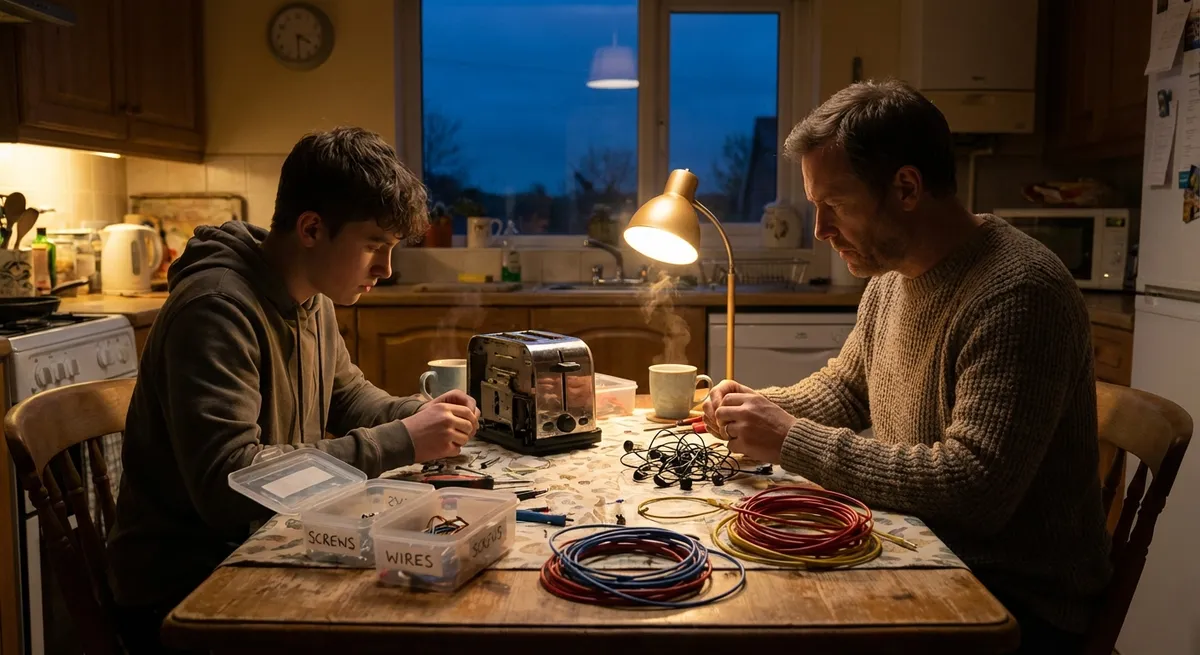
Electronics usually fail at the worst possible moment: right before a meeting, during a movie night, or when the kids need a device for homework. Before you rush to replace or book a repair, some problems can be safely tackled at home with basic tools and a bit of patience. This guide walks through five practical, step‑by‑step repair tips that give your gadgets a second chance—and save you money.
Safety note: Always unplug devices and power them off before opening or working on them. If you smell burning, see smoke, or notice swollen/bulging batteries, stop and consult a professional.
1. Reviving a Phone That Won’t Charge Reliably
When a phone only charges at a certain angle or keeps disconnecting, the issue is often simpler than a dead battery: dust, pocket lint, or a tired cable.
Step-by-step:
Rule out a bad cable and adapter
Try at least one other cable and one other power adapter you know works with another device. If everything else charges fine, your original cable or adapter may be the culprit.
Inspect the charging port
Power off your phone. Use a bright light to look inside the port. Lint can pack in tightly and block the connector pins.
Gently clean the port
Use a wooden toothpick or a plastic dental pick—never metal—to very gently lift and pull out compacted lint. Keep the tool flat against the port’s bottom and avoid scraping pins.
Use compressed air carefully
With the phone held at an angle, give short bursts of compressed air (if available) into the port to clear fine dust. Keep the nozzle a short distance away to avoid moisture from the can.
Test again and check for looseness
Plug the cable in and gently wiggle it. A solid click and consistent charging are good signs. If the connection is still extremely loose or only works at odd angles, the port may be physically damaged and needs professional repair.
2. Fixing Sticky or Unresponsive Keyboard Keys on Laptops
Crumbs, dust, and small spills can make keys feel sticky or entirely unresponsive. With care, many keyboard issues can be improved without replacing the entire keyboard.
Step-by-step:
Power down and unplug
Shut down the laptop completely and unplug the charger. If the battery is removable, take it out before you start.
Shake out loose debris
Turn the laptop upside down, gently tap the bottom, and lightly shake to dislodge crumbs. Don’t slam or hit the device—gentle taps are enough.
Blow out dust
Use compressed air at an angle, moving in rows across the keyboard. Short bursts work better than a constant stream and reduce the risk of condensation.
Clean around the keycaps
Lightly dampen a microfiber cloth or cotton swab with 70% isopropyl alcohol (not dripping). Wipe around the problematic keys. Avoid excess liquid; never pour alcohol directly onto the keyboard.
For persistent sticky keys: remove and reseat (where safe)
For many laptop models, keycaps can be gently pried up using a plastic pry tool or fingernail, but this varies by brand. - Check your specific model’s service manual or a reputable teardown guide first. - Clean under the key with a slightly damp (alcohol) swab. - Once dry, snap the keycap back on, pressing evenly. If a key still doesn’t register, the underlying switch or keyboard membrane may be damaged and require professional service or a full keyboard replacement.
3. Bringing a Silent Bluetooth Speaker Back to Life
When a Bluetooth speaker powers on but won’t play sound, drop the signal, or refuses to pair, it’s often a configuration glitch rather than a hardware failure.
Step-by-step:
Confirm the basics: volume and mode
Turn the speaker’s volume all the way down, then up again. Make sure it isn’t in AUX, optical, or “pairing disabled” mode if it has multiple input options.
Reset Bluetooth connections on your phone/tablet
On your phone, go to Bluetooth settings, “Forget” or “Remove” the speaker, then toggle Bluetooth off and back on. This clears old pairing records that may be confusing the connection.
Perform a factory reset on the speaker
Many speakers have a reset combination (e.g., holding power + volume up for several seconds). Check the manual (or the manufacturer’s website) for the exact reset procedure for your model.
Test with multiple devices and sources
Try pairing the speaker with a different phone or laptop. Use a simple audio source (like a basic music app) to rule out issues with streaming services or individual apps.
Check for firmware updates
Some smart speakers or premium Bluetooth models have companion apps. Open the app and look for firmware or software updates—apply them, then test again. If the speaker still powers but emits no sound from any device or source, an internal amplifier or speaker driver may have failed and needs professional diagnostics.
4. Saving a Game Controller with Drift or Sticky Buttons
Console and PC controllers take constant abuse—drops, heavy button mashing, and snack residue. Stick drift and sticky buttons are common but often fixable.
Step-by-step:
Power off and disconnect
Turn off the console or PC and unplug the controller or remove batteries. For rechargeable controllers, hold the power button until it fully powers down.
Clean the joystick bases and buttons externally
Slightly dampen a cotton swab with 70% isopropyl alcohol. - For drift: work the swab around the base of each joystick while gently moving it in circles. - For sticky buttons: press the button repeatedly while cleaning around the edges.
Use compressed air to clear internal dust
Blow short bursts of air around the joystick and buttons to dislodge internal particles. Don’t spin analog sticks aggressively with the air stream; gentle is enough.
Calibrate through software
On consoles, look for controller settings to recalibrate or adjust dead zones. On Windows, use “Set up USB game controllers” > Properties > Calibration to reset the neutral position.
Consider deeper cleaning only if you’re comfortable opening it
If drift or stickiness persists and your controller is out of warranty, you can open it for a more thorough clean: - Find a step‑by‑step teardown specific to your controller model. - Use the correct screwdriver (often Torx security bits). - Clean internal contacts with isopropyl alcohol and reassemble. If you’re not confident about disassembly—or the controller is still under warranty—stop at the external cleaning and recalibration step and consider a professional repair or replacement.
5. Calming an Overheating Laptop That Keeps Shutting Down
Overheating can cause random shutdowns, throttled performance, or loud fans. Regular cleaning and better airflow can make a big difference before you resort to a full repair.
Step-by-step:
Identify the symptoms of overheating
Watch for hot air blasting from vents, the fan running constantly at high speed, or the case getting uncomfortably warm near the CPU/GPU area. Random shutdowns during heavy tasks (gaming, video editing) are a classic sign.
Improve external airflow first
Use the laptop on a hard, flat surface—never on beds or couches that block vents. Elevate the back slightly with a stand or a book to allow better air intake and exhaust.
Clean vents with compressed air
Power down and unplug the laptop. Blow short bursts of compressed air into intake and exhaust vents while holding the fan blades in place with a toothpick (if accessible) to avoid overspinning them. Repeat from different angles; dust can be stubborn.
Check for software and background load issues
- On Windows: open Task Manager and look for apps using high CPU when you’re idle. - On macOS: use Activity Monitor. Close or uninstall unnecessary background programs, and make sure the operating system and drivers are up to date.
Consider internal cleaning and thermal paste (advanced)
If cleaning vents doesn’t help and the laptop is out of warranty: - Look up a model‑specific disassembly or service guide. - Carefully open the bottom cover and gently clean internal fans and heatsinks with compressed air and a soft brush. - Reapplying thermal paste between the CPU/GPU and heatsink can significantly lower temperatures, but only if you’re experienced and have quality thermal paste. If you’re unsure, consult a repair shop instead—incorrect disassembly can damage delicate connectors or void remaining warranty.
Conclusion
A lot of “dead” electronics are really just dirty, misconfigured, or suffering from minor wear and tear. With a careful, step‑by‑step approach and basic tools, you can often restore chargers, keyboards, speakers, controllers, and laptops to usable condition without expensive replacements. Start with simple, reversible steps, respect safety guidelines, and know when it’s time to stop and call in a professional. Over time, these habits not only save money but also extend the life of the electronics you already own.
Sources
- Apple Support: If your iPhone or iPad won't charge - Official guidance on troubleshooting charging issues and safe cleaning practices
- Microsoft Support: Troubleshoot problems with your keyboard - Explains common keyboard issues and software checks
- Sony PlayStation Support: Wireless controller troubleshooting - Offers controller drift and button issue tips specific to PlayStation controllers
- U.S. Department of Energy: Home Office and Electronics - Discusses energy use and general best practices for electronics usage and longevity
- University of California, San Diego – Laptop Maintenance Tips - Provides practical advice on laptop care, ventilation, and safe cleaning
Key Takeaway
The most important thing to remember from this article is that this information can change how you think about Electronics.



