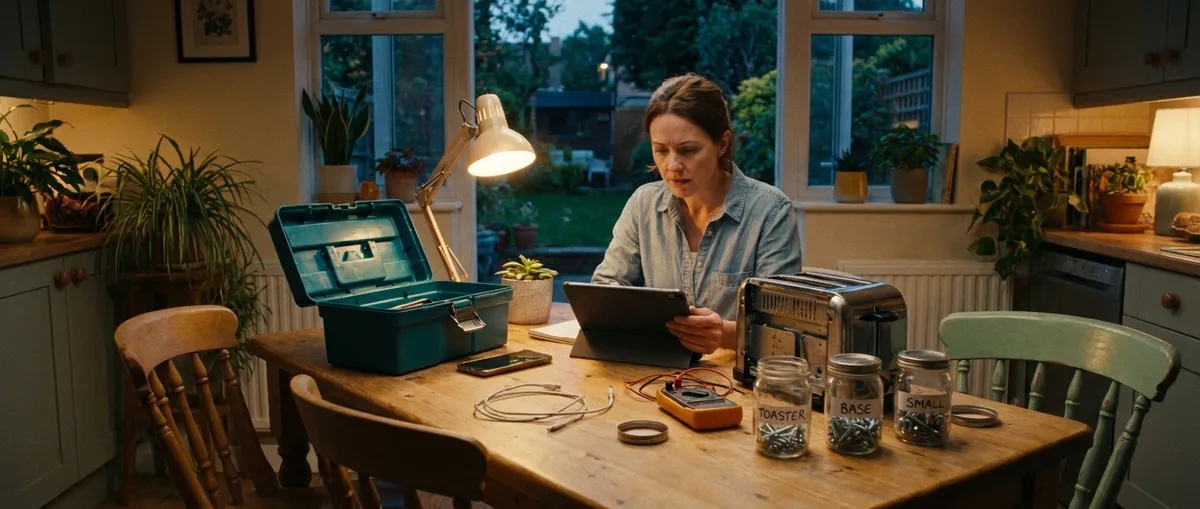
When your gear glitches, it’s tempting to jump straight to “I need a new one.” But a lot of common electronics problems are fixable at home with a bit of patience, a basic toolkit, and the right steps. This guide walks through five practical, step‑by‑step repair moves that can rescue your everyday devices, save money, and keep perfectly good tech out of the landfill—all while staying safe and realistic about when to call a pro.
Before You Start: Safety and Tools You Actually Need
Electronics repair doesn’t require a full lab, but you do need a basic setup and a few rules.
Use this checklist before any repair:
Unplug and power down
Shut the device off, unplug it, and remove batteries if possible. For laptops and phones, power down fully—not just sleep mode.
Discharge and avoid stored power
Some devices (power supplies, microwaves, CRT TVs) have high-voltage capacitors that can hold a charge even when unplugged. If you’re not experienced with these, skip DIY and call a pro.
Use the right basic tools
- Precision screwdriver set (Phillips, flat, Torx) - Plastic pry tools or guitar picks - Tweezers - Isopropyl alcohol (at least 90%) - Cotton swabs and microfiber cloths - Compressed air can or small hand blower
Work in a safe area
Clear, well-lit surface, small parts container (like an ice cube tray), and take photos as you go so you know how things fit back together.
Know when to stop
If you smell burning, see scorch marks, or are dealing with batteries that are swollen, hot, or leaking, stop immediately. Those are “no‑DIY” signs.
Step 1: Revive a “Dead” Remote Control
A non-working remote is one of the simplest electronics problems to fix—and one of the most common.
What this helps with: TV remotes, streaming box remotes, sound bar remotes, fan remotes.
Step‑by‑step:
Start with the obvious (but properly)
Remove the batteries and inspect them. Check the battery compartment for corrosion (white/green crust). Try fresh batteries from a known good pack; don’t reuse ones from another device.
Clean battery contacts
If you see corrosion: - Put on disposable gloves. - Dampen a cotton swab with isopropyl alcohol. - Gently scrub the metal contacts until shiny. - Let dry completely before inserting batteries.
Check for stuck keys
- Press every button a few times to free any that might be sticking. - If some buttons feel “mushy,” they may not be making contact.
Open the remote (if there are screws and it’s not sealed)
- Remove visible screws (often under the battery cover or labels). - Use a plastic pry tool to carefully separate the halves. - Inside, you’ll see a rubber keypad and a circuit board.
Clean the keypad and contacts
- Lift out the rubber keypad. - Wipe both sides with a slightly damp microfiber cloth, then dry. - On the circuit board, gently clean the black contact pads with a cotton swab and isopropyl alcohol. Let dry fully.
Reassemble and test
Put everything back in the same order, install fresh batteries, and test. If some buttons still don’t work but others do, the remote’s board may be damaged; at that point, replacement is usually cheaper than advanced repair.
Step 2: Fix a Laptop That Overheats or Randomly Shuts Down
Overheating can cause slow performance, sudden shutdowns, or fans that sound like a jet engine. Dust and poor airflow are often the culprits.
What this helps with: Windows laptops, MacBooks (to a point), Chromebooks.
Step‑by‑step:
Confirm it’s an overheating symptom
Typical signs include: - Laptop gets very hot on the bottom or near vents - Fans running at maximum speed most of the time - Sudden shutdowns during gaming, video editing, or streaming
Give the vents a proper clean
- Shut down and unplug the laptop. - Use a can of compressed air to blow into the side and bottom vents in short bursts. - Tilt the laptop slightly so dust can escape. Avoid spinning the fans excessively—short bursts only.
Remove the bottom panel (if accessible)
- Check the manufacturer’s site for a service manual or disassembly guide. - Remove screws on the bottom panel. Keep them organized by location. - Gently lift the panel using a plastic pry tool.
Clean internal dust safely
- Hold the fan blades still with a toothpick or cotton swab. - Use compressed air to blow dust out of heat sinks, fans, and vents. - Do not use a household vacuum directly on the board; static can damage components.
Improve external cooling
- Reassemble the laptop. - Use it on a hard, flat surface—never a bed or couch. - Consider a laptop cooling pad if you run heavy applications frequently.
Check software and power settings
- Update your operating system and drivers. - In Windows, set a balanced or power‑saving plan for everyday use. - Close unnecessary background apps that keep the CPU running hot.
If overheating continues after cleaning and software adjustments, the thermal paste between the CPU and heat sink may need to be replaced—this is more advanced and may be best left to experienced DIYers or professionals.
Step 3: Restore Sound to Speakers or a Sound Bar
When your speakers cut out, buzz, or play only on one side, the issue is often wiring or dirty connections rather than a blown speaker.
What this helps with: Computer speakers, bookshelf speakers, sound bars, basic home theater setups.
Step‑by‑step:
Rule out the source device
- Test with another audio source (phone, laptop, another TV). - Try another input (Bluetooth vs. optical vs. HDMI ARC) if your device supports it.
Inspect and reseat all cables
- Power off everything. - Unplug and firmly re‑plug: - Power cord - Audio cables (3.5 mm jack, RCA, optical, or HDMI) - For bare speaker wire, trim a small amount of the end, re‑strip clean copper, and clamp it firmly.
Clean the connectors
- Dampen a cotton swab with isopropyl alcohol. - Gently clean 3.5 mm plugs, RCA jacks, and other metal contacts. - Let them dry completely before reconnecting.
Check balance and sound settings
- On the source device, make sure audio balance is centered and not set to one channel. - Disable any virtual surround or processing features temporarily to reduce variables. - On TVs, confirm the correct audio output (internal speakers vs. external) is selected.
Test each speaker or channel separately
- If you have multiple speakers, connect one at a time to the same output. - If one speaker never works but others do, that speaker may have a damaged driver. - If no speakers work from a particular output, the amp or receiver channel might be at fault.
If you hear crackling or distortion even at low volume, and after cleaning and cable checks, the internal amplifier or speaker cone may be failing—this often requires specialized parts or replacement.
Step 4: Bring a Slow or Glitchy TV Back to Life
Smart TVs can become sluggish, apps crash, or the screen randomly freezes. Many of these issues are software or minor connection problems, not total hardware failure.
What this helps with: Smart TVs (Samsung, LG, Sony, TCL, etc.), streaming-stick-connected TVs.
Step‑by‑step:
Do a real power reset (not just standby)
- Turn the TV off with the remote. - Unplug the power cord from the wall. - Wait 60 seconds, then press and hold the TV’s power button (on the set itself) for 10–15 seconds if accessible. - Plug back in and power on.
Check all external devices and ports
- Disconnect all HDMI devices except one. - Test each HDMI port with the same device and cable. - Swap HDMI cables to rule out a bad one.
Update TV firmware and apps
- Connect the TV to Wi‑Fi or Ethernet. - Go to Settings → Support or System → Software/Firmware Update. - Install available updates and reboot after completion.
Clear app cache or reinstall problem apps
- If one app (like Netflix or YouTube) is slow or crashing, delete it if possible, reboot the TV, and reinstall. - Sign back in and test again.
Adjust picture settings to reduce strain
- Set picture mode to “Standard” or “Energy Saving” instead of heavily processed modes. - Disable motion smoothing and advanced processing features that can slow older TVs.
If the TV still shows artifacts (lines, blocks, half the screen dark) after resets and cable swaps, you may be dealing with a failing panel, T‑Con board, or LED backlight—these are more complex hardware repairs that may exceed DIY skill or be uneconomical on budget sets.
Step 5: Rescue a Wired Keyboard or Mouse That Acts Up
Input devices fail often—but many “dead” keyboards and mice just need cleaning, a cable check, or a small reset.
What this helps with: USB keyboards, USB mice, some wireless models (for basics like cleaning and connection checks).
Step‑by‑step:
Confirm it’s not a port or computer issue
- Unplug the keyboard/mouse and plug it into another USB port. - Test it on a different computer if available. - If it works there, you’re dealing with a port or software issue, not a dead device.
Check the cable and connector
- Inspect the USB plug for bent or damaged pins. - Run your fingers along the cable to feel for kinks, cuts, or soft spots. - If the cable is severely damaged near the connector, replacement is often more practical than repair.
Clean debris from keys or mouse buttons
- Unplug the device. - For keyboards, turn upside down and gently tap to dislodge crumbs. - Use compressed air between keys. - For sticky keys or mouse buttons, wipe around the edges with a cotton swab lightly dampened with isopropyl alcohol. Do not soak.
For mechanical keyboards: remove and clean keycaps (optional)
- Use a keycap puller or carefully pry keycaps off one at a time. - Soak keycaps in warm soapy water, rinse, and dry completely. - Clean the exposed surface with a dry brush or compressed air. - Reinstall keycaps using a reference photo for layout.
Reset or reinstall drivers
- On Windows: - Open Device Manager and locate the keyboard/mouse under “Keyboards” or “Mice and other pointing devices.” - Right‑click → Uninstall device, then unplug and reconnect to reinstall automatically. - On macOS: - For USB, unplug, wait a few seconds, and reconnect. - For advanced issues, reset NVRAM/PRAM and SMC per Apple’s instructions if other USB devices also misbehave.
If keys still miss presses or mouse tracking jumps erratically after cleaning and testing on another computer, internal switches or sensors may be worn. High‑end mechanical keyboards can sometimes be repaired with switch replacement; basic models are usually more cost‑effective to replace.
Conclusion
Most day‑to‑day electronics failures start small: dust, loose cables, dirty contacts, overheated components, or confused software. By working through simple, structured steps—cleaning, checking connections, updating firmware, and eliminating easy variables—you can often bring “dead” devices back without special tools or expensive parts.
Use these five repair flows as a starting point, always respect safety limits, and don’t be afraid to stop when a repair moves into high‑voltage or advanced soldering territory. The more you practice these basic fixes, the more confident you’ll become in keeping your own gear running longer—and in knowing when it’s time to call in a pro.
Sources
- [U.S. Consumer Product Safety Commission – Product Safety Guidance](https://www.cpsc.gov/Safety-Education/Safety-Guides) - Official safety tips and guidance for working with consumer products, including electronics
- [Apple Support – Safely Cleaning Your Apple Products](https://support.apple.com/en-us/HT204172) - Manufacturer instructions on proper cleaning methods and materials for devices
- [Samsung – How to Clean a Dusty TV and Keep It Dust Free](https://www.samsung.com/us/support/answer/ANS00076727/) - Practical advice on safely cleaning and maintaining TV screens and exterior surfaces
- [Microsoft – Troubleshoot Blue Screen and Device Problems](https://support.microsoft.com/en-us/windows/troubleshoot-blue-screen-errors-51d4c719-7a6c-92b2-6e96-d5f56cbd3baf) - Official troubleshooting for system instability and hardware-related issues in Windows PCs
- [iFixit – Free Repair Guides for Electronics](https://www.ifixit.com/Device) - Detailed, model-specific tear‑downs and step‑by‑step guides for a wide range of consumer electronics
Key Takeaway
The most important thing to remember from this article is that this information can change how you think about Electronics.



