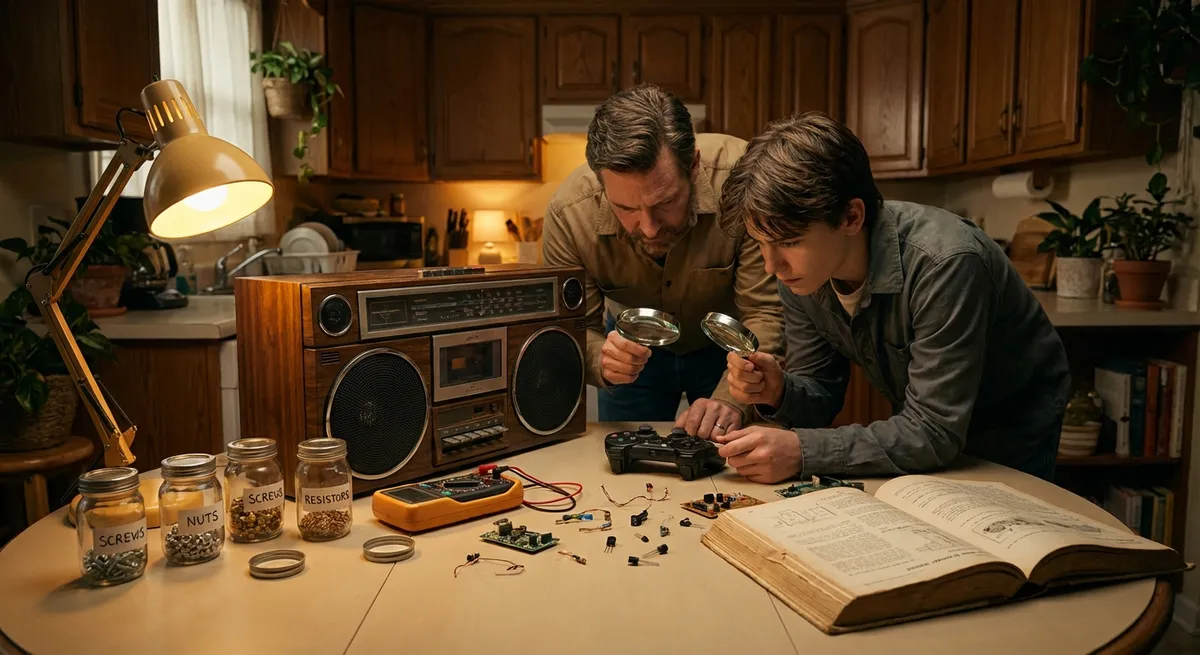
When a favorite gadget suddenly dies, most people jump straight to “replace.” But a lot of everyday failures in home electronics come from simple, fixable issues: loose connections, dirty ports, worn‑out buttons, or a $10 replacement part. With a bit of patience and a basic toolkit, you can often bring devices back from the brink, save money, and cut down on e‑waste.
This guide walks through five step‑by‑step repair moves that DIY enthusiasts can realistically handle at home—no advanced electronics degree required.
Start With Power and Cables: The “Invisible” Failure Point
Before opening anything up, rule out the boring stuff. Many “dead” devices are actually fine; the accessories around them are not.
Step‑by‑step:
- Check the outlet and strip.
Plug in a lamp or phone charger to confirm the wall outlet and power strip work. Reset any surge protectors that have a switch or breaker.
- Inspect power bricks and cables.
Run your fingers along the full length of the cable. Look for kinks, cuts, frayed insulation, or melted spots. Gently wiggle the connector at the device end—if power cuts in and out, the cable is suspect.
- Test with a known‑good cable/brick.
Use a compatible charger or power brick from another working device (same voltage and connector type). If your device wakes up, you’ve found the problem.
- Check for loose DC jacks.
For devices with barrel jacks or laptop charging ports, plug in the adapter and gently move the plug. If the power LED flickers, the internal jack may be loose, which is often repairable.
- Label and separate bad cables.
Once you identify a faulty cord, label it “BAD” and keep it aside for recycling so it doesn’t sneak back into use.
When to stop: If a power brick is cracked, swollen, or smells burnt, do not keep testing it. Unplug immediately and replace it. Internal faults in power supplies can be dangerous.
Clean, Don’t Replace: Restoring Ports, Buttons, and Switches
Dust, skin oils, and oxidation can cause intermittent connections in ports and controls. Sometimes a “broken” input is just dirty.
Step‑by‑step:
- Power down and unplug.
Always turn off the device and disconnect it from wall power. For battery devices, remove the battery if it’s easily accessible.
- Blow out loose debris.
Use a can of compressed air to clear dust from USB ports, HDMI jacks, headphone sockets, and vents. Short bursts are better than one long blast.
- Use contact cleaner, not random liquids.
Apply a small amount of electronics contact cleaner to a cotton swab or lint‑free cloth. Never spray directly into open equipment unless the product specifically says it’s safe.
- Clean ports and buttons gently.
For ports, lightly wipe the visible metal contacts and edges. For sticky buttons, run the swab around the sides where grime gathers. Avoid forcing anything into small connectors.
- Exercise the control.
After cleaning, press the button or flip the switch 20–30 times. This helps the cleaner work into the contact surfaces.
- Let it dry.
Wait at least 10 minutes before powering back on. Most contact cleaners evaporate quickly, but time ensures no residue remains.
Pro tip: For headphone jacks, plugging and unplugging a 3.5 mm plug several times after cleaning helps scrape off oxidation and improve the connection.
Fix “No Signal” Screens: Smart HDMI and Input Troubleshooting
TVs, monitors, and streaming setups often “break” because of configuration issues, not hardware failure. You can fix many “no signal” problems in minutes.
Step‑by‑step:
- Confirm the source is powered.
Make sure the cable box, game console, laptop, or streaming stick has power (LEDs on, fans spinning, etc.). Restart the source device first.
- Check the correct input.
Use the TV or monitor’s remote to cycle through HDMI/DisplayPort inputs. Labels can be wrong—don’t rely only on names like “HDMI 1”; test each input.
- Reseat HDMI or display cables.
Unplug both ends of the cable (device and TV/monitor), inspect for bent pins, then plug back in firmly until you feel a solid click.
- Try a different cable and port.
Swap in a known‑good HDMI or display cable. Move from HDMI 1 to HDMI 2, for example, to rule out a failing port.
- Match resolution settings.
On laptops or game consoles, set the resolution to something the TV/monitor definitely supports (like 1080p). An incompatible refresh rate or resolution can cause a blank screen.
- Power cycle in the right order.
Turn everything off. Then power on the display first, wait 10–15 seconds, and only then power on the source device. Some devices detect displays only at startup.
When it’s probably hardware: If one specific HDMI port never works even with different cables and devices—but others are fine—you may be dealing with a failed port. That can be repairable, but usually requires board‑level work or replacement.
Open It Up Safely: Replacing Fans and Clearing Heat Buildup
Overheating can cause random shutdowns, noisy operation, or throttled performance in consoles, PCs, and some streaming devices. Cleaning and replacing fans is often straightforward if you work carefully.
Safety note: Avoid opening devices that contain high‑voltage sections (like CRT TVs, microwaves, or some power supplies). Stick to low‑voltage consumer electronics you can easily disconnect from power.
Step‑by‑step:
- Shut down and unplug.
Power off the device completely and unplug from the wall. Press the power button once after unplugging to discharge any remaining power.
- Ground yourself.
Use an anti‑static wrist strap if you have one, or touch a grounded metal object before handling internal components to reduce static discharge risk.
- Document before you disassemble.
Take clear photos of each stage with your phone—cable routes, screw locations, and fan connectors. These are invaluable during reassembly.
- Remove the cover carefully.
Use the right screwdriver bits to avoid stripping screws. As you remove screws, keep them sorted in small containers or on a labeled sheet of paper.
- Clean dust thoroughly.
Use compressed air and a soft brush to clean fans, heatsinks, and vents. Hold the fan blades still while blowing air to avoid spinning them excessively, which can damage bearings.
- Replace a failing fan.
If a fan is noisy, seized, or wobbly, unplug it from the board, note the size and connector type, and source a compatible replacement (often labeled in millimeters, like 80 mm or 120 mm).
- Reassemble and test.
Put everything back in the reverse order of disassembly, referencing your photos. On first power‑up, listen for normal fan operation and confirm temperatures by touch—devices should feel warm, not hot to the point of discomfort.
Pro tip: In consoles and laptops, dried‑out thermal paste between the processor and heatsink can also cause overheating. That’s a more advanced but still DIY‑friendly job if you’re comfortable disassembling further and following a model‑specific guide.
Bring Dead Remotes and Controllers Back: Battery and Contact Fixes
Remote controls, wireless keyboards, and game controllers often seem “dead” when the problem is simply power delivery or corroded contacts.
Step‑by‑step:
- Remove the batteries and inspect.
Check for swelling, leakage (white powder or crust), or rust‑colored stains on the terminals. Leaked battery chemicals can block electrical contact.
- Neutralize corrosion safely.
If you see white, chalky residue from alkaline batteries, put on disposable gloves. Lightly dampen a cotton swab with white vinegar to neutralize the alkaline residue, then wipe with a dry swab. Do not soak the device.
- Clean contacts.
Use a dry pencil eraser or a small piece of fine sandpaper (800–1000 grit) to gently polish the metal contacts until they’re shiny. Finish with a swipe of isopropyl alcohol (70% or higher) on a swab and let dry.
- Check for loose battery springs or tabs.
If a spring is bent down, carefully lift it slightly with a small flat screwdriver so it presses firmly on the battery again.
- Install fresh batteries—correctly.
Use new, matching batteries from the same pack. Pay close attention to polarity (+ and – symbols) and align with the markings in the compartment.
- Test and re‑pair if needed.
For smart remotes or wireless controllers, you may need to re‑pair them with the TV, console, or PC. Follow the device’s pairing instructions if button presses still don’t register.
When to be cautious: If batteries have leaked heavily and damaged the plastic housing or nearby circuit board, further repair might involve soldering or board cleaning with more advanced techniques. At that point, weigh the cost and time against replacement.
Conclusion
Most electronics don’t go from “perfect” to “nothing works” without leaving clues. Power issues, dirty contacts, heat buildup, and minor mechanical wear are responsible for a huge share of failures—and those are exactly the problems you can often fix at home.
By working methodically—checking cables first, cleaning before replacing, documenting disassembly, and respecting safety boundaries—you can extend the life of your gear, keep useful devices out of landfills, and build real confidence in your repair skills. When in doubt, look up a model‑specific teardown or service guide, and always stop if you feel uncertain around high voltage or battery damage.
Sources
- US Environmental Protection Agency – Electronics Donation and Recycling – Background on e‑waste and why extending device life through repair matters
- iFixit – Repair Guides – Free, model‑specific disassembly and repair guides for thousands of electronics
- Consumer Product Safety Commission (CPSC) – Product Safety Guidance – General safety information relevant to handling consumer electronics and batteries
- IEEE Spectrum – The Surprisingly Simple Fixes Behind Many “Dead” Gadgets – Discussion of common electronic failures and the role of basic troubleshooting
- Dell Support – Cleaning Dust from Your Computer – Manufacturer guidance on safe dust removal and cooling maintenance
Key Takeaway
The most important thing to remember from this article is that this information can change how you think about Electronics.



