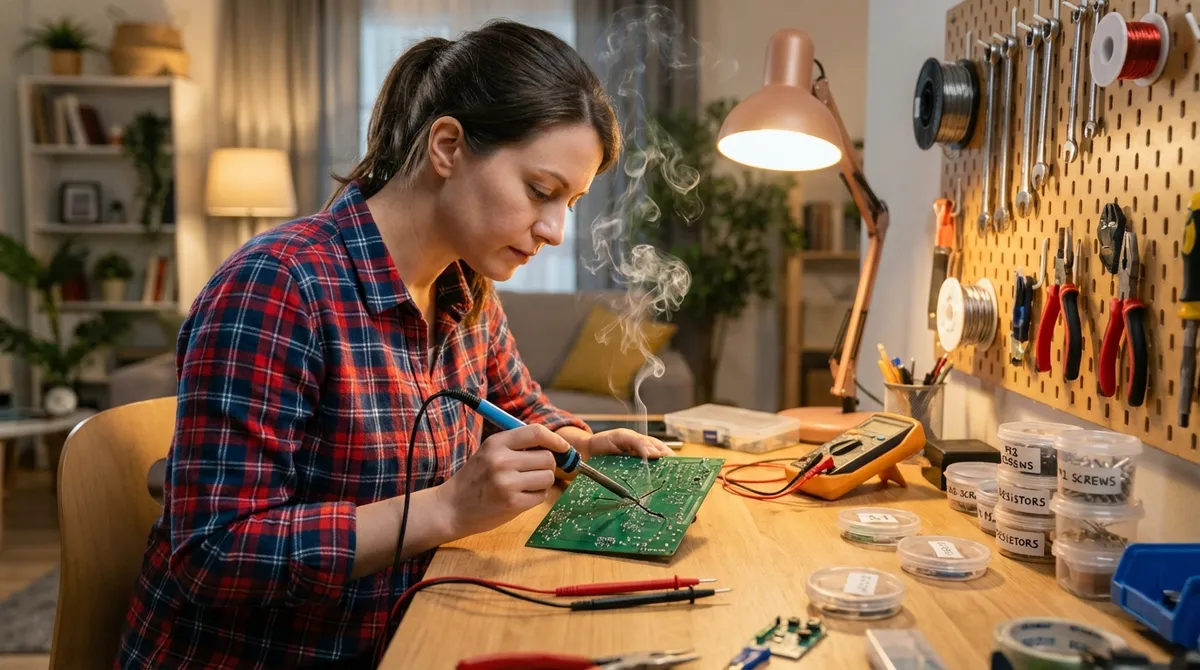
Electronics don’t always die suddenly—most “dead” gadgets are one or two simple problems away from working again. With a bit of method and some basic tools, you can safely solve a surprising number of issues at home. This guide walks through five practical, step-by-step repair tips that DIY enthusiasts can actually use, without jumping straight into advanced soldering or risky hacks.
Before You Start: Safety, Tools, and Smart Limits
Before you grab a screwdriver, it’s worth setting yourself up properly. Safe, methodical work not only protects you and your gear—it also keeps you from making a cheap fix expensive.
Work on a clear, dry, well‑lit surface and unplug everything before you open a device. If it has a removable battery, take that out, too. For any product with a built‑in battery, power it off completely and give it a few minutes before you touch anything inside.
Aim to build a simple kit: a precision screwdriver set, plastic spudgers, tweezers, a small flashlight or headlamp, isopropyl alcohol (at least 90%), cotton swabs, and a basic multimeter. If you’re handling sensitive electronics, an anti‑static wrist strap is a smart low‑cost add‑on.
Finally, know where the line is. High‑voltage gear (like CRT TVs, microwaves, or power supplies you don’t fully understand) can hold dangerous charge even when unplugged. When in doubt about safety, stop and either research the exact model on a reputable site or take it to a professional.
1. Track Down “Dead” Devices with a Simple Power Path Check
Many devices that “won’t turn on” don’t have a fatal internal failure—they’re blocked somewhere along the power path. Before you assume the worst, walk through a structured check.
- Confirm the outlet or USB port works.
Plug in a known‑good device (like a phone charger or lamp) to the same socket, power strip, or USB port. If it doesn’t work, you’ve found the problem—move to a different outlet or replace the strip.
- Inspect the cable and adapter closely.
Look for kinks, exposed wires, scorch marks, or a loose plug fit. Gently bend the cable along its length while it’s connected to see if power drops in and out; intermittent behavior usually means a broken conductor inside.
- Test with a different charger or cable.
Use a compatible known‑good adapter and cable. If the device comes back to life, mark the original cable/charger as faulty and discard or recycle it properly.
- Check battery or power indicators.
For laptops and many gadgets, indicator LEDs give clues: a blinking light, changing colors, or no light at all can point to a battery or charging issue. Look up the light patterns in the manufacturer’s manual or support site.
- Remove battery (if possible) and try direct power.
For devices with removable batteries, pull the battery, clean the contacts with a dry cloth or alcohol swab, then plug in the charger with the battery out. If it powers on now, you’re likely dealing with a weak or failed battery, not a dead device.
This systematic approach can save you from tearing things apart unnecessarily, and it often reveals an easy, low‑risk fix like replacing a cable or power strip.
2. Restore Life to Sticky or Unresponsive Buttons
Remote controls, game controllers, and handheld gadgets often fail because their buttons get dirty, not because the electronics failed. A careful cleaning can restore responsiveness without special skills.
- Remove power first.
Take out batteries or disconnect from power. For controllers with built‑in batteries, power them off and give them a couple of minutes.
- Open the case gently.
Look for screws (often hidden in battery compartments or under labels and rubber feet). Use the right‑size precision screwdriver. If there are no visible screws, the case may be clipped together: use a plastic spudger to work along the seam without scratching or cracking the plastic.
- Lift off the top and note the layout.
Before taking anything else apart, snap a quick photo with your phone. This reference will make reassembly much easier.
- Clean around the button contacts.
You’ll usually see a rubber membrane or individual rubber pads pressing onto a circuit board with dark “carbon” contact spots. Lightly dampen a cotton swab with isopropyl alcohol and gently rub the contact points on the board and the underside of the rubber pads. Avoid soaking anything; you want a light, fast‑evaporating clean.
- Remove crumbs, dust, and sticky residue.
Use a soft brush or dry cotton swab to remove debris from around the buttons and edges. If liquid was spilled in the past (soda, juice), take extra time to clean any tacky areas.
- Let everything dry completely and reassemble.
Alcohol evaporates quickly, but give it 5–10 minutes. Then put the membrane and buttons back as they were in your reference photo, close the case, and reinstall screws and batteries.
After this cleaning, most sticky or unresponsive buttons feel noticeably better and register presses reliably again.
3. Quiet Noisy Fans and Overheating Laptops Safely
When a laptop or game console sounds like a mini jet engine, it’s often fighting dust buildup and poor ventilation. Addressing this early can prevent performance throttling and extend component life.
- Shut down fully and unplug.
Don’t just put it to sleep. For laptops with removable batteries, take the battery out. Let a hot device cool down for a few minutes before working on it.
- Inspect and clear external vents.
Examine intake and exhaust vents; they’re often along the sides, bottom, or back. Use a soft brush or dry cotton swab to loosen visible dust. Then blow short bursts of compressed air across (not directly into) the vents to move dust away rather than forcing it deeper.
- Check the surface you use it on.
Soft surfaces like beds or couches block vents. Use the device on a hard, flat surface. A simple laptop stand or even a couple of books under the back edge can dramatically improve airflow.
- Open the case for a deeper clean (if accessible).
Many laptops and desktops have user‑accessible panels. Unscrew the panel as guided by the manual or a model‑specific online guide. Once open, use compressed air in short bursts to blow dust off fans, heat sinks, and filters. Hold the fan blades still with a toothpick or plastic spudger while you blow air to avoid over‑spinning the fan.
- Reassemble and test under load.
Close everything up, power on, and run a moderate workload (video streaming, a game, or a benchmark). Listen for fan noise and feel for hot spots. You should notice a cooler, quieter result if dust was the main culprit.
Avoid using household vacuum cleaners directly inside electronics—they can generate static and may damage sensitive components.
4. Fix Loose or Crackling Audio Jacks and Ports
Headphone jacks, AUX ports, and some USB connectors often fail gradually, starting with crackling audio, sound in only one ear, or intermittent connection. Cleaning and tightening the port area can restore normal operation.
- Test with more than one cable or pair of headphones.
Confirm the problem follows the device, not a single worn cable. If several known‑good cables show the same issue, focus on the device.
- Visually inspect the port with a light.
Use a flashlight to look inside the jack or port. Check for lint, dust, or bent internal contacts. Lint buildup is especially common in phone headphone jacks and laptop audio ports.
- Gently clean out debris.
Power off the device. For audio jacks, use a wooden or plastic toothpick to gently lift out any lint. Follow with a short blast of compressed air. Avoid metal tools that can scratch or short out contacts.
- Use contact cleaner for oxidation (if needed).
If you suspect oxidation (scratchy audio, needs “wiggling” to work), use a small amount of electronics contact cleaner on a headphone jack plug: spray the plug lightly, then insert and remove it a few times with the device powered off. Let it dry fully before turning the device on.
- Check for mechanical looseness.
If the port visibly shifts or flexes when you insert a plug, the jack may be physically broken or desoldered from the board—this usually requires opening the device and soldering or replacing the jack. At that point, unless you’re comfortable with soldering and micro‑work, it’s best to consult a repair shop.
Often, a careful cleaning and a bit of contact conditioning resolve crackling and intermittent audio without any invasive work.
5. Rescue Keyboards from Spills and Stuck Keys
From coffee‑splashed laptop keys to dusty desktop keyboards, input devices frequently misbehave in ways you can fix at home—if you act correctly and quickly.
- If a spill happens, power off immediately.
Unplug a desktop keyboard or shut down a laptop and unplug the charger. For laptops, turn the device upside down (like a tent) to let liquid drain away from the main board. Blot, don’t rub, any visible liquid with paper towels or a cloth.
- Remove power sources where possible.
For wireless keyboards, take out batteries. For laptops with removable batteries, remove them. This reduces the chance of short circuits.
- For external keyboards: disassemble and clean.
Take a clear photo of the layout. Pry off keycaps carefully using a keycap puller or a flat plastic tool, starting with a corner. Soak plastic keycaps (not the whole keyboard) in warm soapy water, then rinse and dry thoroughly. Use cotton swabs and isopropyl alcohol to clean the exposed keyboard base and remove sticky residue.
- For laptop keyboards: surface cleaning only (unless experienced).
Use compressed air to blow under and around the keys. For sticky spots, lightly dampen a lint‑free cloth with isopropyl alcohol and wipe each key top and the spaces between. Avoid pouring liquid directly onto the keyboard.
- Allow extended drying time before powering up.
After any spill, let the keyboard or laptop dry for at least 24 hours in a warm, dry area with good air circulation. Do not use hair dryers on high heat, which can warp plastic; a fan on a low setting is safer.
If, after careful drying and cleaning, certain keys still don’t work on a laptop, the internal keyboard membrane may be damaged. External USB keyboards are inexpensive and can extend the usable life of a laptop even if its built‑in keyboard isn’t worth replacing.
Conclusion
Most everyday electronics issues—no‑power mysteries, sticky buttons, roaring fans, noisy audio jacks, and misbehaving keyboards—have straightforward causes and equally straightforward fixes. By approaching each problem with a clear process, basic tools, and respect for safety limits, you can restore a lot of “broken” gear and delay costly replacements. When you hit something involving high voltages, swollen batteries, or damaged circuit boards, that’s the right time to hand it over to a professional—but for the rest, these hands‑on repair habits put you firmly in control.
Sources
- [U.S. Consumer Product Safety Commission – Product Safety Guidance](https://www.cpsc.gov/Safety-Education) - General electrical and product safety tips to keep DIY repairs safe
- [iFixit Repair Guides](https://www.ifixit.com/Guide) - Model-specific tear‑downs and step‑by‑step instructions for cleaning, opening, and repairing electronics
- [Apple Support – Cleaning your Apple products](https://support.apple.com/en-us/HT204172) - Official guidance for safe cleaning methods and materials around ports, keyboards, and screens
- [Lenovo Support – Overheating and Fan Noise Troubleshooting](https://support.lenovo.com/us/en/solutions/ht500216) - Practical examples of diagnosing and mitigating fan noise and heat issues in laptops
- [Dell Support – Keyboard Issues and Troubleshooting](https://www.dell.com/support/kbdoc/en-us/000132085/how-to-troubleshoot-the-keyboard-on-a-windows-device) - Explains common keyboard problems and structured troubleshooting steps
Key Takeaway
The most important thing to remember from this article is that this information can change how you think about Electronics.



