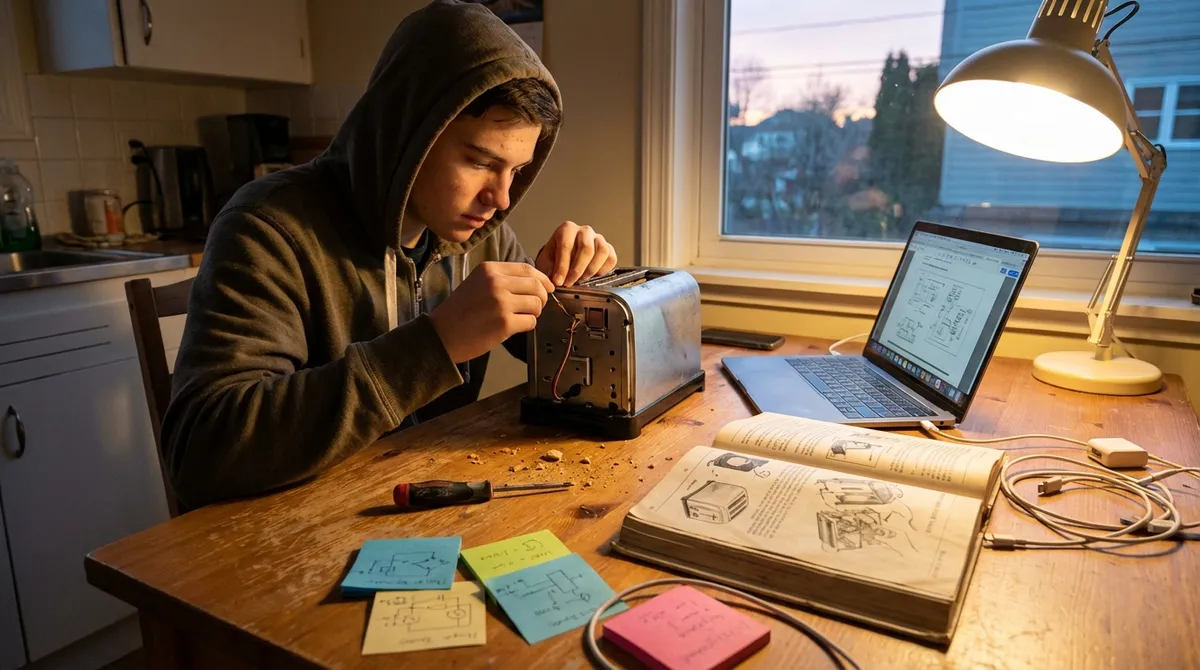
When a favorite gadget starts acting up, most people jump straight to replacement. But a lot of “dead” or “broken” electronics are one simple fix away from a second life. With a few basic tools and a methodical approach, you can safely tackle common problems at home, save money, and keep devices out of the trash. This guide walks through five practical, step‑by‑step repair tips that DIY enthusiasts can learn and reuse across many types of electronics.
Before You Start: Safety, Tools, and Smart Prep
Electronics repair isn’t just about knowing what to fix—it’s about how to approach the job safely and efficiently.
First, always disconnect power. Unplug wall-powered devices and fully power down battery gadgets. For anything that uses a removable battery, take it out before opening the device. Capacitors in power supplies can hold dangerous charges; if you’re working on TVs, desktop power supplies, or microwave internal boards, avoid those unless you’ve studied proper discharge procedures or leave them to a pro.
Basic tools go a long way: a precision screwdriver set (Phillips, flat, Torx), plastic spudgers, tweezers, a can of compressed air, isopropyl alcohol (90%+ if possible), cotton swabs, a soft brush, and a headlamp or good task light. An inexpensive multimeter is extremely useful for checking continuity and basic voltages, and a magnetic parts tray helps keep tiny screws from wandering off.
Before you remove anything, take photos with your phone. Photograph each stage as you go—especially cable routing and connector orientation. Label cables with masking tape if needed. Look up a teardown or model-specific guide beforehand when possible; even a quick search can reveal hidden clips or screws that keep you from cracking a case or tearing a ribbon cable.
Tip 1: Revive “Dead” Devices with a Power Path Check
A surprising number of “dead” gadgets aren’t dead at all—they’re just not getting power. Instead of assuming a failed main board, walk through the power path step by step.
- Confirm the outlet or USB port.
Plug a known-good device into the same outlet, strip, or USB port. For USB power bricks, try a different brick and a different wall socket. Power strips and surge protectors fail more often than you think, especially after a surge or lightning storm.
- Inspect and test the cable.
Look for fraying near connectors, kinks, exposed wires, or loose plugs. Gently wiggle the cable while the device is plugged in and powered on—if it charges intermittently, the cable is suspect. Swap in a known-good cable of the same spec (for laptops, make sure voltage and connector match exactly).
- Check the power adapter (if removable).
Many laptop and monitor bricks list their voltage and current on the label. Use a multimeter on DC volts to measure output at the connector. If it reads far from the rated voltage or zero, the adapter is bad. Replacements usually cost far less than a new device.
- Inspect the device-side port.
Shine a light into USB-C, micro‑USB, barrel jack, or DC-in ports. Lint, dust, or small metal pieces can prevent solid contact. If it’s dirty, gently clean with a wooden or plastic toothpick and a blast of compressed air—never use metal tools that can short pins.
- Test with and without battery (when possible).
For laptops with removable batteries: remove the battery, plug in the adapter, and try to power on. A machine that runs without the battery but not with it usually points to a failed battery pack, not a dead laptop. For phones and tablets, check if the device reacts at all to being plugged in (vibration, sound, or a battery icon). No response with a known-good cable and charger may point to a failed charge port board or internal power circuitry.
By methodically tracing the power path, you can often restore “dead” electronics with a simple cable, adapter, or port cleanup—no advanced diagnostics required.
Tip 2: Fix Sticky or Unresponsive Buttons and Keys
Game controllers, remote controls, keyboards, and handheld devices often fail in the same way: buttons don’t respond, respond intermittently, or stick down. The root cause is usually dirt, skin oils, or worn conductive pads—not a failed main board.
- Confirm it’s not a software or pairing issue.
For wireless devices, re-pair the controller or remote, replace batteries, and check settings. For keyboards, try the device on another computer or use the system’s keyboard tester when available.
- Remove batteries and open the case carefully.
Take out all power sources. Look for hidden screws under stickers or rubber feet. Use a plastic spudger or guitar pick to release clips instead of a metal screwdriver to avoid gouging the case or internal traces.
- Clean the exterior and key surfaces.
Use a soft brush or compressed air to remove crumbs and dust. For keyboards, turn it upside down and gently shake first. Lightly dampen a cloth or cotton swab with isopropyl alcohol (not dripping) and wipe key surfaces and rubber membranes.
- Clean the contact points.
Inside remotes and controllers, you’ll usually see a rubber sheet with black conductive pads sitting over printed circuit board (PCB) contacts. Dirt and oil build-up here is very common. Gently wipe the black pads and the gold or carbon contacts on the PCB with a swab moistened with isopropyl alcohol. Let everything dry fully—this is usually quick with high‑percentage alcohol.
- Re-seat and reassemble.
Make sure the rubber membrane is properly aligned and lays flat so every button can spring back. Check that any small springs or plastic plungers haven’t fallen out of place. Reassemble slowly, ensuring no cables are pinched and all clips engage with a quiet snap rather than a forced crunch.
If a few keys on a laptop keyboard are still unresponsive after cleaning, test with an external USB keyboard. If the external one works fine, you may need a replacement laptop keyboard assembly—still often cheaper than replacing the laptop.
Tip 3: Restore Overheating Laptops and Consoles with Proper Cleaning
Overheating is one of the most common reasons electronics shut down randomly or slow to a crawl. Dust and dried thermal compound can turn an efficient cooling system into a heat trap.
- Identify overheating symptoms.
Fans run constantly or suddenly ramp to full speed, the device feels very hot, games or video editing cause rapid shutdowns, or performance slows drastically under load. Use built‑in system tools or third-party utilities (where appropriate) to check CPU/GPU temperatures; if they climb quickly under basic tasks, cooling is suspect.
- Power down and open access panels.
Unplug the device and hold the power button for a few seconds to discharge residual power. For laptops and consoles, remove the bottom or side cover following a model‑specific guide when possible. Avoid prying blindly; there are usually hidden screws along edges or under stickers.
- Clean the vents, fans, and heat sinks.
Use compressed air in short bursts, holding fans still with a toothpick or plastic tool so they don’t spin wildly and damage bearings. Blow from both inside and outside the vents. Use a soft brush to loosen caked dust on heat sink fins, then blow it out. Don’t let the air can frost plastic parts; if it gets cold, take breaks.
- Inspect airflow paths.
Make sure intake and exhaust vents aren’t blocked by furniture, fabric, or dust filters. On some consoles and gaming laptops, foam filters clog easily; remove and gently clean or replace them if they’re saturated.
- Consider reapplying thermal paste (advanced).
If a system is several years old and still runs hot after cleaning, dried-out thermal paste between the CPU/GPU and heat sink might be the cause. This step involves removing the heat sink, cleaning old paste with isopropyl alcohol, and applying a thin, even layer of fresh, manufacturer‑approved thermal compound before reassembly. This is more advanced and best done with a detailed guide for your exact model; if you’re unsure, stick to cleaning and consult a professional for the paste job.
Proper cooling maintenance can extend the life of laptops, game consoles, and set‑top boxes dramatically, and it’s one of the most effective DIY fixes for random shutdowns and throttling.
Tip 4: Rescue Devices from Minor Liquid Spills (The Right Way)
Spills on keyboards, laptops, and handheld electronics are common—and often made worse by bad advice. Rice and hair dryers won’t fix electronics; careful drying and cleaning might.
- Cut power immediately.
Unplug from wall power, turn the device off, and remove the battery if it’s removable. For laptops, hold down the power button for a few seconds after shutdown to help discharge. Don’t press keys or buttons unnecessarily; you don’t want to push liquid deeper.
- Position the device to drain.
For laptops, open them as far as they go and set them in a tent shape or keyboard‑down over a towel. For phones and controllers, orient them so liquid can exit from the path it entered, not run into other internal areas.
- Blot, don’t rub.
Use lint‑free cloths or paper towels to gently blot visible liquid. Avoid wiping across keys or ports in a way that spreads moisture.
- Disassemble for internal drying when possible.
Remove back covers, batteries, SIM trays, and wherever manufacturer instructions reasonably allow access. For desktop keyboards, remove keycaps around the spill area and open the chassis if screws are accessible. Use compressed air and a soft brush to remove remaining droplets, and leave the device open in a dry, ventilated area for at least 24–48 hours. Avoid heat sources like ovens or hair dryers that can warp plastic and damage components.
- Clean sticky residues.
Water is less damaging than sugary drinks. If soda, juice, or coffee was involved, dried residue can short contacts or gum up mechanisms. After initial drying, carefully clean sticky areas using isopropyl alcohol on a cotton swab or cloth. For mechanical keyboards and removable keycaps, you can often wash the keycaps separately in mild soapy water (fully dry before reinstalling).
If a device still doesn’t power on after thorough drying—or powers on with erratic behavior—there may be corrosion or damage that requires board-level repair. At that point, it’s worth checking professional repair costs versus replacement, especially for high-value devices.
Tip 5: Track Down Loose Connections and Broken Cables with a Multimeter
Flickering displays, intermittent audio, and “works when I jiggle it” problems often come down to loose connectors or bad cables. Learning basic continuity testing with a multimeter lets you diagnose many of these failures quickly.
- Identify the failing path.
Is the issue video-only (HDMI or DisplayPort), audio-only (headphone cable, speaker wire), or power-related (barrel jack, DC cable)? Try to reproduce the exact move or position that triggers the failure—bending the cable near a connector, rotating a plug, or tapping a particular area.
- Inspect connectors visually.
Look for bent pins in HDMI, USB, or headphone jacks. Check for cracked strain relief (the thicker rubber near a connector) and bulges or flat spots along a cable. Slight discoloration around a connector on a PCB can indicate heat damage from a loose joint.
- Use continuity mode on a multimeter.
Set your multimeter to continuity (the mode that beeps when there’s a complete path). With the device unplugged and power removed, touch one probe to one end of a cable conductor (such as the tip, ring, or sleeve of a headphone plug) and the other probe to the corresponding connection at the opposite end or inside the device, if accessible. A broken wire will fail to beep or will only beep intermittently when you flex the cable.
- Reseat internal connectors.
Inside many devices, ribbon cables and plug-in connectors can work loose from drops or vibration. With power removed and after discharging static (touch a grounded metal object), gently press on each connector to ensure it’s fully seated. For ribbon cables with locking tabs, carefully flip up the lock, reinsert the cable straight, and close the lock evenly.
- Repair or replace as needed.
For detachable cables (HDMI, USB, power cords, audio cables), replacement is usually easier and safer than repair. For internal wires or jacks on a board, you may be able to reflow a cracked solder joint if you’re comfortable soldering: add a small amount of fresh solder to the existing joint after heating it, then let it cool undisturbed. Always avoid overheating plastic connectors or nearby components.
Once you’re confident using a multimeter for continuity checks, intermittent electronics problems start to look a lot less mysterious—and you’ll catch many failures long before they justify replacing the entire device.
Conclusion
Basic electronics repair isn’t about having a lab full of tools—it’s about a logical process and a willingness to look closer before you give up on a device. By checking the power path, cleaning and restoring buttons, maintaining cooling systems, handling spills correctly, and using a multimeter to expose hidden connection issues, you can solve a large share of everyday gadget problems at home.
Each fix you complete builds skills that carry over to the next device. Combine that with good safety habits and a bit of online research for model‑specific quirks, and you’ll be able to keep more of your electronics running longer, spend less on replacements, and cut down on e‑waste—all with practical steps you can repeat whenever something “mysteriously” stops working.
Sources
- [U.S. Department of Energy – Reducing Standby Power Waste](https://www.energy.gov/energysaver/articles/reducing-standby-power-waste) – Background on how power strips and adapters affect energy use and why they fail
- [iFixit – Electronics Repair Guides](https://www.ifixit.com/Device/Electronics) – Model-specific teardowns, disassembly steps, and repair walkthroughs for a wide range of electronics
- [EPA – Sustainable Management of Electronics](https://www.epa.gov/smm-electronics) – Information on e‑waste, why repair and reuse matter, and environmental impacts
- [Apple Support – Cleaning Your Apple Products](https://support.apple.com/en-us/HT204172) – Official guidance on safe cleaning methods for electronics surfaces and ports
- [Cleveland Clinic – What To Do If You Spill Water on Your Laptop](https://health.clevelandclinic.org/spilled-water-on-laptop) – Practical, medically reviewed advice on immediate steps after a spill and what to avoid
Key Takeaway
The most important thing to remember from this article is that this information can change how you think about Electronics.



