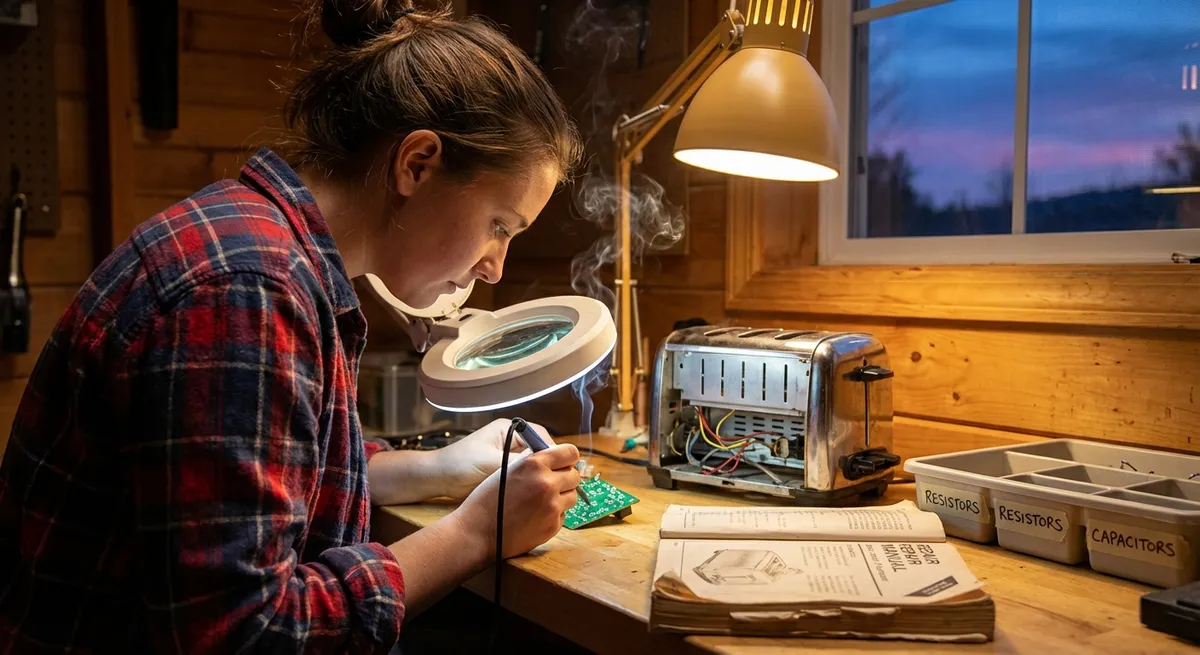
If you’re comfortable with a screwdriver and don’t panic at the sight of a circuit board, you’re already halfway to saving money on electronics repairs. The key is knowing what you can safely tackle at home and how to do it without making the problem worse (or shocking yourself in the process).
This guide walks through five practical, step-by-step repair tips that DIY enthusiasts can confidently try. No engineering degree required—just patience, basic tools, and a focus on safety.
Before You Start: Safety and Tools You Really Need
Before touching any electronic device, treat safety like it’s part of the repair, not an optional extra.
First, always disconnect power. Unplug mains-powered devices, remove batteries, and for anything with a built‑in battery (like many laptops and tablets), power down completely and hold the power button for 10–15 seconds to discharge residual charge. If you suspect swelling or damage in a battery, do not try to puncture, bend, or force it out.
Next, gather a basic repair kit. At minimum, you’ll want:
- Precision screwdriver set (Phillips, flathead, and Torx bits)
- Plastic prying tools and spudgers (avoid using metal on delicate casings)
- Tweezers (preferably anti-static)
- Isopropyl alcohol (90% or higher) and lint‑free cloths or swabs
- A small flashlight or headlamp
- Optional but helpful: multimeter and an anti-static wrist strap
Work on a clean, dry, well-lit surface. Keep screws and small parts sorted in cups or a magnetic tray. Take photos at each disassembly step so you know how to put everything back together later.
Tip 1: Revive Devices That Won’t Power On (Without Tearing Them Apart)
A device that “won’t turn on” is often suffering from a power chain problem—not necessarily a dead main board. Before grabbing a screwdriver, systematically trace the power path.
Step-by-step:
- Confirm the outlet or USB power source works.
Plug in something else (like a lamp or phone) to the same outlet, power strip, or USB port. If that doesn’t work either, your problem may be the outlet, not the device.
- Check cables and chargers.
Look for frayed insulation, bent plugs, or loose connections. Try a known‑good compatible cable and charger. Many “dead” laptops and phones come back to life with just a different charger.
- Inspect the power port on the device.
Use a flashlight to check for lint, dust, or bent pins. For USB or barrel jacks, gently use compressed air or a wooden toothpick to remove debris—never use metal tools that can short pins.
- Perform a “power drain” reset on laptops and some desktops.
- Unplug the device.
- Remove the battery if it’s user‑removable.
- Hold the power button for 15–30 seconds to discharge residual power.
- Reconnect only power (no accessories) and try turning it on again.
- Try a minimal-start test.
Disconnect all non‑essential accessories (USB drives, external displays, printers, dongles). A faulty peripheral can prevent startup. Then try powering on again.
If the device still shows no sign of life—no lights, no fan spin, no charging indicator—you may be dealing with an internal power board or battery issue best tackled with a detailed model‑specific guide. At that point, check resources like the manufacturer’s support pages or teardown guides before opening anything.
Tip 2: Fix Overheating Laptops and Consoles with Deep Cleaning
Fans that sound like jet engines or devices that shut down under load are classic signs of overheating. Dust buildup and dried-out thermal paste are common culprits—and both are fixable with care.
Step-by-step:
- Back up important data first.
Overheating can cause sudden shutdowns and potential data loss. Back up anything critical before extended troubleshooting.
- Start with external cleaning.
Power off and unplug the device. Use compressed air to blow dust out of vents in short bursts, holding the can upright. Avoid spinning fans wildly with direct air—hold the blades gently with a plastic tool or toothpick if necessary.
- Open the device to access fans and heatsinks (if comfortable).
Remove the bottom panel on laptops or the outer shell on consoles by unscrewing visible screws and following a model‑specific guide. Keep track of which screws go where; some are different lengths.
- Remove dust from internal components.
Use compressed air and a soft brush to carefully dislodge dust from fans and heatsinks. Don’t scrape or push hard on components. Wipe loose dust from the casing with a lint‑free cloth.
- Refresh thermal paste (advanced but impactful).
If you’re confident:
- Gently remove the heatsink assembly from the CPU/GPU.
- Clean old thermal paste from both surfaces with isopropyl alcohol and lint‑free wipes.
- Apply a pea‑sized amount of new, quality thermal paste to the center of the chip.
- Reattach the heatsink evenly, tightening screws in a cross pattern.
After reassembly, monitor temperatures using manufacturer utilities or third‑party tools where appropriate. You should notice quieter fans and fewer thermal shutdowns when you’ve done this properly.
Tip 3: Bring Back Sound by Tracking Audio Failures Step by Step
Speakers and headphones often “fail” because of settings, simple connection issues, or dirty jacks rather than dead hardware. A structured check can revive sound without replacing anything.
Step-by-step:
- Rule out mute and volume settings.
Check both physical volume buttons and software settings. On computers, open the sound settings panel to confirm the correct output device is selected and not muted.
- Test different audio sources and apps.
Play sound from multiple apps (music player, browser, system sounds) and sources (local files, streaming). If one app is silent but others work, the issue is likely software-specific.
- Inspect and clean the headphone or aux jack.
- Power down if possible.
- Shine a light into the port—look for dust or lint.
- Use compressed air in short bursts or a wooden/toothpick tool wrapped in a bit of lint‑free cloth to gently lift debris.
A blocked jack can trick devices into thinking headphones are always plugged in, muting speakers.
- Check Bluetooth and wireless settings.
Make sure audio isn’t routing to a Bluetooth device in another room. Temporarily turn off Bluetooth or disconnect all wireless audio devices to force audio back to built‑in speakers.
- Test with known-good headphones or speakers.
Plug in a set of headphones or external speakers that you know works. If you get sound through those but not through internal speakers, you may have a failing speaker or loose internal connection, which can sometimes be fixed by reseating cables inside—but that’s model‑specific and requires careful opening.
When in doubt, update or reinstall audio drivers from the manufacturer’s website. Drivers can become corrupt after operating system updates, causing sound problems that look like hardware failures.
Tip 4: Repair Sticky or Unresponsive Buttons and Keys
Game controllers, remote controls, keyboards, and some handheld devices often suffer from sticky, double‑press, or completely dead buttons. Dirt, spilled drinks, and worn contacts are usually to blame—and they’re surprisingly fixable.
Step-by-step:
- Start with surface cleaning.
Power off or remove batteries. Use a slightly damp lint‑free cloth (water or a little isopropyl alcohol) to clean around buttons and keycaps. For tight spaces, use cotton swabs lightly moistened with alcohol.
- Test button behavior after drying.
Let the device dry completely, then test again. Minor stickiness and misfires often clear up with just a good surface clean.
- Open the device carefully for deeper cleaning.
For remotes and many controllers:
- Remove batteries or power source.
- Unscrew visible screws (sometimes hidden under labels or rubber feet).
- Gently pry open the case with a plastic prying tool, working around the edges.
- Clean the button contacts.
- A rubber or silicone membrane with black pads
- Contact points on the circuit board underneath
- Wipe the rubber pads and the board contacts gently with isopropyl alcohol and a lint‑free swab.
- Let everything dry thoroughly.
- Reassemble and test.
Inside, you’ll usually see:
Clean both:
Ensure the rubber membrane sits flat and aligned with the buttons before closing the case. Tighten screws just snug—not overtight. Test all buttons. If a particular button is still dead, the contact on the board may be worn or damaged, which often means the part needs professional repair or replacement.
For desktop keyboards, you can often pop off individual keycaps (check your model) and clean underneath with compressed air and swabs. Just photo the original layout first if you remove a lot of keys.
Tip 5: Restore Life After Minor Liquid Spills (When It’s Not Too Late)
Liquid spills are terrifying, but not all are fatal—especially if you act fast and avoid common mistakes like turning the device back on too soon. This tip applies to small spills and non‑corrosive liquids like water or black coffee; sugary or sticky drinks are more complicated but still sometimes recoverable.
Step-by-step:
- Immediately cut power.
Unplug the device, switch off the power strip, and remove batteries if possible. For laptops, hold down the power button for several seconds to force shutdown. Do not try to check if it still works.
- Drain and dry externally.
- For laptops: open it as far as it goes and place it upside down in an “inverted V” (like a tent) on a towel so liquid can drain away from the keyboard and internals.
- For phones and small devices: gently blot (don’t rub) moisture with a lint‑free cloth, keeping liquid from spreading to other openings.
- Remove what you can safely.
Take out removable parts: battery (if user-removable), SIM card, SD card, detachable keyboard, and cables. Don’t pry out components that aren’t designed to be user‑removable without following a specific guide.
- Let it dry properly—no rice, no hairdryers.
Rice doesn’t magically absorb moisture inside electronics and leaves dust. Hairdryers and ovens risk heat damage. Instead:
- Place the device in a warm, dry room with good air circulation.
- If available, use silica gel packs or desiccant pouches around (not on top of) the device.
- Allow at least 24–48 hours for minor spills; longer for heavier exposure.
- Inspect internally if comfortable (and if out of warranty).
- Carefully open the device using a model‑specific guide.
- Look for corrosion (white/green residue) on connectors and the board.
- Gently clean affected areas with isopropyl alcohol and a soft brush, then let dry again.
Once dry:
Only after thorough drying should you reconnect power or reinstall batteries. If the device powers on but behaves strangely, shut it down and consult a professional—ongoing corrosion can slowly kill it if not properly treated.
Conclusion
DIY electronics repair isn’t about fixing everything yourself—it’s about knowing which fixes are realistic, safe, and worth your time. Checking power chains before panicking, cleaning dust and thermal paste to fight overheating, reviving audio and buttons with targeted cleaning, and handling spills calmly can save devices that might otherwise hit the trash.
Work slowly, respect electricity, and always look up model‑specific guides before opening anything unfamiliar. Each successful repair builds your confidence, cuts e‑waste, and keeps a little more money in your pocket—all very much in the Repair Buzz spirit.
Sources
- U.S. Consumer Product Safety Commission – Electrical Safety Guidelines - Official safety tips for working around electrical products and power
- iFixit – Electronics Repair Guides - Detailed, model-specific disassembly and repair walkthroughs for laptops, phones, consoles, and more
- Intel – Laptop Overheating and Cooling Tips - Explains causes of overheating and practical cooling solutions for mobile devices
- UC San Diego – Electronics Cleaning and Isopropyl Alcohol Use - Guidance on safely cleaning electronic components with isopropyl alcohol
- National Institute of Standards and Technology (NIST) – E-Waste and Repair - Context on why repair matters for reducing electronic waste and costs
Key Takeaway
The most important thing to remember from this article is that this information can change how you think about Electronics.



