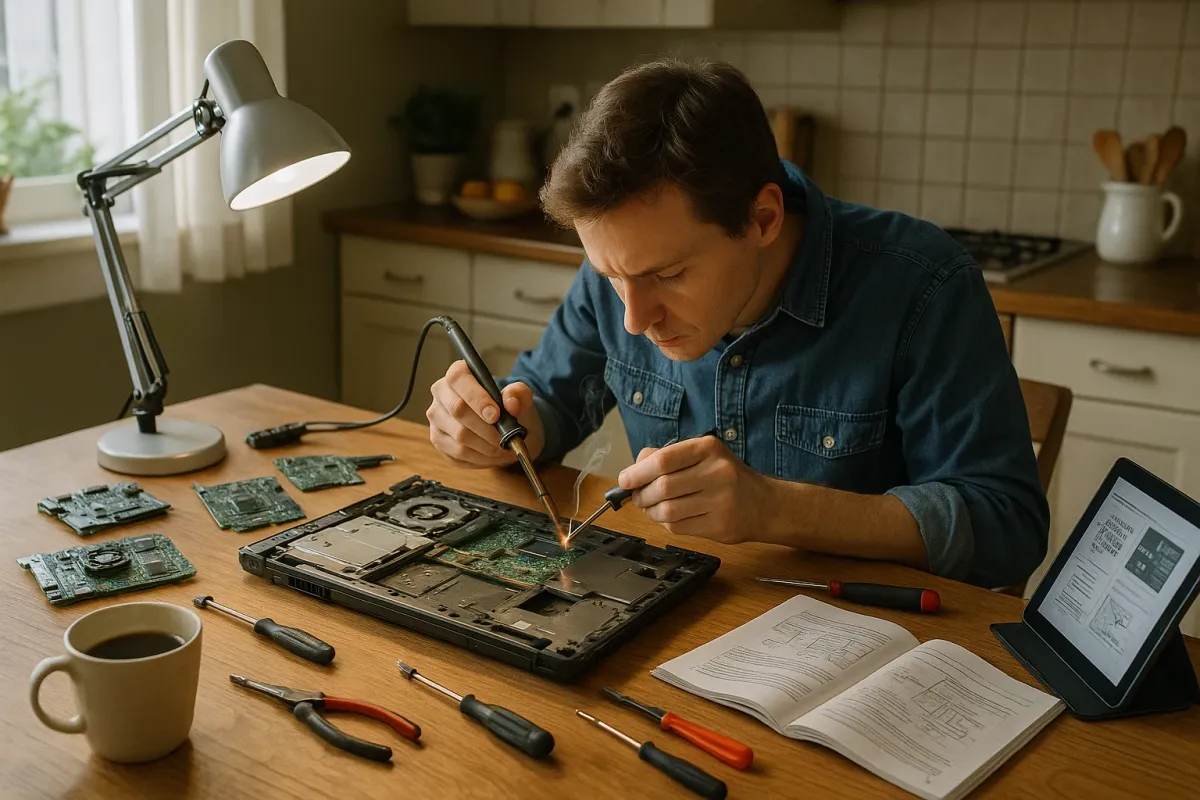
Old gadgets are having a moment again. Just like people on Reddit are sharing photos of rotary phones, iPods, and cassette players in “obsolete things” threads, DIYers are quietly pulling those same devices out of drawers and bringing them back to life. With new phones and laptops getting pricier every year, repairing and reusing electronics isn’t just nostalgic—it’s practical, greener, and often surprisingly easy.
Inspired by the growing online love for “obsolete tech,” this guide walks you through realistic, step‑by‑step repair tips you can try at home. Whether you’ve got an old MP3 player, a dusty game console, or a “vintage” digital camera, these methods can turn “junk drawer clutter” into working gear again.
1. Wake Up Old Batteries (Safely) Instead of Tossing the Device
A huge percentage of “dead” electronics work perfectly once the power problem is solved. Before you give up on that old gadget, treat the battery as the main suspect.
Step-by-step:
- Inspect the battery and compartment.
Open the back cover and check for corrosion (white/green powder on contacts), swelling, or leaks. If the battery is bloated or leaking, do not reuse it—replace it immediately and wear gloves when handling.
- Clean corroded contacts.
- Remove the batteries.
- Dip a cotton swab in white vinegar or lemon juice and gently scrub the corroded contacts. The mild acid neutralizes alkaline battery leaks.
- Wipe with a dry swab or paper towel and let it fully dry.
- Try a known-good power source.
- For AA/AAA devices: test with fresh, brand‑name batteries.
- For phones, cameras, or game consoles: plug in using the original charger or a certified equivalent and let it charge for at least 30 minutes before judging.
- Revive a lithium device that won’t start.
Some older phones, tablets, and MP3 players won’t boot if the battery voltage is very low.
- Replace rather than upgrade the entire gadget.
Search for “[device model] replacement battery” on reputable sites or repair communities. Many “obsolete” devices still have aftermarket batteries available for under $20. Swapping one in can extend life by years.
2. Fix “Dead” Buttons and Controls on Old Remotes, Game Pads, and MP3 Players
Those classic remotes and controllers from the early 2000s often fail because the buttons wear out, not the electronics. The good news: this is usually fixable with tools you already have.
Step-by-step:
- Test before opening.
- Try all the buttons and note which ones don’t respond.
- Confirm the device has good batteries and that it’s actually sending a signal (using a phone camera to see IR flashes on remotes, for example).
- Open the casing carefully.
- Remove all visible screws (check under stickers, battery labels, and rubber feet).
- Use a plastic card or guitar pick to gently pry the case apart so you don’t crack the plastic.
- Clean the board and rubber pads.
Most buttons sit on a rubber membrane that presses conductive pads onto a circuit board.
- Restore worn conductive pads.
If certain buttons still don’t respond:
- Reassemble and test thoroughly.
- Snap the casing back together and reinstall screws.
- Test every button, especially the ones that were previously intermittent.
If everything works, you’ve just extended the life of a “retired” controller or remote—which often outlasts many new ones in build quality.
3. Rescue “Dead” Screens: When It’s Just a Backlight or Connection Issue
That old LCD monitor, digital photo frame, or handheld console might look dead, but the problem can be as simple as a loose cable or dying backlight. Before you replace it, do some basic checks.
Step-by-step:
- Check for a faint image.
In a dark room, shine a flashlight at an angle on the “dead” screen while it’s powered on.
- If you can faintly see menus or graphics, the backlight (or its power circuit) is the issue, not the display itself.
- Inspect and reseat cables.
- For monitors/TVs: unplug power, disconnect HDMI/VGA/DisplayPort, and check for bent pins or damaged connectors.
- For laptops and handhelds (if you’re comfortable opening them): carefully reseat the display ribbon cable where it plugs into the main board.
- Test with another device or cable.
- Use a different cable and a different input source (another PC, console, or streaming stick).
- If it works with one combo but not another, you’ve narrowed the problem to cable or source, not the screen.
- Reset settings that could “kill” the picture.
- For monitors and TVs, tap the menu button and set brightness/contrast back to default.
- Double‑check the correct input source (HDMI1 vs HDMI2, etc.).
- Consider a backlight repair if you’re handy.
- Many older monitors and TVs use CCFL backlights (thin fluorescent tubes) that dim or fail over time. Replacements are cheap but require careful, static‑aware disassembly.
- Newer screens use LED backlighting—sometimes a single failed LED strip can be swapped out.
Some devices appear dead because brightness, contrast, or input selection got changed.
If you’re new to this, search for a teardown video of your model before deciding; if it looks overwhelming, you can still repurpose the device (see next section).
4. Turn “Broken” Screens into Working Displays or Smart Home Panels
Even if a device isn’t worth fully repairing, parts of it—especially the display—can often be reused for something useful instead of heading to the landfill.
Step-by-step:
- Identify what still works.
- Does the screen still show an image, even if the rest of the device is slow or glitchy?
- Does it still power on reliably? If so, you have a candidate for repurposing.
- Search for controller boards.
For laptops, monitors, and some tablets:
- Mount and protect the panel.
- Build a simple frame from wood, 3D-printed parts, or even a recycled monitor shell.
- Ensure all boards are insulated from metal parts and secure any loose cabling with zip ties or electrical tape.
- Connect to a low-power device.
- Pair your revived screen with a Raspberry Pi, old mini PC, or streaming stick.
- Use it as a smart home dashboard, digital calendar, photo frame, or always‑on status monitor for downloads, security cameras, or system stats.
- Label and manage the power safely.
- Use a power strip with a switch or smart plug to cut power when not in use.
- Label the voltage and polarity of any external power bricks you’re using to avoid future mix‑ups.
5. Quiet Noisy Fans and Overheating Laptops Instead of Replacing Them
A lot of “it’s too old” laptops, consoles, and mini PCs become loud and hot over time. Underneath that noise is usually a clogged cooling system and dried-out thermal compound—both fixable at home.
Step-by-step:
- Back up important data first.
Anytime you open a device, assume something could go wrong. Make sure your files are safe before you start.
- Blow out the dust the right way.
- Power off and unplug the device; remove the battery if possible.
- Use a can of compressed air to blow dust out of the vents. Short bursts only.
- Stop the fan from spinning freely with a toothpick or plastic tool—overspinning can damage bearings.
- Open the casing for a deeper clean (if comfortable).
- Look up a disassembly guide for your specific model on sites like iFixit or YouTube.
- Gently remove the bottom cover on laptops or the top shell on consoles.
- Use soft brushes and air to clear dust from heatsinks, fans, and vents.
- Refresh the thermal paste.
- Carefully remove the heatsink from the CPU/GPU (follow a guide).
- Clean the old thermal paste from both surfaces with isopropyl alcohol and lint‑free wipes.
- Apply a small pea‑sized dot of new thermal paste and reinstall the heatsink evenly.
- Reassemble and stress-test.
- Put everything back together, making sure all screws and cables are in place.
- Use a temperature monitoring tool (e.g., HWMonitor, Core Temp, or built‑in console diagnostics) to see if temps have dropped under load.
A quieter, cooler device feels new again—and you’ve avoided sending another “obsolete” machine to e‑waste.
Conclusion
The same internet that’s busy laughing at “obsolete” gadgets is also full of people quietly fixing and reusing them—and saving serious money in the process. Whether you’re reviving a “dead” battery, cleaning up unresponsive buttons, or turning old screens into smart displays, small repair skills pay off fast.
Before you give up on aging electronics, try one or two of these steps. And if you do bring something back from the brink, share your before‑and‑after on social media or in repair communities—those success stories inspire more people to fix, not toss.
Key Takeaway
The most important thing to remember from this article is that following these steps can lead to great results.



