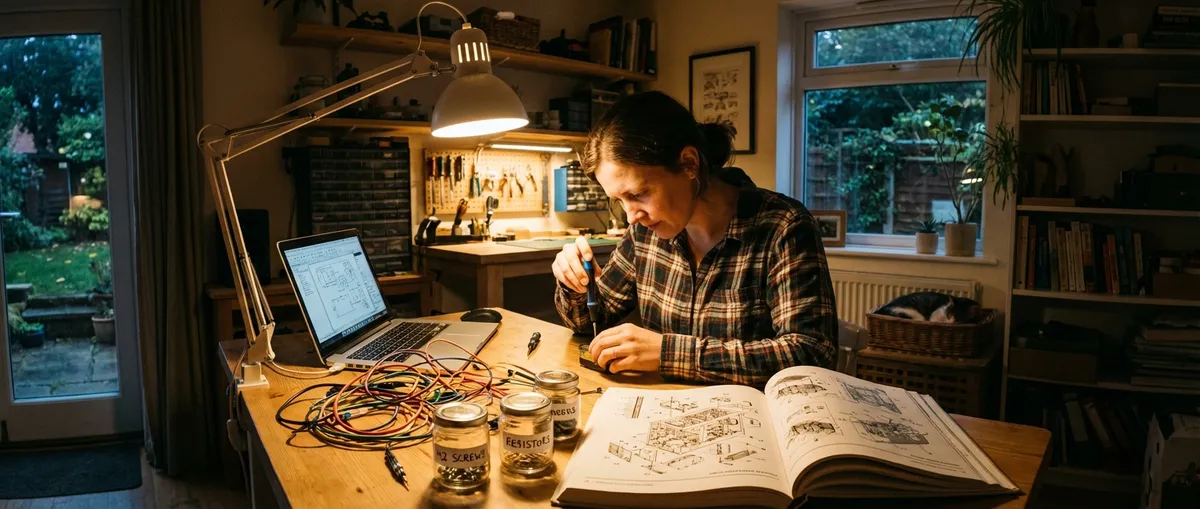
You don’t need a lab or a full toolbox to keep your electronics running. A handful of basic skills and a calm, methodical approach can rescue phones, laptops, game consoles, and small gadgets from the junk pile. This guide walks you through five practical repair processes—each broken into clear steps you can actually follow at home.
These aren’t theory-heavy electronics lessons. They’re real-world fixes you can apply when your gear won’t turn on, won’t charge, or just starts acting weird.
Before You Start: Safety and Setup
Before touching a screw or cable, set yourself up to succeed. Fast, careless tinkering is how you turn a minor fault into permanent damage.
Work through these basics first:
- Unplug and power down every device before opening it. For laptops, remove the battery if it’s user-accessible.
- Discharge static by touching a grounded metal object or using an anti-static wrist strap. Static damage is invisible but deadly to circuits.
- Use the right tools: a small Phillips screwdriver, plastic spudger, tweezers, cotton swabs, isopropyl alcohol (at least 90%), and a flashlight will cover most small repairs.
- Document everything with your phone camera as you go. Photos of cable routing and screw locations are priceless at reassembly time.
- Sort screws in labeled containers or on a sheet of paper with circles and notes for where each set came from. Mixing them up is one of the most common DIY mistakes.
Once you’ve got a safe, organized workspace, you’re ready to tackle real issues.
Tip 1: Revive a Water-Exposed Phone (Or Remote, Or Controller)
Accidental spills and brief dunks don’t always mean a device is dead. What you do in the first few minutes matters more than anything else.
Step 1 – Kill the power immediately
Unplug the device, power it off, and if possible, remove the battery or back cover. Do not press buttons repeatedly “to see if it still works”—that can short components.
Step 2 – Remove anything that traps moisture
Pull out SIM cards, memory cards, removable batteries, and covers. For remotes and controllers, remove batteries and battery covers.
Step 3 – Blot, don’t shake
Use paper towels or a cotton cloth to gently blot visible liquid. Don’t shake the device—this can drive liquid deeper into the electronics.
Step 4 – Dry externally, then air out
Use compressed air (short bursts) or a hand-held blower on a cool setting to push moisture out of ports and gaps. Avoid hair dryers on high heat; over-heating can warp plastic and damage chips.
Step 5 – Desiccant, not rice
If you have silica gel packs or other desiccants, place the device and packets in a sealed container for 24–48 hours. If not, leave the device in a warm, dry, ventilated area. Rice is less effective and can leave dust in ports.
Step 6 – Inspect and test carefully
After at least 24 hours (longer if it was submerged):
- Check for corrosion around ports and battery contacts (white/green residue).
- Clean contacts with a cotton swab lightly dipped in isopropyl alcohol.
- Reinstall the battery or reconnect power and turn it on.
If it fails to power on or you see display artifacts, stop and consider professional repair—further attempts could worsen board damage.
Tip 2: Fix a Device That Won’t Charge Reliably
If wiggling the cable is the only way your phone, tablet, or handheld console will charge, the problem is often simple: dirty or slightly damaged ports, bad cables, or a failing charger.
Step 1 – Rule out the easy stuff
Test with:
- A different cable (preferably new or known-good).
- A different charger (from a reputable brand).
- A different outlet or USB port.
If the device charges normally with another combination, you’ve found your culprit.
Step 2 – Power down and inspect the port
Turn the device off and use a flashlight to look inside the charging port. Common issues:
- Lint or pocket debris compacted at the back
- Bent or misaligned pins
- Corrosion or discoloration around the metal contacts
Step 3 – Clean the port gently
Use:
- A wooden toothpick or plastic pick (never metal)
- Compressed air in short bursts
Gently scrape out lint and debris, then blow out the port. Avoid digging aggressively or prying on internal pins.
Step 4 – Clean contacts and cables
Lightly dampen a cotton swab with isopropyl alcohol and clean:
- The metal part of the USB/Lightning/etc. connector
- Around the port opening on the device
Let it dry completely (a few minutes) before reconnecting power.
Step 5 – Retest and evaluate
Power the device back on and test charging again:
- If charging is now solid and consistent, you’ve fixed it.
- If you must still hold the cable at an angle, the port may be physically loose or damaged on the board—this usually requires soldering and is best for an experienced DIYer or professional shop.
Tip 3: Silence a Noisy Laptop or Console Fan
Over time, fans collect dust and fibers, leading to loud operation, overheating, and even random shutdowns. Cleaning them is one of the highest-impact DIY jobs you can do.
Step 1 – Back up and shut down
Back up important data first. Then:
- Shut the device down completely.
- Unplug the charger/power cable.
- Remove the battery if it’s accessible (for older laptops).
Step 2 – Access the ventilation and fan area
For many laptops and consoles:
- Remove the bottom panel or designated service cover using a small screwdriver.
- Check the user manual or an official support guide for the exact steps and screw locations.
If disassembly looks beyond your comfort level, you can still clean the vents externally (see below).
Step 3 – External dust removal (simple method)
If opening the device is not an option:
- Use compressed air to blow through vents in short, controlled bursts.
- Hold the fan blades in place with a toothpick or plastic tool, if accessible, to prevent spinning at high speed (which can damage bearings).
This won’t be as thorough but often helps significantly.
Step 4 – Internal cleaning (more thorough)
With the cover off:
- Hold the fan blades still.
- Use compressed air to blow dust away from the fan and heat sink fins.
- Use a soft brush to loosen stubborn dust (avoid stiff bristles that can snap blades).
Never use a vacuum directly on components—static from cheaper vacuums can damage electronics.
Step 5 – Reassemble and monitor temperatures
Reattach panels and screws:
- Ensure all vents are unobstructed.
- Power on the device and listen for fan noise; it should be noticeably reduced.
- Install a temperature-monitoring app (for laptops) to confirm that temps stay in a safe range under load.
If the fan still makes grinding or rattling sounds, it may be failing mechanically and need replacement.
Tip 4: Rescue a “Dead” TV, Monitor, or Speaker With a Power Check
When a device suddenly goes dark, many people assume it’s done for. Often, the issue is a simple power fault—either in the cable, surge protector, or internal fuse.
Step 1 – Eliminate external power problems
Check, in order:
- Wall outlet – Plug in a lamp or phone charger to verify it works.
- Power strip/surge protector – Make sure it’s switched on; test another device in it.
- Power cable – Inspect for cuts, severe kinks, or a loose fit at both ends.
If a detachable power cable is used (like many monitors and TVs):
- Swap it with a known-good cable of the same type and rating.
Step 2 – Look for signs of life
With the original setup:
- Check for standby LEDs, faint clicks, or brief flashes when you press power.
- Try the physical power button on the device, not just the remote.
- For TVs, replace the batteries in the remote or use a phone’s IR blaster (if available) to test the TV’s IR receiver.
Step 3 – Check for a simple internal fuse (for advanced DIYers)
If you’re comfortable and the device is out of warranty:
- Unplug the device.
- Wait several minutes for capacitors to discharge.
- Remove the back panel carefully.
- Look for a glass or ceramic fuse near the power entry point.
If the fuse is visibly blown (broken filament or charring), it can sometimes be replaced with an identical type and rating. However:
- A blown fuse often indicates another fault.
- If a new fuse blows immediately, stop and seek professional help—there may be a dangerous short in the power supply.
Step 4 – Reassemble and retest
Rebuild the device and:
- Plug directly into a wall outlet (no strip) for testing.
- If it still shows no signs of life, the power supply board or mainboard may be faulty.
At this point professional service or board-level replacement is usually the practical next step, especially for larger TVs.
Tip 5: Restore Life to a Wireless Keyboard, Mouse, or Game Controller
Input devices fail constantly—but many “dead” units just need a little attention, not replacement.
Step 1 – Confirm basic power
For battery-powered devices:
- Install fresh, quality batteries.
- Make sure they’re oriented correctly.
For rechargeable devices:
- Connect to a charger and leave for at least 15–30 minutes.
- Look for charging indicators (LEDs, on-screen notifications).
Step 2 – Clean battery contacts
Corroded or dirty contacts are a silent killer:
- Remove batteries.
- Inspect the metal terminals—white, green, or crusty buildup indicates corrosion.
- Lightly scrub contacts with a cotton swab dipped in isopropyl alcohol.
- For heavier corrosion, use a small piece of fine sandpaper or an emery board gently on the metal only.
- Let it dry completely, then reinsert batteries.
Step 3 – Reset or re-pair the device
Most wireless devices have:
- A small reset, sync, or pairing button (check the underside or battery compartment).
- Specific pairing instructions in the manufacturer’s manual or website.
On your computer or console:
- Remove/forget the device in Bluetooth or device settings.
- Reboot the host device.
- Start the pairing process fresh according to official instructions.
Step 4 – Check dongles, ports, and interference
For USB-dongle wireless devices:
- Try moving the dongle to another USB port.
- Use a short USB extension cable to bring the dongle closer to the mouse/keyboard if reception is spotty.
- Avoid plugging the dongle next to USB 3.0 hard drives or hubs, which can cause interference.
For Bluetooth devices:
- Turn off or move away from other 2.4 GHz devices if possible (some older routers, cordless phones, etc.).
- Make sure Bluetooth is enabled and not in airplane mode.
Step 5 – Firmware and driver updates
Especially for game controllers and advanced keyboards:
- Install any official software or drivers from the manufacturer.
- Apply firmware updates if available—these often fix connection drops and random input issues.
If the device still refuses to work after all these steps, the internal switch, wireless radio, or main board may have failed—often not worth repairing unless it’s a specialty or high-end model.
Conclusion
Electronics repair doesn’t have to be mysterious or risky. With a few core habits—unplug first, work methodically, clean before you replace, and test in small steps—you can fix a surprising number of “dead” devices yourself.
These five repair patterns—moisture recovery, charging fixes, cooling cleanup, basic power checks, and input-device rescue—cover a huge chunk of everyday failures. The more you practice them, the more confidence you’ll build tackling slightly more complex jobs like screen replacements or battery swaps.
Treat every repair as both a money-saver and a learning session, and your workbench will quickly become your favorite corner of the house.
Sources
- [U.S. Consumer Product Safety Commission – Safety Tips for Electronics](https://www.cpsc.gov/Safety-Education/Safety-Guides/electronics) - General safety guidance for working around consumer electronics and power sources
- [iFixit Repair Guides](https://www.ifixit.com/Guide) - Step-by-step teardown and repair guides for phones, laptops, game consoles, and more
- [Apple Support – Cleaning Your iPhone](https://support.apple.com/en-us/HT207123) - Official recommendations on safe cleaning methods around ports and openings
- [Microsoft Support – Xbox Controller Wireless Troubleshooting](https://support.xbox.com/en-US/help/hardware-network/controller/wireless-controller-disconnects) - Example of structured troubleshooting steps for wireless controllers
- [Occupational Safety and Health Administration (OSHA) – Electrical Safety](https://www.osha.gov/electrical-safety) - Background on safe practices when working with or around electrical devices and components
Key Takeaway
The most important thing to remember from this article is that this information can change how you think about Electronics.



