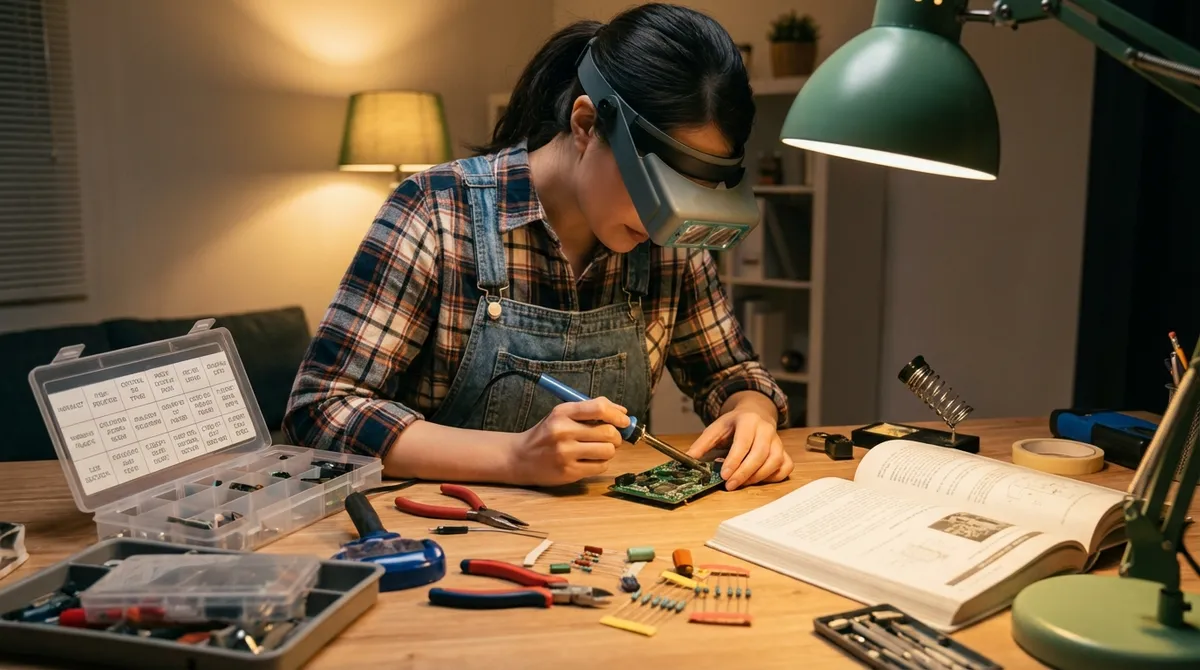
Most “electronics repair” advice either assumes you own a lab full of gear or tells you to throw everything away and buy new. There’s a middle ground. With a few basic tools and a methodical approach, you can safely tackle common failures in home electronics and actually bring things back to life—without guessing, poking randomly, or making the problem worse.
This guide walks through five practical, step‑by‑step repair approaches that apply to all kinds of devices: monitors, speakers, routers, game consoles, streaming boxes, battery gadgets, and more. You don’t need advanced electronics knowledge—just patience, caution, and a willingness to observe before you touch.
Safety First: Make Every Repair Less Risky
Before you pick up a screwdriver, build a simple safety routine you follow every time. It protects you, your tools, and the device.
Power down properly
Unplug mains-powered gear from the wall and power strips. For battery devices, remove the battery if possible. Don’t rely on a power button—physically disconnect.
Discharge stored energy
Some electronics (monitors, power supplies, microwaves, CRTs, etc.) can hold high voltage even when unplugged. As a DIYer, stay away from CRT TVs/monitors and microwave internals entirely—they’re not beginner-safe. For typical low-voltage devices (routers, speakers, game controllers), waiting a few minutes after unplugging and briefly pressing the power button helps discharge capacitors.
Create a static-safe workspace
Work on a wooden table or desk, not on carpet or bedding. Touch a grounded metal object (like a plugged-in but switched-off PC case) to discharge static. If you’re handling computer components, use an anti-static wrist strap if you have one.
Document as you disassemble
Use your phone to take photos at each stage. Capture cable routes, connector orientation, and screw locations. This turns reassembly from guesswork into a simple reverse-play of your photo album.
Know when to stop
If you smell burning, see scorch marks, find swollen/burst capacitors near mains input, or discover cracked/burned boards, you’re into higher-risk territory. At that point, replacement is often cheaper and safer than repair—especially for high-voltage sections.
Step‑By‑Step Tip #1: Track Down Power Problems Methodically
Power issues are among the most common—and fixable—failures. The trick is to treat them like a logical checklist, not a mystery.
Confirm it’s not the outlet or strip
- Test the outlet with another known-good device (like a lamp or phone charger). - If you’re using a surge protector or smart plug, bypass it and plug directly into the wall.
Verify the power adapter and cable
- Check for frayed insulation, bent connectors, or loose barrel plugs. - If possible, swap in a compatible adapter from another device (same voltage, equal or higher amperage, same polarity). - For USB-C or micro-USB devices, try a known-good cable and charger.
Look for subtle “almost alive” signs
- Does an LED blink briefly and go dark? - Do you hear a faint click or whine when you press the power button? These hints suggest the device is getting some power but may be shutting down due to a short or bad component.
Check for removable batteries and reset procedures
- For laptops or gadgets with removable batteries: take it out, press and hold the power button for 10–20 seconds (to clear residual charge), then reinstall and test. - Look in the manual (or manufacturer’s support site) for a “hard reset” or “power reset” procedure—often a long press (15–30 seconds) of a hidden or recessed button.
Test the power button and input jack (if you open it)
- With the device unplugged, open the case and visually inspect the DC input jack: is it cracked, loose, or wiggly? - Gently hold the jack in place and see if any broken solder joints move on the board. Loose jacks can often be fixed by re-soldering the pads (if you’re comfortable soldering).
This systematic approach often narrows the problem down to something simple and fixable—like a bad adapter, tired cable, or loose jack—before you ever touch the circuit board.
Step‑By‑Step Tip #2: Revive Loose and Intermittent Connections
“Sometimes it works, sometimes it doesn’t” is usually a connection problem, not a mysterious curse. Addressing these systematically can bring glitchy devices back from the edge.
Start with external connections
- Re-seat HDMI, USB, power, and audio cables—firmly push them in until fully seated. - Try another port if the device has multiple (a different USB socket, HDMI port, etc.). - Swap the cable with a known-good one to rule out a bad lead.
Clean dirty connectors
- For battery contacts (remotes, toys, handheld gadgets): remove the batteries and inspect for white or green corrosion. - Lightly scrub the contacts with a cotton swab dipped in isopropyl alcohol (90%+ is ideal) until shiny. Let dry thoroughly. - For headphone jacks or plugs, gently clean the plug with alcohol and insert/remove it several times to wipe the internal contacts.
Open the case and inspect internal connectors (if you’re comfortable)
- Unplug power and remove the battery first. - Look for ribbon cables with latches, plug-in connectors, and wire harnesses. - Gently disconnect and reconnect each one, ensuring they’re fully seated and aligned. Ribbon cables often have tiny locking bars that must click back into place.
Look for mechanical stress points
- Where cables bend sharply or pass through tight openings in the case, flex damage is common. - If insulation is cracked or conductors are exposed, consider replacing the cable or trimming and re-terminating it if feasible.
Stabilize and strain-relief suspect cables
- If moving a cable slightly makes the device work, you may have a partially broken conductor. - As a temporary fix, you can use electrical tape or a soft cable tie to hold it in the “good” position while you plan a proper replacement.
This connection-first method solves many “random shutoffs,” “no signal,” and “audio cutting out” issues with minimal risk and zero components to replace.
Step‑By‑Step Tip #3: Fix No‑Sound or Distorted Audio the Smart Way
Speakers, soundbars, monitors, and headphones often fail in predictable ways: no audio, one channel dead, or distorted sound. You can often trace the problem without touching a soldering iron.
Isolate where the audio dies
- Test the device with another audio source (different phone, PC, console) and a different cable. - Plug another set of headphones or speakers into the same source. This tells you if the problem is your audio device or the thing feeding it.
Check software and settings
- On computers and phones, check: - Output device selection (is it sending sound somewhere else?). - Volume and mute toggles. - Balance (left/right) settings if one side is quiet. - On TVs and soundbars, confirm the correct input and disable any “night mode” or compression features if sound is oddly quiet or thin.
Inspect physical controls and jacks
- Wiggle volume knobs and switches gently while audio is playing; if the sound crackles or cuts out, you may have dirty or worn contacts. - For crackly potentiometers (volume knobs), a small spray of contact cleaner (NOT WD‑40) into the control body, followed by many full rotations, often restores smooth operation.
Check speaker cones and cables
- Remove grills (if possible) and gently press the center of the speaker cone in and out. It should move smoothly without scraping sounds. Scraping suggests a damaged voice coil. - Inspect speaker wires for nicks, pinch points, and loose terminals. Re-tighten screw terminals and re-seat banana plugs.
Test channels individually
- Swap left/right speaker outputs (if accessible) to see if the problem follows the speaker or stays with the channel. - On headphones, gently flex the cable near the plug and the earcup; if sound cuts out in one ear when you move it, the cable is likely damaged internally.
Many audio issues come down to settings, dirty controls, or cable failures—cheap and straightforward to correct once you know where to look.
Step‑By‑Step Tip #4: Use Visual Clues to Spot Failing Components
You don’t have to be an engineer to benefit from “board spotting.” A careful look at the circuit board can reveal problems you can either fix or use to decide whether a repair is worth it.
Open carefully and expose the board
- After disconnecting power and removing batteries, undo screws and pry open the case gently, working around the edges. - Watch for hidden screws under stickers, rubber feet, or labels so you don’t crack the plastic.
Check for obvious physical damage
- Look for burn marks, darkened areas, or charred components. - Inspect for cracked chips, broken connectors, and pieces that have physically snapped off.
Hunt for bad capacitors
- Capacitors often look like small cans standing on the board. Healthy ones have flat, clean tops. - Signs of failure: domed or bulging tops, crusty or wet-looking residue around the base, or obvious leaks. - In some power supplies, replacing obviously bad capacitors (with identical or higher voltage rating and similar capacitance/temperature rating) is a common repair—if you’re comfortable soldering and understand polarity.
Spot cracked solder joints
- Use good light and, if possible, a magnifier. - Move connectors like DC jacks or buttons gently and watch their pins on the underside: if the solder ring moves or you see a “ring crack” around the pin, that joint is failing. - These joints can often be repaired by reheating with a soldering iron and applying a small amount of fresh solder.
Look for loose shielding or metal parts
- Metal shields covering Wi‑Fi modules or processors should be firmly attached. - If a shield or internal metal frame touches a board where it shouldn’t, it can cause shorts or intermittent failures—re-seat and secure it.
This kind of visual inspection helps you decide: “Is this a simple solder or capacitor job I can try, or is the board too far gone to justify the effort?”
Step‑By‑Step Tip #5: Rescue Overheating Devices with Better Cooling
Overheating is a silent killer in laptops, game consoles, streaming boxes, and routers. Fans run loud, devices throttle, crash, or shut off unexpectedly. Thermal fixes are often surprisingly approachable.
Confirm heat is the real problem
- Use the device until the issue appears (crash, sudden shutdown, performance drop). - Feel around vents—does it get extremely hot? Does the fan blast at full speed? - If possible, run a simple temperature-monitoring tool (for PCs, tools like HWMonitor or built-in OS utilities can help verify).
Give it room to breathe
- Remove any cloth or soft surfaces underneath (beds, couches) that block vents. - Lift the device slightly with spacers, a stand, or even bottle caps at the corners to improve airflow. - For routers and consoles, move them out of enclosed cabinets.
Clean out dust buildup
- Power off and unplug. - Use compressed air or a hand blower to blow dust out of vents in short bursts, keeping the fan from free-spinning wildly (hold the blades still with a toothpick or similar). - For PCs and some consoles, remove panels to access and clean heatsinks and fans more directly.
Check fans and vents for obstructions
- Make sure fan blades spin freely by hand (with power disconnected). - Listen for grinding or rattling when the fan runs—inexpensive replacement fans are widely available and often plug in via a simple connector.
Refresh thermal interface (advanced but impactful)
- On laptops and desktops, old thermal paste between the processor and heatsink can dry out. - If you’re confident disassembling: - Remove the heatsink, clean the old paste with isopropyl alcohol, apply a small pea-sized dot of new thermal paste, and reattach evenly. - This can dramatically improve temperatures and stability, especially in older machines.
A cooler device runs more reliably and lasts longer. These steps, especially dust removal and better airflow, are low-cost and high-impact.
Conclusion
You don’t need a bench full of test gear to do meaningful electronics repairs. By following structured steps—check power methodically, fix connections before blaming components, read visual clues on the board, and control heat—you can solve a surprising number of everyday problems safely.
The key is to slow down and diagnose instead of guessing. Start with the simplest, least invasive checks, document as you go, and respect your limits when high voltages or heavily damaged boards are involved. Over time, you’ll build a repeatable repair routine that saves money, keeps devices out of the landfill, and makes you far more confident tackling the next glitch that lands on your workbench.
Sources
- [U.S. Consumer Product Safety Commission – Product Safety for Consumers](https://www.cpsc.gov/Safety-Education/Safety-Guides) – General guidance on safe use and handling of consumer products, including electrical items
- [iFixit – Electronics Repair Guides](https://www.ifixit.com/Device) – Detailed, model-specific tear-downs and repair steps for a huge range of consumer electronics
- [Electronics Tutorials – Capacitors: Failure Modes](https://www.electronics-tutorials.ws/capacitor/cap_7.html) – Explains how capacitors fail and what physical signs to look for on a circuit board
- [Intel – PC Cooling and Airflow Basics](https://www.intel.com/content/www/us/en/gaming/resources/pc-cooling.html) – Overview of airflow, cooling, and heat management relevant to computers and other electronics
- [Harvard University – Laboratory EHS: Electrical Safety](https://www.ehs.harvard.edu/programs/electrical-safety-program) – Foundational principles of working safely around electrical systems and equipment
Key Takeaway
The most important thing to remember from this article is that this information can change how you think about Electronics.



