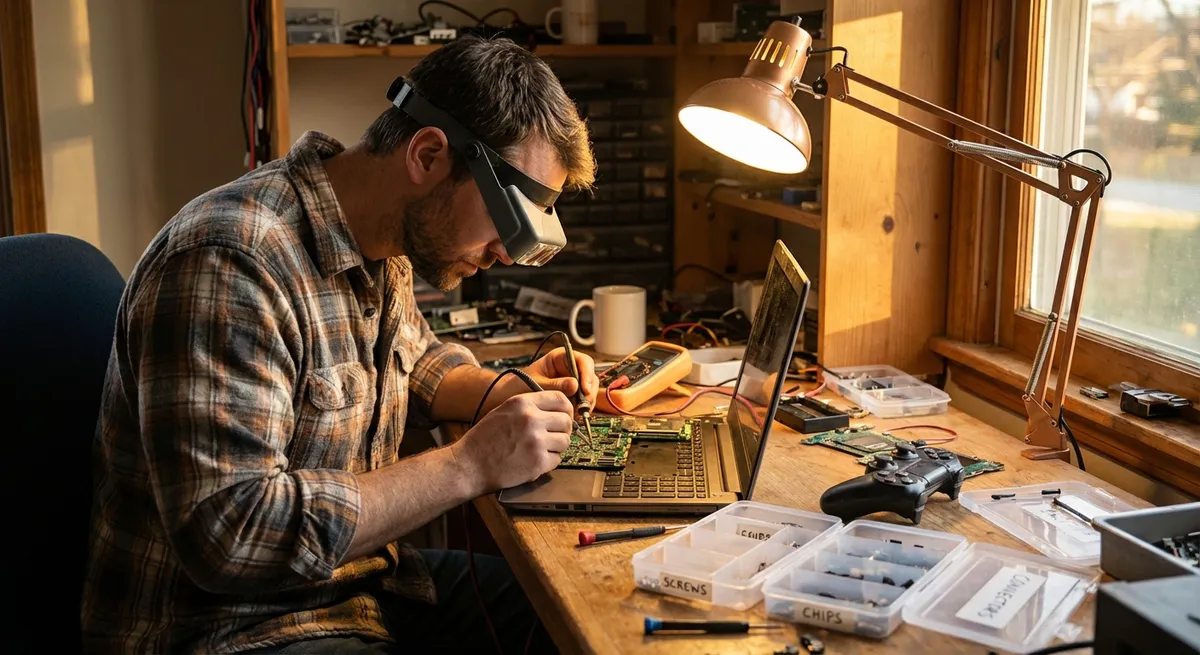
When a favorite gadget stops working, most people toss it in a drawer or head straight to the store for a replacement. You don’t always have to. With some basic tools and a methodical approach, you can often bring electronics back to life safely at home. This guide walks through five practical, step‑by‑step repair tips that DIY enthusiasts can use on everything from game consoles to Bluetooth speakers—without needing to be an engineer.
Safety note: Always unplug devices and remove batteries before opening them. If you’re unsure or dealing with high‑voltage equipment (like power supplies, old CRTs, or microwaves), stop and consult a professional.
1. Power Problems: Tracing Why Your Device Won’t Turn On
A dead device doesn’t always mean a dead device. Often, the failure is in the power path—cables, adapters, switches, or simple corrosion.
Step‑by‑step:
Check the obvious power chain
Confirm the outlet works by plugging in a lamp or charger. Try a different outlet or power strip. Swap in a known‑good power cable or adapter that matches the voltage and polarity.
Inspect the power adapter closely
Look for frayed insulation, crushed sections, and bent or burnt connectors. Gently wiggle the cable where it meets the plug or brick; if power cuts in and out, the cable is likely failing and should be replaced, not taped.
Test with a multimeter (if you have one)
Set the multimeter to DC voltage. Check the output of the power adapter against the label (e.g., “Output: 12V DC”). If the reading is far off or zero, replace the adapter.
Examine the power jack on the device
With the device unplugged, shine a light into the jack. Look for debris, bent pins, or looseness. Use compressed air to blow out dust; avoid metal tools that can bend pins.
Try a “bare minimum” boot
Remove optional accessories (external drives, USB hubs, memory cards, dock stations). For laptops, remove the battery (if possible) and try power from the charger only. For consoles and set‑top boxes, unplug everything but power and video. This isolates whether an add‑on is causing a short or boot failure.
If the device still won’t power up after these checks, the problem may be on the internal power board or battery management circuit—repairs that often require board‑level skills or professional service.
2. Button and Switch Issues: Fixing Controls That Don’t Respond
Sticky, unresponsive, or double‑triggering buttons are incredibly common on game controllers, remotes, and handheld devices. Dust, skin oils, and worn contacts are usually to blame.
Step‑by‑step:
Start with an external clean
Power off and remove batteries. Dampen a microfiber cloth with isopropyl alcohol (70% or higher) and wipe around buttons and switches. Use a cotton swab with alcohol to work around crevices—avoid soaking.
Check for mechanical obstructions
Confirm that buttons aren’t physically jammed by grit or spilled drinks. Compressed air can help blow out crumbs or dust around keypads and rocker switches.
Open the device carefully (if you’re comfortable)
Use the correct screwdriver (often Phillips #0/#00 or a small Torx). Keep track of screws by layout. Gently split the case; avoid forcing plastic clips that may snap—work your way around the edges evenly.
Clean the contacts and pads
Inside many remotes and controllers, rubber “domes” press onto carbon pads on a circuit board. Use isopropyl alcohol on a lint‑free cloth or cotton swab to clean both the rubber pads and the board contacts. Let everything dry fully.
Reassemble and test systematically
Before fully tightening all screws, test the buttons. If the buttons feel mushy or stuck, check that the rubber keypad sits flat and that no cables are pinched. Then close up and do a full functional test on the device.
If buttons remain unresponsive, the underlying switch component (like a tactile switch or encoder) might need replacement, which usually involves soldering. At that point, decide whether you’re comfortable continuing or prefer professional repair.
3. Audio Fixes: When Speakers, Headphones, or Mics Cut Out
Sound issues—no audio, distorted sound, or signal cutting in and out—often trace back to cables, jacks, and simple connection problems rather than blown speakers.
Step‑by‑step:
Rule out software and settings first
On phones and computers, check volume controls, mute icons, and audio output selection. Restart the device. Try another app or media file to rule out a bad source.
Test with a different accessory
If headphones have no sound, plug in another set. If a speaker is silent, connect a different audio source (another phone or laptop). This helps determine if the problem is in the device or the accessory.
Inspect and clean audio jacks
With power off, shine a light into the headphone or aux jack. Pocket lint can block proper contact. Use a non‑metal tool (like a wooden toothpick) gently, or a purpose‑made jack cleaning brush, to remove debris. Follow up with compressed air.
Stress‑test the cable and connector
Play audio, then gently flex the cable near the plug, mid‑cable, and near the earcups or speaker. If sound cuts or crackles at specific points, the cable likely has an internal break. For detachable cables, replace them. For fixed cables, consider replacing the cable or connector if you’re comfortable soldering.
Check for balance and channel issues
If sound only comes from one side, check balance settings in your device’s audio menu. On computers, verify the correct audio device is selected as output and that enhancements aren’t muting a channel.
If speakers or headphones still sound distorted at low volume, the driver itself may be damaged. Replacement parts are often available for popular models, but weigh the cost of parts and tools against replacement.
4. Overheating and Random Shutdowns: Improving Cooling and Airflow
Laptops, game consoles, and streaming boxes often overheat due to dust buildup and dried‑out thermal paste. The fix is often cleaning and restoring proper airflow.
Step‑by‑step:
Identify overheating symptoms
Watch for fans running loudly all the time, hot surfaces, performance slowdowns under load, and sudden shutdowns. Many devices will also display temperature or thermal warnings.
Give the device breathing room
Ensure vents aren’t blocked by blankets, carpets, or tight cabinets. Elevate laptops slightly so air can flow underneath. For consoles and set‑top boxes, leave space around all sides and avoid stacking other electronics on top.
Clean external vents and filters
Power off and unplug the device. Use compressed air to blow dust out of vents from the outside. Short bursts are better than continuous blowing to avoid spinning fans excessively. If there are removable dust filters, take them out and clean with a soft brush or under running water (let them dry completely before reinstalling).
Open the case for deeper cleaning (when possible)
For many laptops and consoles, the bottom panel or outer shell can be removed with a screwdriver. Once open, hold the fan blades still with a toothpick and use compressed air to blow dust away from fans and heatsinks. Avoid vacuum cleaners directly on the electronics—they can generate static.
Refresh thermal interface materials (advanced DIY)
If you’re experienced and guides exist for your model, you can remove heatsinks and replace thermal paste on CPUs/GPUs. Use isopropyl alcohol and lint‑free wipes to clean old paste, then apply a thin, even layer of quality thermal paste. Reassemble carefully, following torque or screw patterns where specified by manufacturer guides.
After cleaning, monitor temperatures using built‑in diagnostics or software tools (on PCs) to confirm improvement. If overheating persists, a failing fan or sensor may need replacement.
5. Charging and Battery Troubles: Recovering Devices That Won’t Hold Power
Modern portable electronics rely on complex charging circuits and lithium‑ion batteries. Many “dead” devices are suffering from poor connections, dirty ports, or battery health issues—not total failure.
Step‑by‑step:
Inspect the charging cable and plug
Look for kinks, exposed wires, scorch marks, and bent pins. Try a different cable and power brick that meets the device’s specifications. For USB‑C devices, test with a cable known to handle both data and power.
Clean the charging port carefully
Power the device off. For USB‑C, Lightning, and micro‑USB ports, use a wooden toothpick or dedicated port cleaning tool to gently scrape out lint and debris. Blow out remaining dust with compressed air. Avoid metal tools that can short or damage pins.
Try a slow, stable charge
Plug directly into a wall outlet instead of a computer or hub. For very low batteries, leave the device connected for 15–30 minutes before trying to power it on. Some devices won’t show signs of life until the battery passes a minimum threshold.
Check battery health where possible
Many phones and laptops have built‑in battery health indicators (in system settings or diagnostics). If health is significantly degraded (e.g., below 80% of original capacity), the device may shut down early or charge erratically.
Calibrate the battery reading (if recommended for your device)
Some devices benefit from calibration: fully charge to 100%, use normally until it shuts down from low battery, then recharge uninterrupted to 100% again. This doesn’t fix a worn‑out battery, but it can make percentage readings more accurate.
For sealed devices with swollen batteries (bulging case, screen lifting, or case seams opening), stop using the device immediately. Do not puncture or press on the battery. Seek professional service and follow local guidelines for safe battery disposal.
Conclusion
You don’t need a full workshop to breathe new life into failing electronics. With basic tools, careful observation, and a step‑by‑step approach, many power, button, audio, cooling, and charging issues can be resolved at home. Start with the simple, low‑risk checks—cables, connectors, dust, and settings—before moving to more advanced disassembly. When you hit a point that feels beyond your comfort level, that’s your cue to consult a repair guide tailored to your exact model or to call in a professional.
The more you practice these “first‑aid” fixes, the more confident you’ll become at keeping your gadgets out of the junk drawer—and out of the landfill.
Sources
- iFixit Repair Guides - Detailed, model‑specific teardown and repair instructions for a wide range of consumer electronics
- U.S. Consumer Product Safety Commission - Safety guidance on rechargeable batteries, including lithium‑ion handling and disposal
- Apple: Battery Service and Recycling - Official information on battery health, replacement, and recycling best practices
- U.S. Department of Energy - Practical tips related to safe and efficient use of computers and laptops, including thermal considerations
- IEEE Spectrum – Why Gadgets Overheat - Technical but accessible explanation of overheating causes in consumer electronics and approaches to mitigation
Key Takeaway
The most important thing to remember from this article is that this information can change how you think about Electronics.



