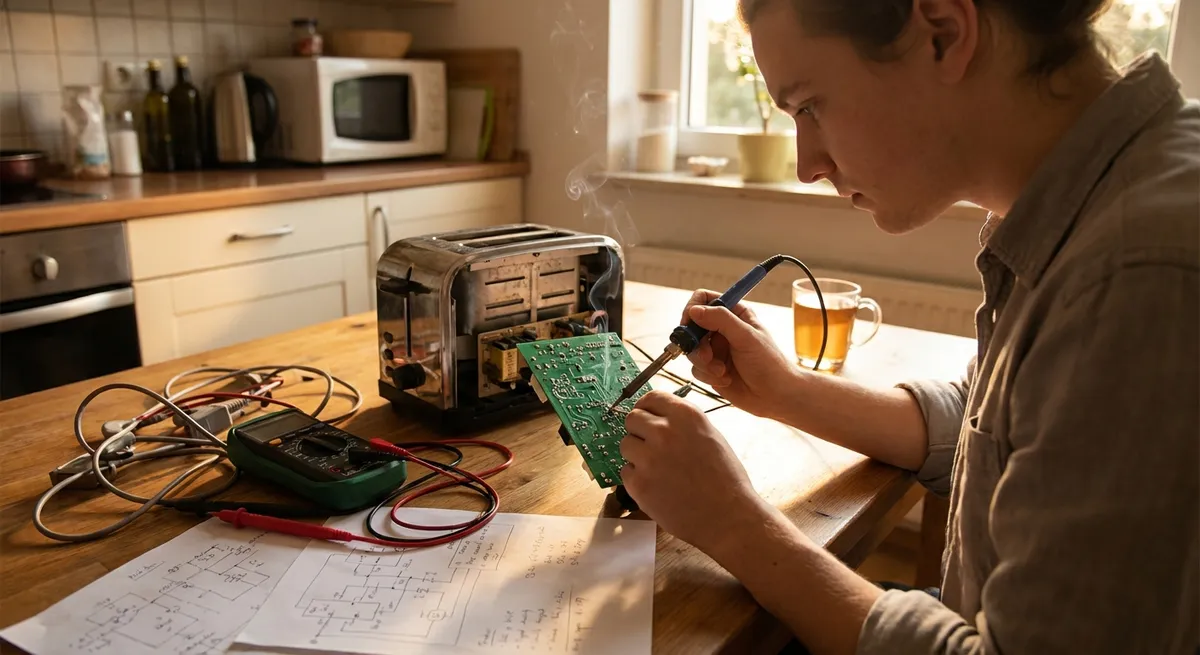
Electronics don’t just “die” out of nowhere—most small failures follow predictable patterns. With a bit of method, you can often bring dead gadgets back to life, save money, and keep e‑waste out of landfills. This guide walks you through five practical, step‑by‑step repair tips for common electronic issues, using basic tools and a safety‑first mindset.
Whether you’re troubleshooting a reluctant TV, a silent speaker, or a laptop charger that only works at certain angles, these approaches will help you work smarter, not just braver.
Safety First: Power, Tools, and What Not to Touch
Before any repair, you need a safe routine. Many electronics hold dangerous voltages even after they’re unplugged (especially devices with big capacitors like power supplies, microwaves, and CRT monitors).
- Disconnect power completely.
Unplug the device and, for battery-powered gear, remove the battery if possible. For laptops, remove the AC adapter and the removable battery (if it has one).
- Discharge and wait.
For most small electronics (speakers, game controllers, headphones, remotes), waiting 1–2 minutes after unplugging is generally enough. Avoid opening high-voltage devices like microwaves, CRT TVs/monitors, or mains wiring panels at all if you’re not trained—these can remain lethal even unplugged.
- Use the right basic tools.
- Small Phillips and flathead screwdrivers
- Precision screwdriver set (for tiny electronics screws)
- Plastic spudger or guitar pick (for prying open cases without damage)
- Multimeter (for testing voltage, continuity, and resistance)
- Isopropyl alcohol (90%+ recommended) and cotton swabs for cleaning
- ESD (anti-static) wrist strap if you’re working on computers or PCBs
- Mind static electricity.
Static can damage sensitive components. Work on a non‑carpeted surface, touch a grounded metal object before handling boards, or use an ESD strap clipped to a grounded metal surface.
- Know when to stop.
Burnt smells, cracked components, melted plastic, or bulging capacitors can indicate serious damage. These issues may be repairable but are often best handled by experienced technicians, especially when mains voltage is involved.
By treating safety as a repeatable checklist, you avoid rushed mistakes and gain confidence to move on to practical diagnostics.
Step‑By‑Step Tip #1: Track Down Power Problems with a Multimeter
A surprising number of “dead” devices are perfectly fine—except they aren’t getting proper power. Learning to quickly test power paths is one of the most valuable DIY skills.
What you’ll need: Multimeter, access to the power supply (adapter, batteries, or internal fuse compartment).
Steps
- Start at the source: the outlet or USB port.
- Test a wall outlet by plugging in a known‑good device (like a lamp or phone charger).
- For USB power (e.g., speakers, streaming sticks), try a different USB port or charger.
- Test the power adapter.
- Look at the adapter label: note the output voltage and whether it’s DC (⎓) or AC (∿).
- Set your multimeter to the correct voltage range (DC volts for most adapters).
- Place the red probe on the center pin (or inside contact) and the black probe on the outer barrel (or outer contact).
- Compare the reading to the label. A significantly lower or zero reading suggests a bad adapter.
- Check for damaged cables.
Wiggle the cable gently near the connector while watching the multimeter reading. If the voltage jumps or cuts out, the cable is likely broken internally and needs replacement.
- Inspect battery connections.
- Remove batteries and check for corrosion (white or green buildup).
- Clean corrosion with a cotton swab dipped in isopropyl alcohol. For stubborn buildup, you can very gently scrub with a small brush.
- Use the multimeter’s continuity mode to check that each battery terminal connects properly to the circuit board or wires.
- Look for internal fuses.
Some electronics have small glass or surface‑mount fuses on the circuit board. If accessible and clearly labeled (e.g., “F1”), test continuity across them. A blown fuse shows no continuity and will need replacement with the same type and rating.
If you find a faulty adapter, cable, or fuse, you can often fix the “dead” device without touching the internal electronics at all—cheap, quick, and satisfying.
Step‑By‑Step Tip #2: Clean and Revive Sticky Buttons and Controls
Game controllers, TV remotes, keyboards, and even some speakers often “fail” because of dirt, skin oils, and spilled drinks—not electronics. Cleaning can restore performance without any component replacement.
What you’ll need: Small screwdriver, isopropyl alcohol, cotton swabs, lint‑free cloth, sometimes a soft brush.
Steps
- Test the symptom carefully.
Press each button and note which ones fail or feel sticky. Sometimes just one area is affected (e.g., volume buttons, directional pad, or power key).
- Remove batteries or disconnect power.
Always power down and remove any battery before opening a device.
- Carefully open the case.
- Use the correct screwdriver and keep track of screws.
- Gently pry apart plastic clips with a plastic spudger to avoid cracking the case.
- Separate the button pad and circuit board.
Remotes and controllers usually use a rubber (silicone) keypad pressing onto a printed circuit board (PCB) with carbon pads or traces.
- Clean contact surfaces.
- Lightly moisten a cotton swab with isopropyl alcohol. Don’t soak it.
- Clean the black conductive pads on the rubber sheet.
- Clean the matching contact areas on the PCB in gentle circles.
- For sticky gunk, a second pass may be needed.
- Clean the outer buttons.
Wipe down the plastic buttons and case openings to remove grime that can cause sticking or misalignment.
- Allow to dry completely, then reassemble.
Alcohol evaporates quickly, but wait a few minutes to be safe. Reassemble carefully, ensuring the rubber pad sits properly and all clips snap back in place.
- Test all buttons.
Power up the device and test the previously faulty controls. In many cases, response will feel sharper and more consistent.
This cleaning method also works well for some portable speakers, calculators, remote‑controlled toys, and other small gadgets with soft buttons.
Step‑By‑Step Tip #3: Fix Intermittent Audio by Repairing Cable Strain
Headphones, auxiliary cables, and some speakers often fail right next to the plug or at the point where the cable enters the device. If sound cuts out when you bend the wire, you’re likely dealing with a broken conductor inside the insulation.
What you’ll need: Soldering iron and solder (for permanent repair), heat‑shrink tubing or electrical tape, wire cutters/strippers, replacement plug if needed.
Steps
- Identify the failure point.
- Play audio and gently flex the cable along its length.
- Note where sound cuts in and out—typically near the jack or the entry point into the headphones/speaker.
- Prepare for repair.
If the damage is near a plug:
- Strip and identify wires.
- Carefully strip the cable’s outer insulation to expose internal wires.
- Most headphone cables have:
- Left (often green or white)
- Right (often red)
- Ground/common (bare copper or copper‑colored)
- Gently scrape any colored enamel off the wires (if present) so they can be soldered.
- Prepare the new plug.
- Open the replacement 3.5 mm jack and identify terminals (tip = left, ring = right, sleeve = ground).
- Thread the cable through the plug housing first, so you can close it later.
- Solder the connections.
- Tin (pre‑coat) the stripped wire ends with a small amount of solder.
- Solder each wire to its correct terminal: left to tip, right to ring, ground to sleeve.
- Avoid cold joints—wires should be shiny and firmly attached.
- Insulate and strain‑relieve.
- Make sure no bare wires can touch each other.
- Slide the plug housing into place and tighten.
- Move the heat‑shrink tubing over the repair area and heat it to secure, or wrap with electrical tape.
- Test audio.
Plug into a device and test both channels while flexing the cable slightly to confirm a stable connection.
The same strain‑relief principle applies to power cords and USB cables, though for mains‑voltage cords it’s generally safer to replace the entire cable with a certified one rather than attempt a repair.
Step‑By‑Step Tip #4: Restore Overheating Devices with Proper Dust and Fan Care
Laptops, game consoles, and desktop PCs often crash, slow down, or shut off because of overheating—not software issues. Dust buildup chokes airflow and forces fans to work harder, eventually causing thermal shutdowns.
What you’ll need: Compressed air can, small brush, screwdriver, thermal paste (for advanced repairs), optional vacuum with brush attachment (used carefully).
Steps
- Recognize heat‑related symptoms.
- Device gets very hot to the touch.
- Fans run loudly all the time.
- Random shutdowns, especially during gaming or video editing.
- System performance suddenly drops under load.
- Power down and unplug.
Shut down fully (don’t just sleep) and disconnect from power. Remove the battery if accessible.
- Access vents and fans.
- For laptops: remove the bottom panel if the design allows easy access.
- For consoles and desktops: remove side or top covers according to manufacturer instructions.
- Blow out dust safely.
- Use short bursts of compressed air on vents and fans.
- Prevent fans from spinning freely while you blow air on them—hold fan blades in place with a toothpick or similar tool to avoid generating unwanted voltage or damaging bearings.
- Brush away stubborn dust gently; avoid scraping the board or components.
- Inspect airflow paths.
- Check that vents are not blocked by pet hair, lint, or debris.
- For desktops, clear dust from power supply vents, CPU cooler, and case fans.
- (Advanced) Refresh thermal paste.
If you’re comfortable and your device is out of warranty:
- Reassemble and monitor.
- Put everything back and reboot.
- Use built‑in tools or third‑party software to monitor temperatures over time and verify improvement.
Regular dust maintenance can dramatically extend the life of electronics and reduce random crashes that might otherwise be misdiagnosed as software problems.
Step‑By‑Step Tip #5: Diagnose No‑Image, No‑Backlight, and Flicker Issues on Screens
Monitors, TVs, and laptop screens often fail in predictable ways: no image, faint image, no backlight, or blinking power lights. Some of these problems are external or power‑related and are straightforward to check before you consider a costly replacement.
What you’ll need: Known‑good cable (HDMI/DisplayPort/USB‑C), flashlight, multimeter (optional), access to on‑screen menu controls.
Steps
- Rule out input and cables first.
- Try a different HDMI/DisplayPort/USB‑C cable.
- Test the suspect screen with a different device (laptop, console).
- Test your original device with a different screen.
If the problem follows the cable or device rather than the screen, you’ve found your culprit.
- Check the power path.
- Confirm the power cord is firmly seated on both ends.
- For devices with external power bricks, test the adapter output with a multimeter or swap in a compatible, known‑good adapter.
- Look for signs of backlight failure.
- Turn the screen on.
- Shine a strong flashlight at an angle to the screen while a known image should be present.
- If you can faintly see the desktop or menu, the image circuit is working but the backlight isn’t. Backlight repairs often involve LED strips or inverter boards and can be more advanced, but at least you’ve narrowed the issue.
- Use the on‑screen menu (OSD).
- Press the physical menu or settings button on the monitor/TV.
- If the menu appears but connected devices don’t show, the issue may be with the input port or cable, not the screen itself.
- Try another input (HDMI 2 instead of HDMI 1, for example).
- Test for flicker and loose connections.
- Adjust refresh rate and resolution from the computer or console.
- Gently wiggle the cable where it plugs into the screen; if flicker changes or cuts out, the connector or port may be loose or worn.
- For detachable panels (like some laptops), a failing display cable inside the hinge is a common cause of intermittent display or flicker.
- Evaluate repair vs replacement.
- External power adapters, input cables, and simple connector issues are usually worth fixing.
- Cracked screens, extensive liquid damage, or repeated backlight failures can be more expensive than replacing the entire device, especially for older models.
By systematically testing inputs, power, and backlighting, you avoid guesswork—and you may find the “broken” screen was never the problem.
Conclusion
Electronics repair isn’t magic; it’s method. You start with safety, then walk the same basic path every time: power, connections, controls, cooling, and only then deeper components. With a multimeter, some cleaning supplies, and a bit of patience, you can rescue a surprising number of devices from the recycling bin.
Use these five step‑by‑step tips as a foundation. Over time, you’ll build a personal “repair radar” for common symptoms, recognize patterns faster, and feel more confident tackling bigger projects—always with safety and common sense leading the way.
Sources
- U.S. Consumer Product Safety Commission – Product Safety Guidelines - General electrical safety and consumer product guidance to help you work safely with household electronics
- iFixit Repair Guides - Detailed, model‑specific disassembly and repair instructions for thousands of electronic devices
- OSHA – Electrical Safety - Official U.S. workplace electrical safety information, useful for understanding safe practices around powered equipment
- Intel – PC Cleaning and Maintenance Tips - Practical guidance on dust removal, airflow, and thermal management for computers
- Harvard University – Environmental Impacts of E‑Waste - Background on why repairing and reusing electronics helps reduce electronic waste and environmental impact
Key Takeaway
The most important thing to remember from this article is that this information can change how you think about Electronics.



