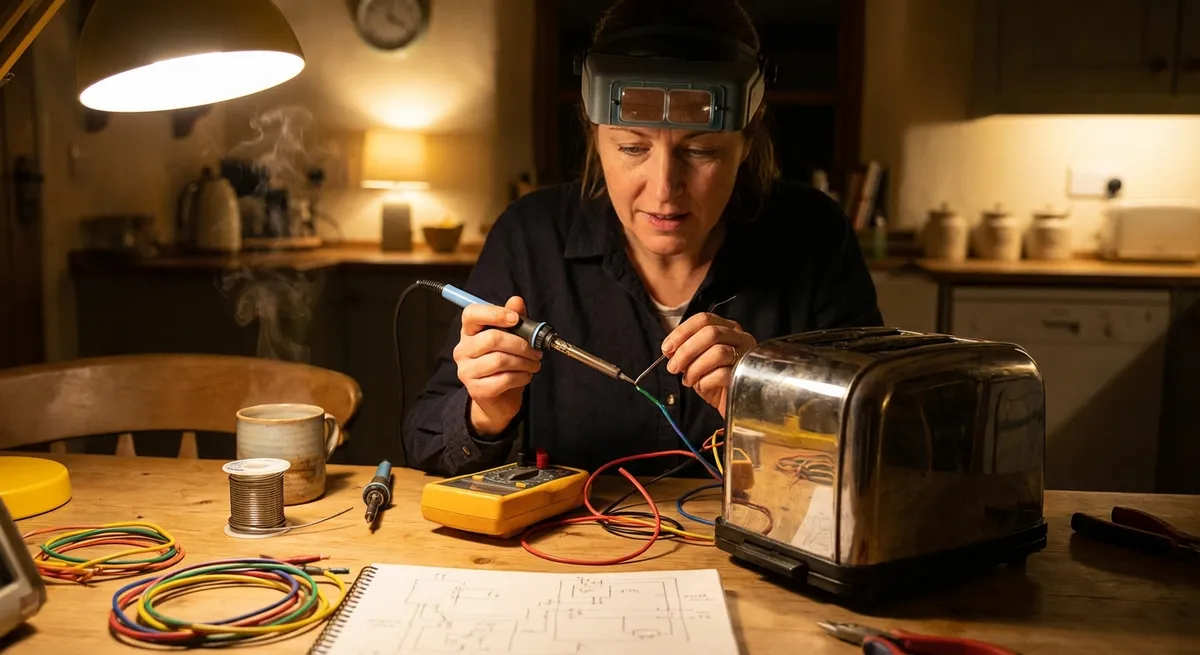
Not every electronic problem needs a lab bench or expensive tools. A surprising number of “dead” gadgets are suffering from simple, fixable issues: loose connections, bad switches, crusty battery contacts, or a failed power supply. With a bit of patience, a basic toolkit, and the right approach, you can safely bring many devices back to life at home.
This guide walks through five practical, step‑by‑step repair moves that DIY enthusiasts can use across lots of electronics—remote controls, speakers, small amplifiers, monitors, toys, game consoles, and more. The focus is on safe, methodical checks you can repeat on different devices, not just a one‑off fix.
Safety and Setup: Preparing to Work on Electronics
Before you even grab a screwdriver, getting your setup right makes every repair safer and more successful.
Unplug and power down completely
Always disconnect from wall power and remove batteries before opening any device. For anything with large capacitors (TVs, power supplies, microwaves—avoid those if you’re new), allow several minutes for stored charge to dissipate. Never work on something that’s powered unless you truly understand live‑circuit safety.
Create a clean, static‑safe workspace
Work on a table with good lighting. Avoid carpets (static) and food or drinks (spills). If possible, use an anti‑static mat and wrist strap, especially with laptops, game consoles, and PC components. If you don’t have one, at least touch a grounded metal object (like a PC case that’s plugged in but switched off at the PSU) before handling circuit boards.
Organize screws and small parts
Use a magnetic tray, ice cube tray, or labeled cups to separate screws by location. Take photos at each step with your phone so you can reverse the process. Many failed DIY repairs aren’t electronic problems—they’re “where did this screw go?” problems.
Gather a basic electronics toolkit
At minimum, keep on hand: - Small Phillips and flat screwdrivers - Precision screwdriver set - Plastic spudger or guitar pick (for plastic clips) - Needle‑nose pliers and tweezers - Isopropyl alcohol (90%+), cotton swabs, soft brush - Multimeter (even a basic one) - Electrical tape and heat‑shrink assortment
Know your limits
Avoid opening high‑voltage gear (microwave ovens, CRT TVs, certain power supplies) if you’re not trained. Burning smell, melted plastic, swollen capacitors in AC‑powered devices—those might be better handed to a professional.
Step‑By‑Step Tip 1: Revive “Dead” Devices with Smart Power Checks
Many “it just won’t turn on” complaints come down to power issues you can diagnose quickly and safely.
Confirm the outlet and power strip actually work
Test the outlet with another device you know is good. If you’re using a power strip, try plugging straight into the wall. Sometimes, the “failed device” is really a tripped strip or bad extension cord.
Inspect the power cord, plug, and adapter
Look for kinks, cuts, or fraying in the cable. Flex the cord gently while plugged in (device off) and watch whether the power LED flickers—that’s a classic sign of a broken conductor near the plug or strain relief. If the cord is separate (like many laptop chargers or monitors), try a compatible known‑good cable or adapter if you have one.
Use a multimeter to test the power adapter
Set your multimeter to DC voltage. Check the label on the adapter for the expected output (for example, “Output: 12V DC, 2A”). Then: - Touch the black probe to the outer barrel (negative) - Touch the red probe to the inner pin (positive) - Compare the reading to the label; if it’s far off or zero, the adapter is likely dead
Check power switches and inline fuses
Many devices have hidden or rear power switches in addition to a front soft‑power button. Make sure everything is ON. Some electronics (amps, some speakers, older gear) have a small fuse near the power plug. Power off, unplug, carefully remove the fuse, and visually check if the filament is blown. Replace with the exact same rating only.
Power cycle and reset logic‑based devices
For game consoles, routers, streaming boxes, and smart speakers: - Unplug from power - Wait 30–60 seconds - Hold the power button (if accessible) for 10–15 seconds to help discharge internal circuits - Reconnect and power on This clears many “frozen” states that look like hardware failure but aren’t.
This simple power workflow can save you from buying a new device when the real culprit is a $10 adapter or a tripped strip.
Step‑By‑Step Tip 2: Fix Unresponsive Buttons and Keypads
Remote controls, game controllers, microwave keypads, and many handhelds fail because their buttons stop making good contact—not because the whole board is dead.
Start with fresh, properly oriented batteries
Weak batteries can cause intermittent or half‑working buttons. Replace all batteries as a set and confirm polarity (+/−) matches the diagram. Clean any visible corrosion (see the next section on corrosion repair).
Open the device carefully, watching for hidden clips
Remove visible screws first, often hidden under labels, rubber feet, or battery covers. For snap‑fit cases, slide a plastic spudger or guitar pick along the seam; avoid metal tools that can gouge plastic or short components.
Document the button layout before disassembly
Take a clear photo of the keypad and board. Rubber domes, conductive pads, and tiny springs can shift or fall out. Your photo is your map for reassembly.
Clean the contacts that sit under the buttons
Most button assemblies use conductive rubber touching carbon or metal pads on the PCB. Over time, skin oils and dust reduce conductivity. To clean: - Lightly dampen a cotton swab with isopropyl alcohol - Gently wipe the black pads on the PCB - Gently wipe the underside of the rubber buttons or domes - Let everything dry completely (a few minutes)
Check for worn conductive pads and repair if needed
If certain buttons still don’t work after cleaning, the conductive coating on the rubber pad may be worn out. You can: - Rotate or swap similar rubber domes if the design allows - Use a keypad repair kit (conductive paint or stickers) to restore contact Apply repairs sparingly and let them cure fully according to the kit’s instructions.
Reassemble and test before closing fully
For remotes and controllers, install batteries and gently hold the case halves together with tape while testing the buttons. If everything works, screw it back together. If not, reopen and check whether a dome or spring shifted.
This simple cleaning and contact‑restoring process can turn a “dead” remote or controller into a like‑new device in under an hour.
Step‑By‑Step Tip 3: Rescue Battery Compartments from Corrosion
Leaked batteries are a common reason electronic toys, flashlights, remotes, and even some audio devices fail. The corrosion looks scary but is often reversible if you act carefully.
Work in a ventilated area and protect your eyes and hands
Wear disposable gloves and, ideally, safety glasses. Battery leak residue can be irritating. Avoid breathing dust and never blow on corrosion (you don’t want it airborne).
Identify the type of leakage
Most household alkaline batteries (AA/AAA/C/D) leak a whitish, crusty powder. This is alkaline, not acid. Small button cells and some rechargeables can leak different chemistries, but your main concerns are: - Don’t touch your face or eyes - Don’t mix cleaning chemicals (no bleach, no random combos)
Remove batteries and loose debris
Carefully remove the old batteries and put them in a plastic bag for proper recycling (many hardware or electronics stores accept them). Gently tap or brush away loose powder into a disposable container—do not use your bare hands.
Neutralize and clean metal contacts
For alkaline leaks (most common household batteries), you can neutralize with a mild acid such as white vinegar or lemon juice: - Dampen a cotton swab with vinegar or lemon juice (do not soak the device) - Dab the corroded metal contacts; you may see some fizzing - Use a fresh swab to lift away loosened corrosion - Follow up with a swab dipped in isopropyl alcohol to remove moisture and residue Let the compartment dry thoroughly.
Repair or rebuild damaged contacts
If the metal is eaten away but not completely gone, you can often: - Gently scrape to shiny metal with a small file or fine sandpaper - Bend slightly to restore good spring tension If a contact is completely destroyed, you can sometimes: - Fabricate a new contact from thin brass or copper sheet - Use conductive adhesive or carefully solder a new piece (only if you’re experienced and the plastic housing can handle the heat)
Install fresh batteries and test
After drying, insert new batteries and test the device. If it still doesn’t power up, check for corrosion that traveled onto the PCB; that may require more detailed cleaning or professional repair.
Properly cleaned battery compartments often restore full functionality—and save a device from the trash.
Step‑By‑Step Tip 4: Quiet Noisy Electronics with Better Connections
Crackling speakers, intermittently charging phones, glitchy headphones, and flickering screens often share a root cause: bad connections. You can fix many of these without advanced tools.
Inspect and clean external jacks and plugs
Audio jacks, charging ports, and HDMI/USB connectors collect dust, pocket lint, and oxidation. With the device powered off: - Use a wooden toothpick to gently remove lint or debris (especially in phone charging ports) - Lightly dampen a cotton swab with isopropyl alcohol and clean metal surfaces of plugs (not inside tiny ports directly) - For larger jacks (1/4″ audio, some DC barrels), you can very carefully clean inside with a slightly dampened, trimmed swab
Test cables and ports systematically
Swap cables: if the noise or dropout follows the cable to another device, the cable is likely bad. If the problem stays with a specific port or device regardless of cable, the internal connector or solder joints may be failing.
Check for loose connectors inside the device
For powered speakers, game consoles, and some monitors (warranty permitting): - Unplug power - Open the case carefully - Look for ribbon cables or plug‑in connectors - Gently press each connector straight down or in to reseat it Do not pull by the wires; grasp the connector body whenever possible.
Inspect for cracked solder joints on heavily used ports
Ports like headphone jacks, power jacks, and HDMI sockets take mechanical stress. Under magnification or bright light, look where the port’s pins meet the board: - A good joint is smooth and shiny (or evenly matte on newer lead‑free solder) - A cracked joint may show a ring or hairline gap around the pin If you’re comfortable soldering, you can reflow these joints with a fine‑tip iron and a bit of fresh solder. If not, at least you’ve identified the likely problem for a pro.
Secure strain relief to prevent repeat failures
Loose cables that tug on ports cause repeat damage. Use small cable clamps, zip ties, or adhesive anchors to route cables so the connector isn’t bearing the weight or frequent movement.
Many infuriating “it cuts out when I move it” problems disappear once you clean and secure the signal and power paths.
Step‑By‑Step Tip 5: Diagnose Overheating and Silent Cooling Fans
Unexpected shutdowns, loud fan noise, or a hot case are signs your device’s cooling system needs attention. Computers, game consoles, AV receivers, and even some routers rely on fans and heatsinks that clog with dust over time.
Recognize overheating symptoms
Common signs include: - Device runs for a while, then shuts off or restarts - Fans suddenly rev up to high speed and stay there - Case feels unusually hot to the touch - Performance slows under load (thermal throttling on PCs/consoles)
Power down and open ventilation paths
Turn off and unplug the device. Check all vents and grills. Use a soft brush and a vacuum (away from delicate components) to clean exterior vents. Don’t block vents with furniture, blankets, or stacks of paper.
Open the case and gently remove internal dust
For PCs, consoles, and some receivers (warranty depending): - Remove covers according to the manufacturer’s instructions - Use compressed air in short bursts from a distance, keeping the can upright - Hold fan blades still while blowing air; letting them spin can damage the bearings - Focus on heatsinks (metal fins) and filters where dust packs tightly
Check that all fans spin freely
With the device still unplugged, lightly spin each fan with a finger: - Fans should rotate smoothly and quietly - If a fan grinds, feels stiff, or wobbles, it may be failing Plug the device in, power it on briefly, and confirm each fan actually spins (avoid touching moving blades).
Replace failing fans or improve mounting
For PCs, case and CPU/GPU fans are usually fixed with screws and standard connectors. Match the size (e.g., 80mm, 120mm), voltage (typically 12V), and connector type. For consoles and proprietary systems, you may need a specific replacement model. When installing: - Orient fans correctly (intake vs exhaust arrows on the housing) - Tighten screws evenly to avoid vibration and noise - Route cables away from blades
Reassemble and monitor temperatures
After cleaning and/or replacing fans, reassemble and run the device under typical load. You can: - Use system utilities or BIOS/UEFI on PCs to monitor CPU/GPU temps - Observe whether fans now run more quietly and shutdowns disappear
Restored airflow and healthy fans extend the life of your electronics significantly and prevent mysterious, intermittent failures.
Conclusion
Reliable electronics repair isn’t magic—it’s method and patience. When you break problems into repeatable steps—power checks, button and contact cleaning, corrosion cleanup, connection verification, and cooling maintenance—you can rescue a surprising number of “dead” or flaky devices with basic tools.
The more you document, test one change at a time, and respect safety limits, the more confident you’ll become. These five step‑by‑step techniques are a solid foundation you can apply across remotes, speakers, consoles, small amplifiers, laptops, and beyond—saving money, learning useful skills, and keeping good hardware out of the landfill.
Sources
- U.S. Consumer Product Safety Commission – Electrocution and Electric Shock – Safety basics and risks of working with electrical products
- iFixit Repair Guides – Detailed, model‑specific teardown and repair instructions for a wide range of consumer electronics
- Battery University – Alkaline Batteries – Explains alkaline battery behavior, leakage issues, and handling considerations
- Occupational Safety and Health Administration (OSHA) – Controlling Electrical Hazards – Guidance on electrical safety practices relevant to DIY and workplace environments
- Intel – Maintaining and Optimizing System Cooling – Overview of cooling, airflow, and overheating prevention concepts for electronic systems
Key Takeaway
The most important thing to remember from this article is that this information can change how you think about Electronics.



