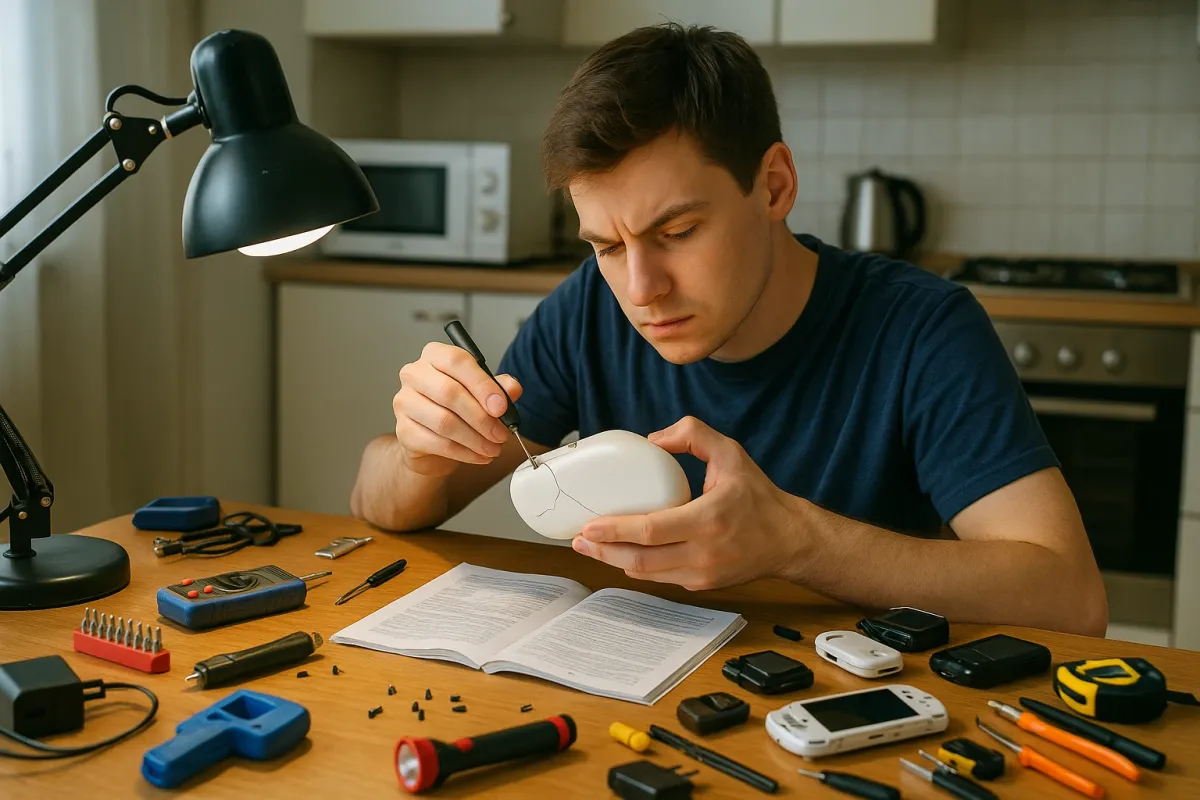
Noticed how “toys under $20” and ultra‑cheap gadgets are everywhere this season? Viral lists and TikToks are packed with budget drones, LED toys, mini speakers, and kid gadgets that look way more expensive than they really are. That’s great for your wallet—until something stops working two days after it lands on your doorstep.
Inspired by the wave of “toys under $20” lists trending right now, this guide is for anyone surrounded by low‑cost electronics that are fun, fragile, and usually not worth sending in for warranty service. The good news: a lot of common failures are simple, safe DIY fixes you can do with basic tools.
Below are 5 step‑by‑step repair tips that apply to many cheap electronics: toys, LED gadgets, remote‑control cars, small speakers, and more.
1. When A Cheap Gadget Won’t Turn On At All
You unbox a new device, press the power button… nothing. This happens constantly with low‑cost electronics—especially toys and mini‑gadgets sold in big-box stores and on Amazon.
Step‑by‑step:
Check the battery orientation carefully
Open the battery cover and confirm every battery matches the + and – symbols. Many inexpensive devices hide the symbols in dark plastic. Use your phone’s flashlight to double‑check.
Clean the battery contacts
Use a cotton swab or a folded paper towel lightly dampened with isopropyl alcohol (70% or higher). Rub the metal contacts inside the compartment. If you see white or green crust (corrosion), gently scrape it with a wooden toothpick before wiping again.
Gently bend the metal springs
Springs often don’t press firmly on the battery. With the device off and batteries removed, use a small flat screwdriver or toothpick to slightly bend the spring or metal tab toward where the battery sits. Don’t over‑bend—just enough so it presses snugly.
Test with fresh, known‑good batteries
Don’t trust the no‑name batteries that came in the box. Swap in fresh, brand‑name cells you know work in another device. If it uses a rechargeable pack, make sure you give it a full first charge (sometimes 2–3 hours) before giving up on it.
Check for a hidden “try me” switch or tab
Display models sometimes have a small plastic “demo” tab that blocks the battery, or an internal switch that needs to be moved from “TRY ME” to “ON.” Look around the battery area and sides for a tiny switch or removable tab.
If it still won’t power up and there’s no obvious damage, the internal power switch or circuit may be faulty—common in ultra‑cheap builds. At that point, if it’s brand new, push for a retailer return rather than trying a deep repair.
2. Fixing Flickering Or Dead LEDs On Budget Toys And Decor
LED light toys, wands, costumes, and cheap “ambience” lights are everywhere in 2025—and they’re notorious for flickering, cutting out, or suddenly losing half their LEDs.
Step‑by‑step:
Rule out loose batteries first
Just like in Section 1, confirm tight, correctly oriented batteries. A small bump can interrupt power and cause random flickers.
Gently flex-test the wire or strip
Turn the device on. Very gently flex sections of the LED strip or the wire that runs from the battery pack. If lights cut in and out at a specific point, you’ve found a weak connection or near‑broken wire.
Open the battery or control housing
If screws are visible, use a precision Phillips screwdriver to open the compartment (only do this on low‑voltage, battery‑powered devices). Take a clear photo before touching anything so you can reassemble later.
Look for cold or cracked solder joints
Under decent light, inspect where wires connect to the small circuit board. Dull, cracked, or ring‑shaped joints can cause intermittent LED function. If you own a soldering iron and are comfortable using it, carefully reflow these joints with a tiny bit of solder. If not, move to the next step.
Secure loose wires without solder (temporary fix)
If you find a wire that moves or seems half‑attached but you can’t solder, press it firmly back into place and add a small piece of electrical tape or a dab of hot glue to hold it against the contact point. This isn’t a perfect electrical repair, but it can restore function in some toys long enough to get good use out of them.
Clean any tiny on/off/mode switch
Flick the small switch back and forth 15–20 times with the power off. Dust or low‑quality contacts can cause poor connection; cycling the switch can scrape them clean enough to work again.
If an entire color of LED is out (for example, red never lights but green and blue do), that’s usually a failed LED channel or resistor on the internal board—often unfixable on ultra‑cheap devices. Use the working modes and dimming to extend life, and consider it a partial win.
3. Restoring Sound On Low‑Cost Bluetooth Speakers And Toys
Mini speakers and kids’ gadgets with sound effects are prime “under $20” buys—and one of the first things to fail is audio: no sound, distorted sound, or very low volume.
Step‑by‑step:
Confirm it’s not just volume or pairing
- Turn the device volume all the way up. - If it’s Bluetooth, forget the device on your phone, then re‑pair it. - Try multiple audio sources (phone, tablet, laptop) and different apps.
Check for a headphone jack stuck in “plugged in” mode
Some toys and speakers have a 3.5mm AUX port. If dust or a broken plug piece is inside, the device may “think” headphones are connected and disable the speaker. Shine a light inside; if you see debris, carefully blow it out with compressed air or gently remove it with a wooden toothpick (never metal).
Clean the speaker grille
Dust, crumbs, and pet hair can block sound. For exposed speakers: - Use a soft brush or clean, dry toothbrush to remove debris. - Use low‑pressure canned air to blow out the grille. - Avoid poking the speaker cone directly—it’s very fragile.
Listen for faint audio
Put your ear right up to the speaker with volume maxed. If you can hear very quiet sound, the speaker is working but something is blocking it or the amplifier is underpowered—often a power or battery issue.
Check and reset the power route
- If it’s battery powered, install fresh batteries or fully charge it. - If it has a built‑in rechargeable battery, plug it into a known‑good USB charger and leave it for 30–60 minutes, then power cycle the device (off, then on). - Some Bluetooth speakers have a tiny reset pinhole. Press with a paperclip for 5–10 seconds if available.
Open and inspect the speaker wires (for DIY‑friendly toys)
If you can safely open the case (battery powered only, no mains wiring), look for: - Two thin wires running to the speaker. - Any wire that looks detached or hanging by a thread. - Wiggle the wires gently with the device on (low volume); if sound cuts in, you’ve found the bad joint. If you can solder, reattach it. If not, you can sometimes sandwich the wire back under its metal tab and hold it in place with a bit of tape or non‑conductive glue as a temporary fix.
If the speaker makes scratching, buzzing, or rattling even at low volume, the driver cone may be torn or misaligned—a common irreversible failure in cheap speakers. Lowering the volume and EQ bass can stretch its remaining life, but replacement is usually the only proper fix.
4. Saving USB‑Charged Gadgets That Suddenly Stop Charging
From rechargeable toys to budget drones, a lot of modern low‑cost electronics use micro‑USB, USB‑C, or magnet‑style charging cables. One drop or twist can make them stop charging entirely.
Step‑by‑step:
Eliminate the obvious weak links
- Try a different USB cable you know works with another device. - Try a different charger brick or USB port. - If it’s a special magnetic cable, confirm all contact points are clean and lining up properly.
Inspect the charging port closely
Use bright light and maybe a phone magnifier: - Look for lint or fluff inside the port. - Check if the center tongue is bent or off‑center. - Make sure there’s no obvious corrosion (green or white deposits).
Clean the port safely
With the device off: - Use a wooden toothpick to very gently lift out lint and dirt. - Follow with a few short bursts of canned air. - Avoid metal tools that can short pins or break components.
Test for “wiggle charging”
Plug in the cable and gently move the connector up/down and side to side: - If the charging light flickers on and off at certain angles, you likely have a loose or cracked solder joint inside the device.
Open and re-seat the charging port (advanced DIY)
Only attempt this on low‑voltage, battery‑powered devices. - Remove screws, carefully split the case. - Take a clear photo of the layout. - Inspect where the USB port meets the board—look for cracked solder on the side legs. - If you can solder, reflow these side joints and anchoring points; they often break from stress.
Use a charging clip or dock workaround
If the port is too damaged to fix but the battery is still accessible inside, some hobbyists attach an external battery holder or clip to charge the internal battery directly (for RC cars and drones). This is only for those comfortable working with batteries and following polarity strictly (+ to +, – to –). If you’re not 100% sure, don’t attempt; stick to warranty/return.
A huge number of “dead” cheap gadgets are really just victims of bad USB ports. A simple cleaning or re‑solder can bring them back for months or years.
5. Bringing Remote‑Control Cars And Drones Back From “No Response”
Remote‑control toys are a big part of today’s budget gift lists. Parents report a common problem: “The car lights up, the controller turns on, but nothing moves.”
Step‑by‑step:
Confirm correct batteries in both devices
- Fresh batteries in the remote and the car/drone. - Watch for mixed brands or half‑used batteries; weak cells often cause just enough power for lights but not for motors or wireless communication.
Re‑pair or resync the controller
Many RC toys need a specific startup sequence: - Turn both devices off. - Turn on the car/drone first, then the remote (or vice versa—check the manual or product page listing). - Look for a small “bind” or “pair” button and hold it for a few seconds. If you no longer have the manual, search the brand and model number online—many guides are posted on manufacturer or retailer pages.
Check for a physical on/off switch on the toy
Some RC cars have both a main power switch and a “demo mode.” Make sure the main power is switched to ON or PLAY, not DEMO.
Inspect the antenna or internal wires
If the device uses 2.4 GHz (common now), there may be a short internal wire taped along the body as an antenna. If it’s broken or torn off the board, range drops to zero. - Open the case carefully (battery powered only). - Look for a loose, single wire not connected to anything. - If you find it detached from a board pad labeled “ANT” or similar and you can solder, reattach it.
Test motors directly (for cars)
With batteries removed and under good light: - Open the car shell to reveal the small motors. - Check that the motor gears aren’t jammed with hair, carpet fibers, or gravel. Clean gently with tweezers. - Spin the wheels by hand; they should move freely. Serious binding can overload the electronics and make the car seem “dead.”
Reset after a crash (for drones)
- Power off the drone, remove the battery for 30 seconds. - Check each propeller for cracks or bends; replace if damaged. - Make sure props are on the correct motors (they’re usually labeled A/B or CW/CCW). - Restart and re‑calibrate if there’s a calibration mode (often holding both sticks down and in, or down and out—again, check your model online).
If you still get lights but no movement or response, the motor driver chip may be burnt—common when wheels or props jam. On cheap boards these chips aren’t realistically replaceable, so that’s where you decide if a replacement toy makes more sense than hours of micro‑repair.
Conclusion
The surge of “under $20” electronics and toys in today’s trending gift lists means more fun in our homes—and more small gadgets heading for the trash when they glitch. Often, they don’t need to. A loose battery contact, dusty speaker, bent USB port, or cracked solder joint is all that stands between “landfill” and “works like new.”
With a basic toolkit, a bit of patience, and the step‑by‑step checks in this guide, you can keep a surprising number of cheap electronics running far longer than their price tag suggests. Fixing them isn’t just good for your budget; it’s good practice for tackling bigger repairs next.
If you’re unsure about a specific gadget, snap a few clear photos of the problem area and get a second opinion from a repair‑savvy friend or community—most issues look a lot less scary once you know what you’re seeing.
Key Takeaway
The most important thing to remember from this article is that following these steps can lead to great results.



